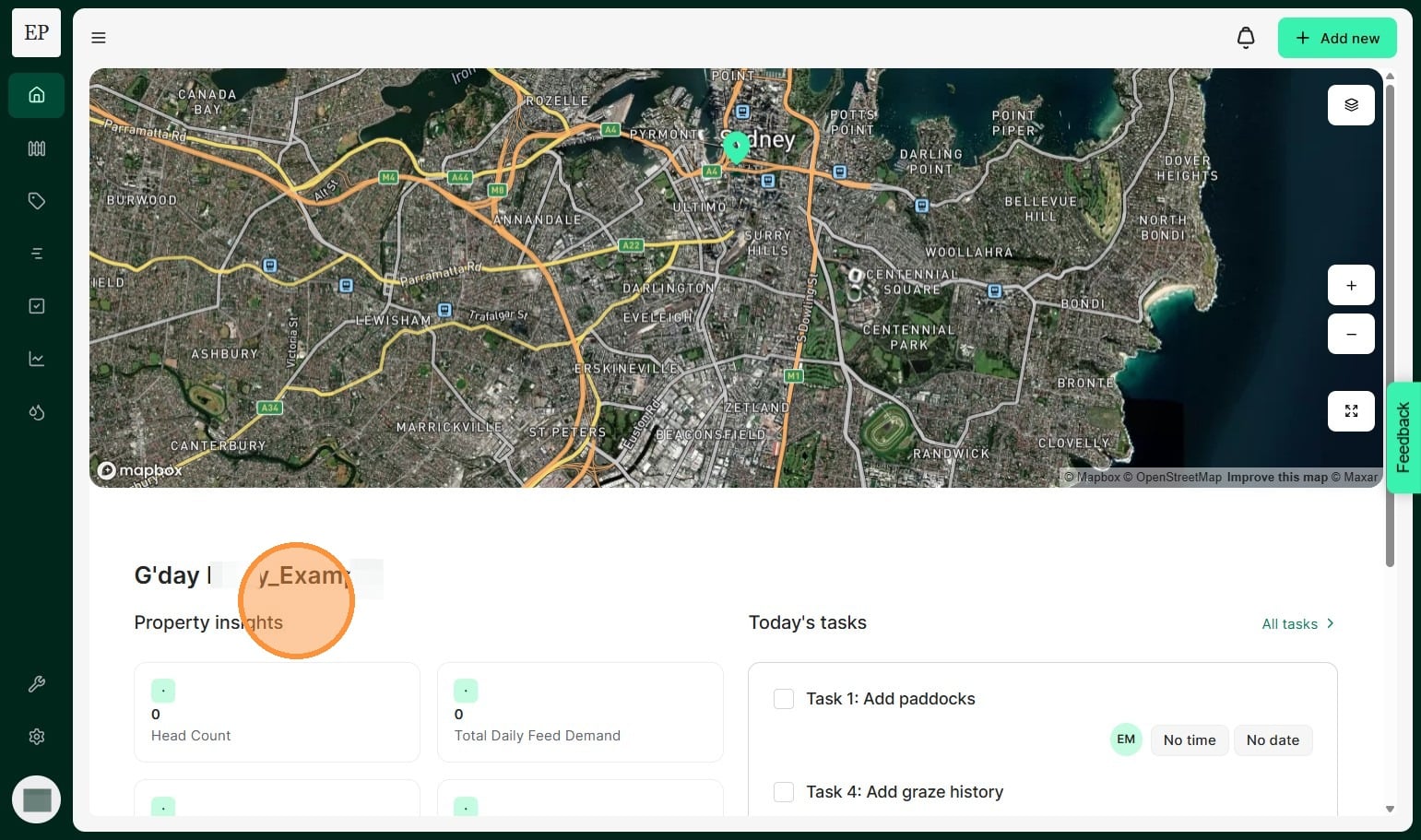
Creating your User Profile, Company, and Property is the first step to configuring you account.
1. Navigate to the Atlas Grazing Login Page
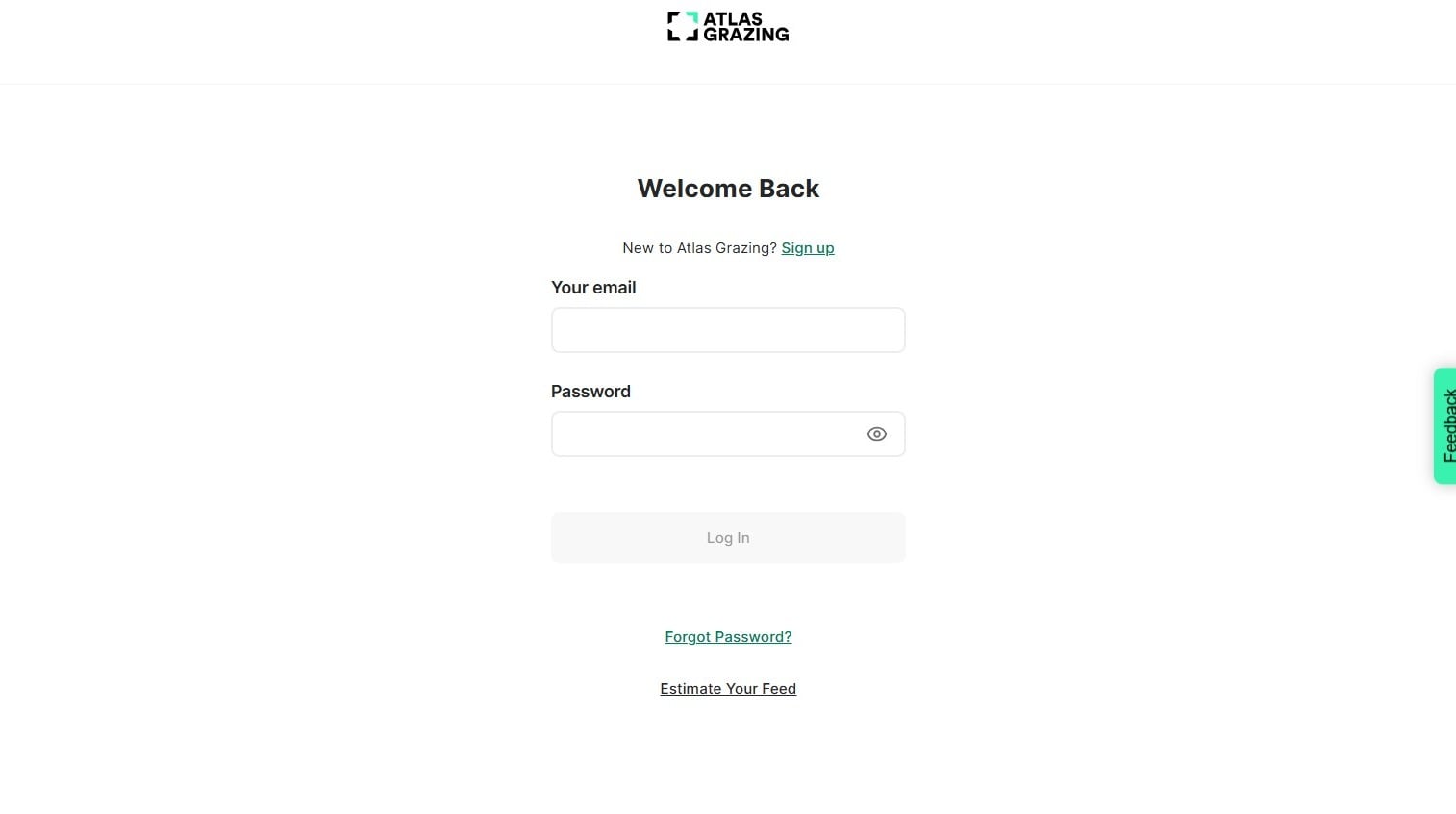
2. Select "Sign up"
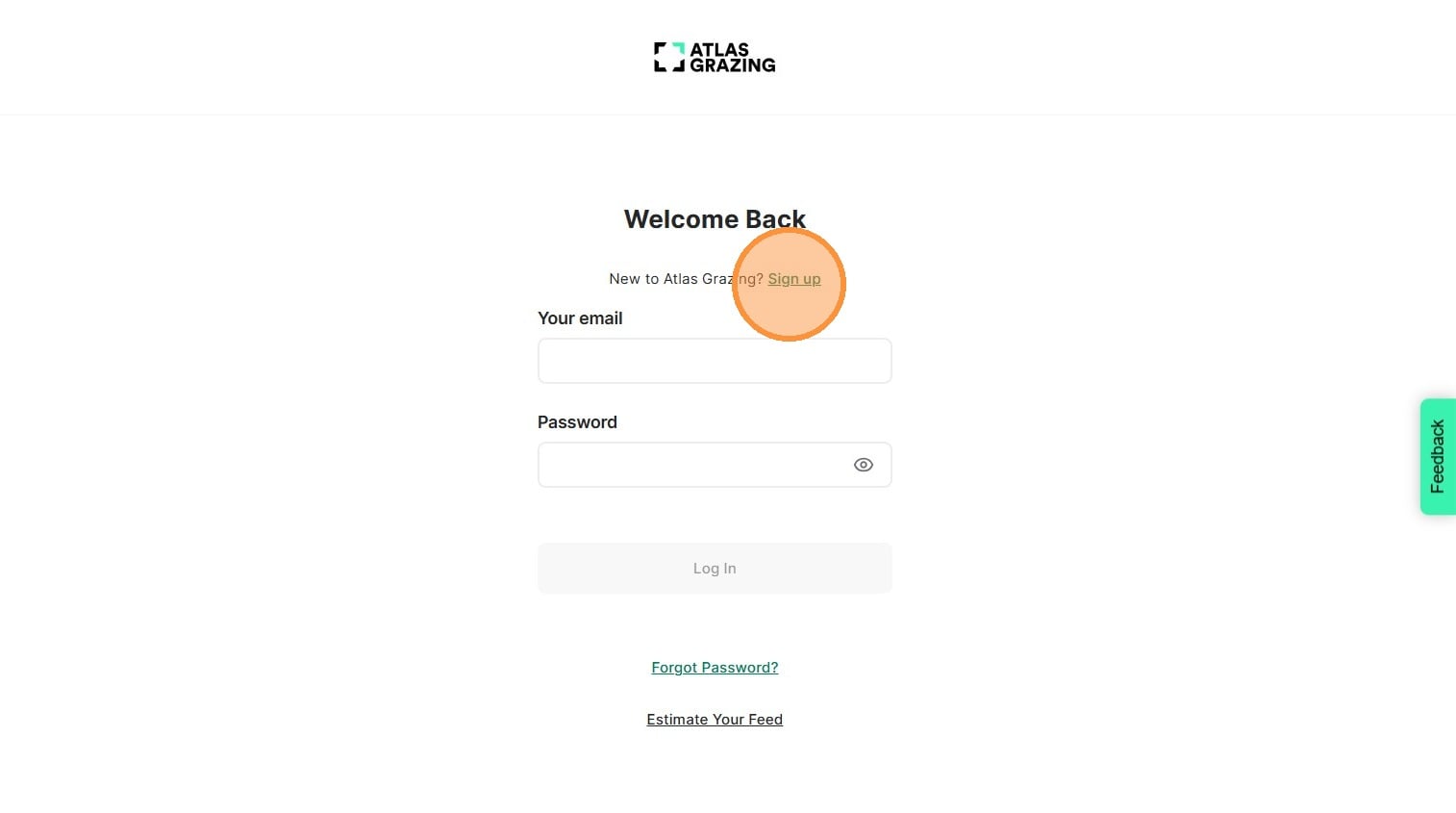
3. Select "Continue"
4. Enter your first and last name.
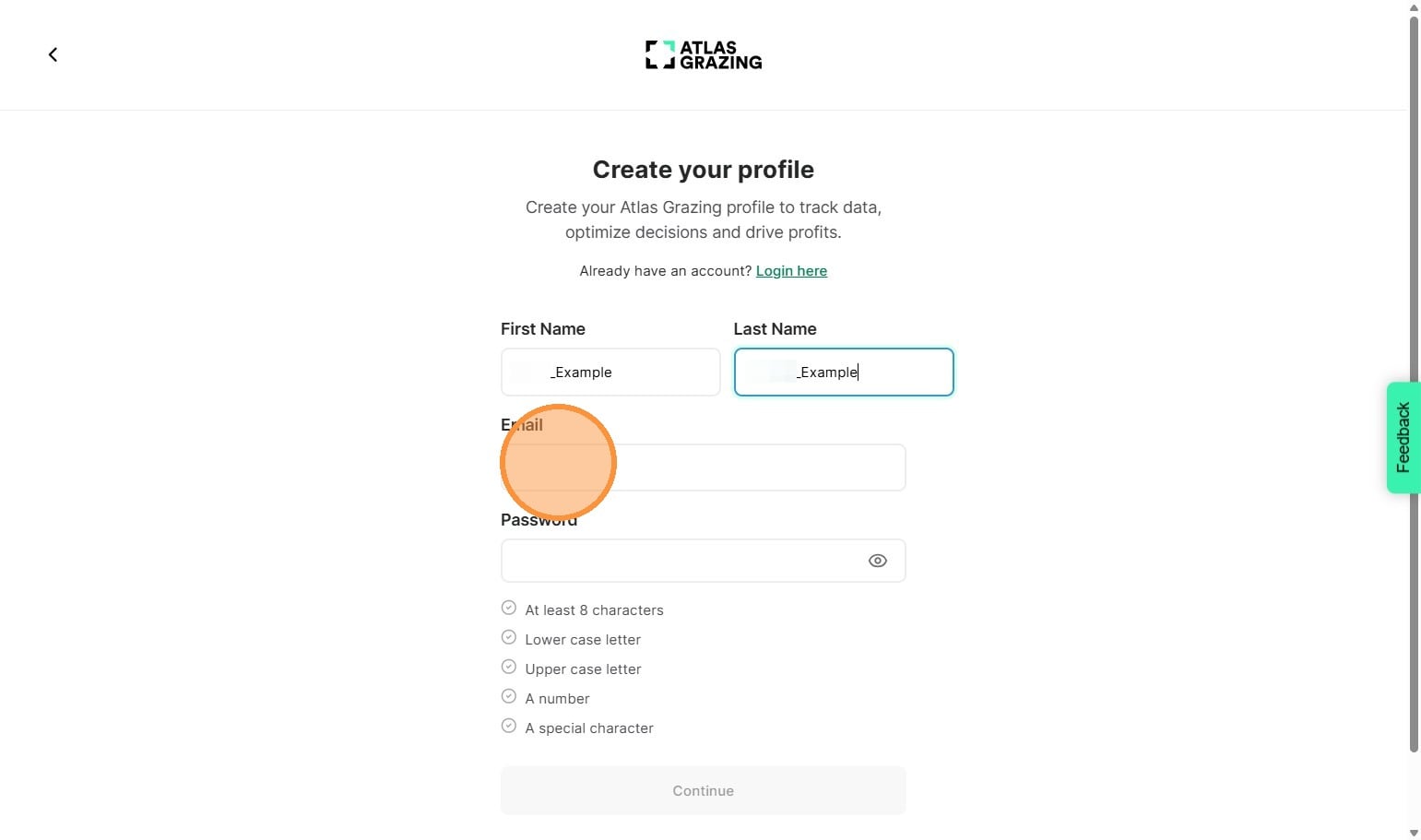
5. Enter your email address.
Note: this will be the primary email associated with your Atlas Grazing account.
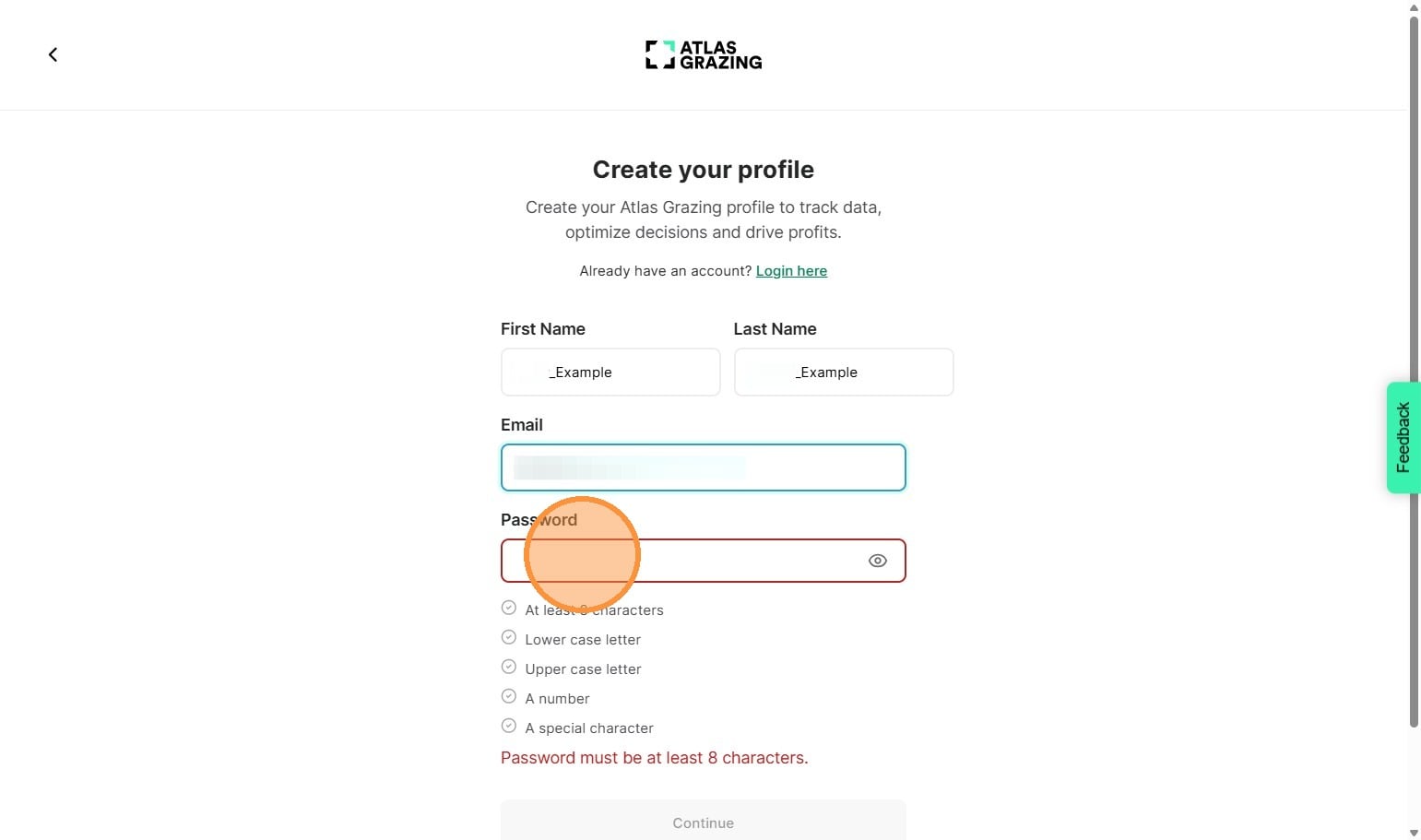
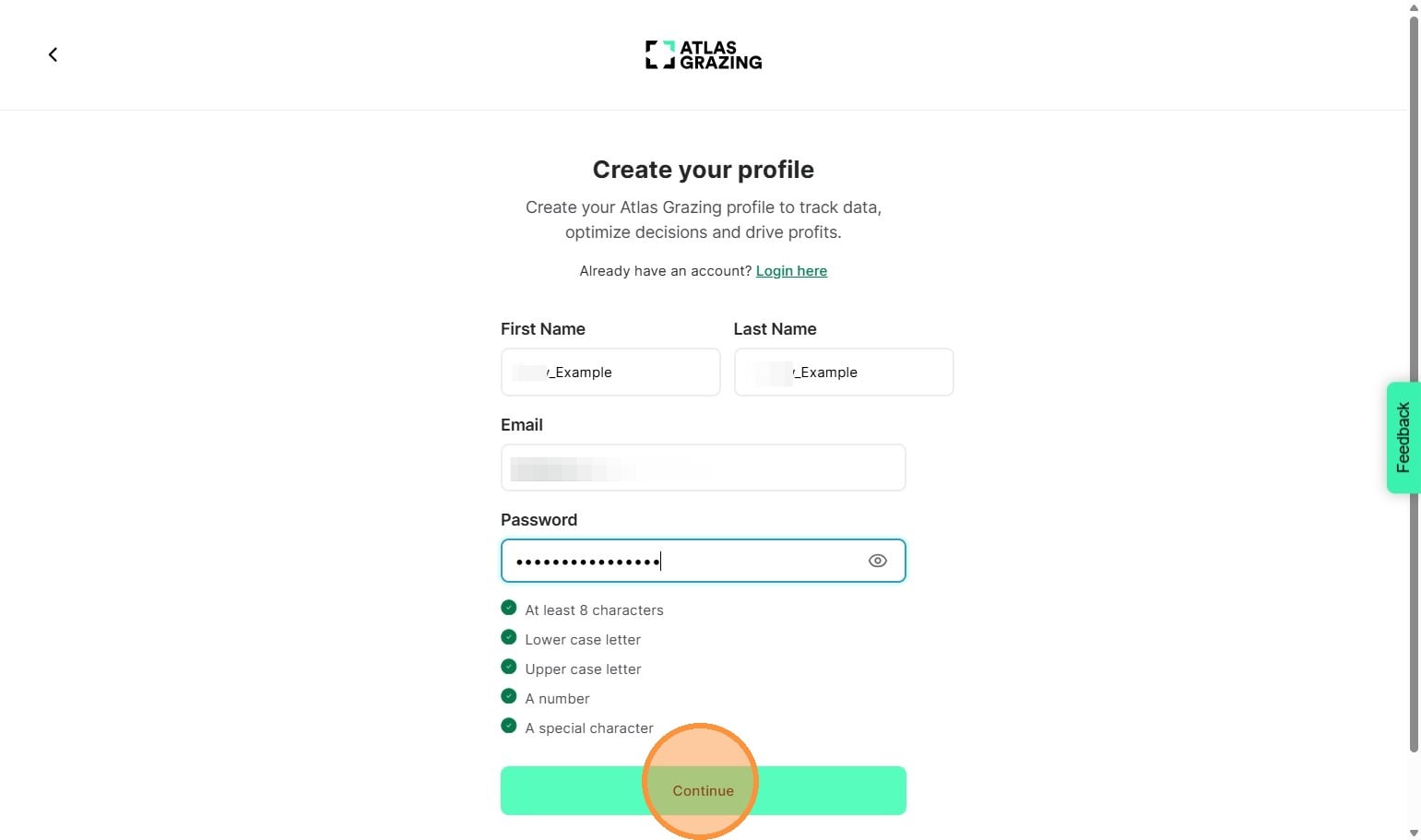
6. Create a new password for Atlas Grazing. Ensure it includes the required characters for security, as shown below the password field. You will not be able to continue unless a satisfactory password has been set.
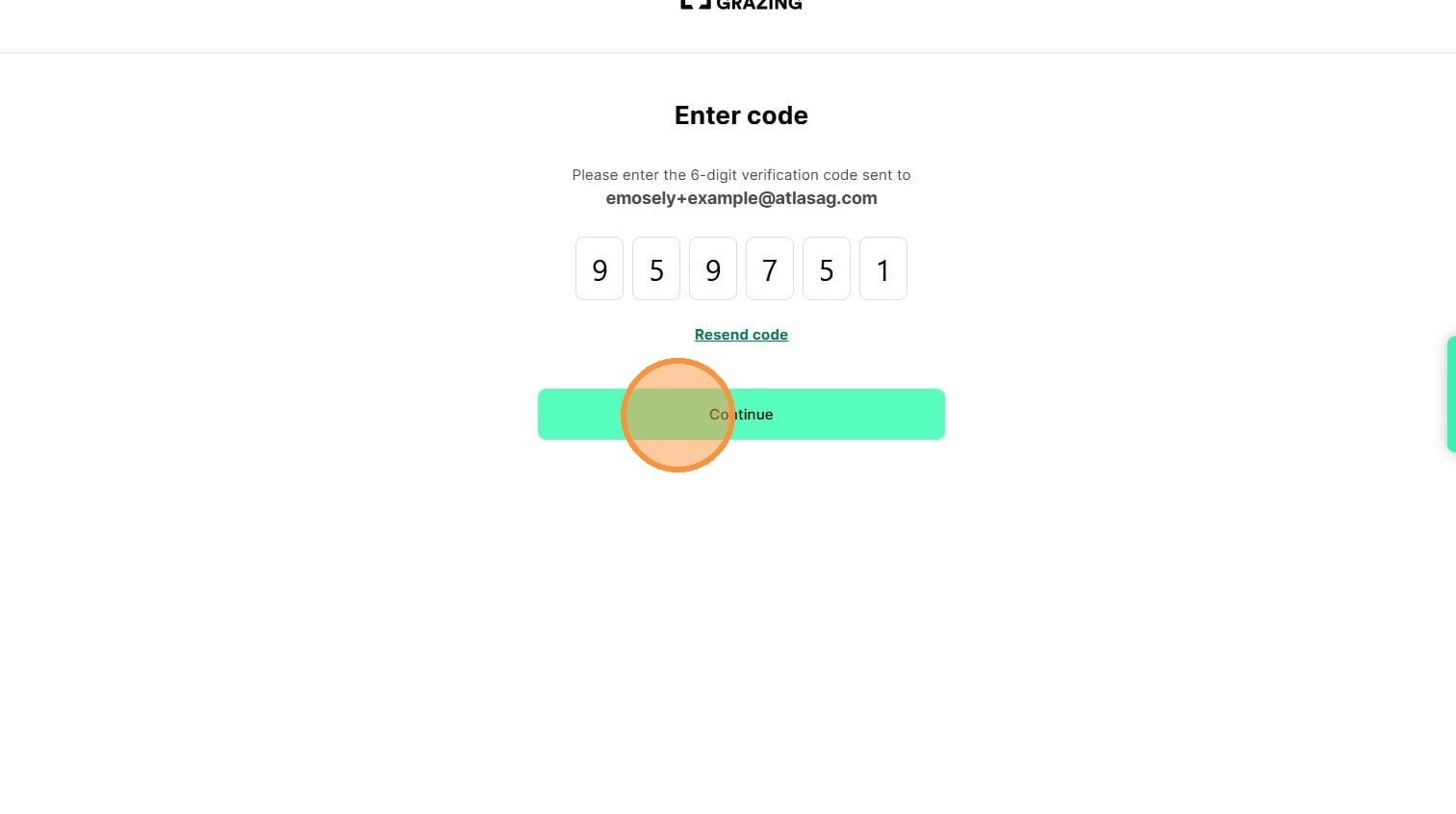
7. You will receive an email to the address used to setup your account. It will contain a 6-digit verification code. Check your junk inbox if you don't receive a notification. Enter the code.
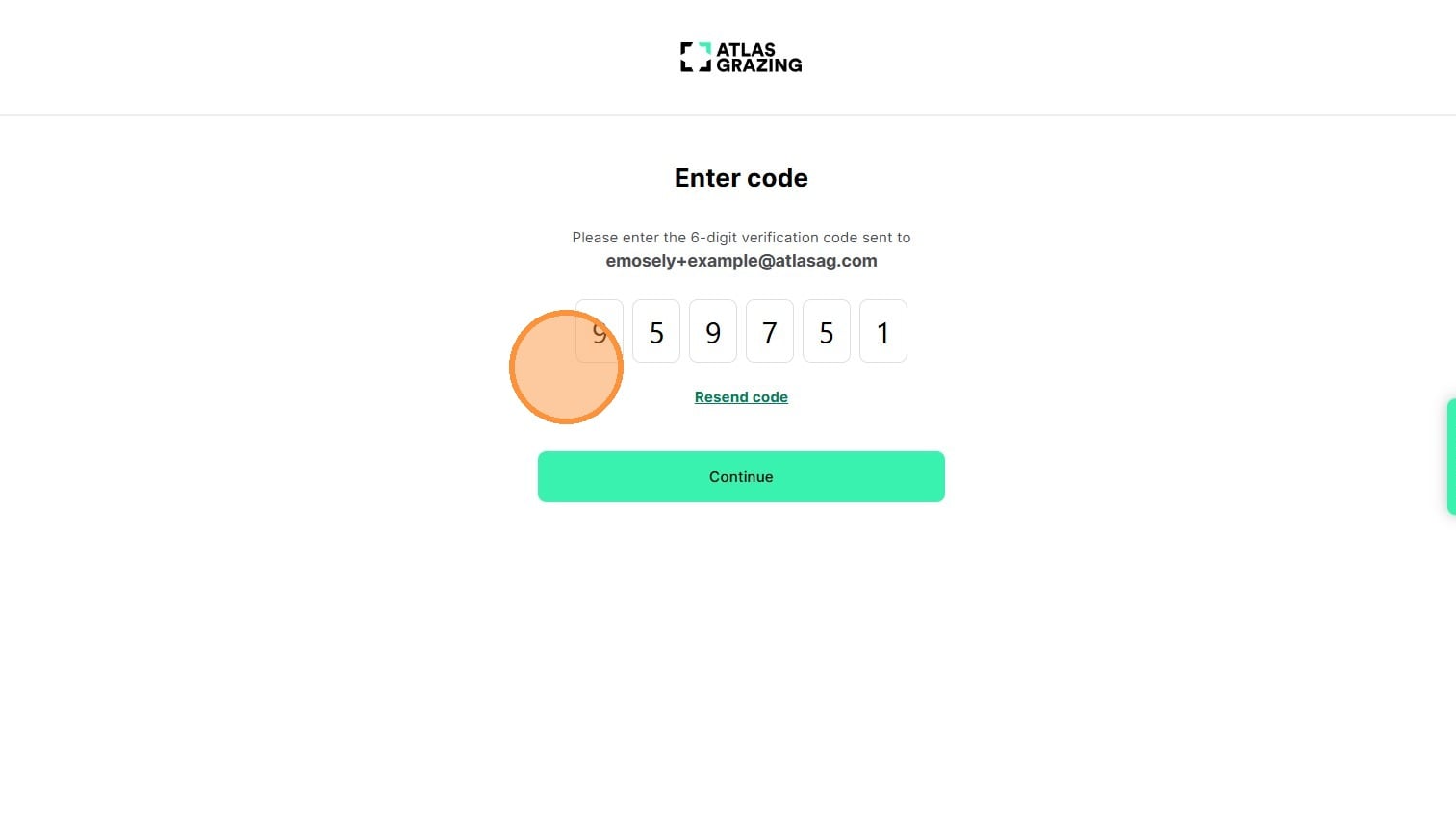
8. Select "Continue"
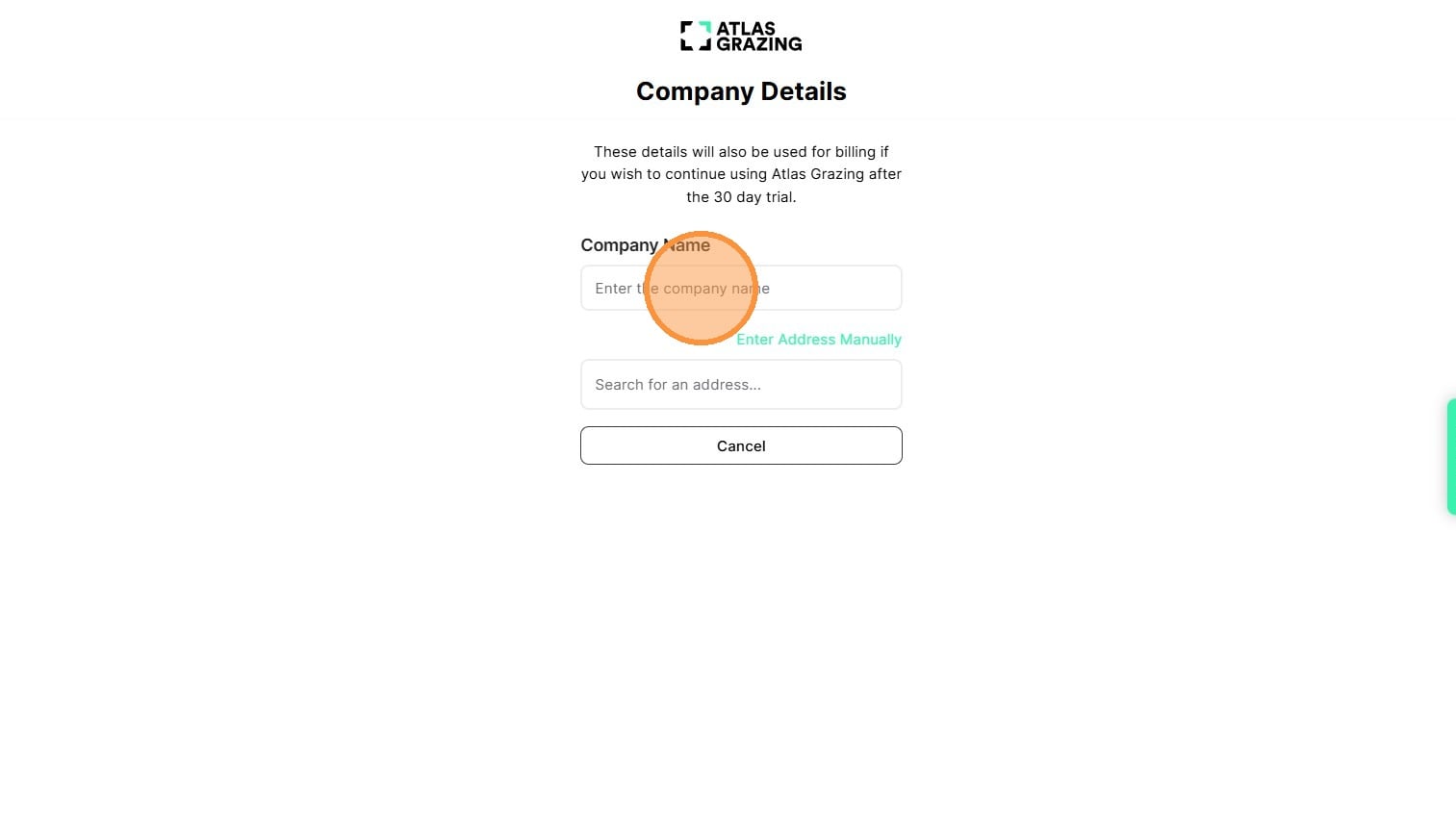
9. Enter your Company Name.
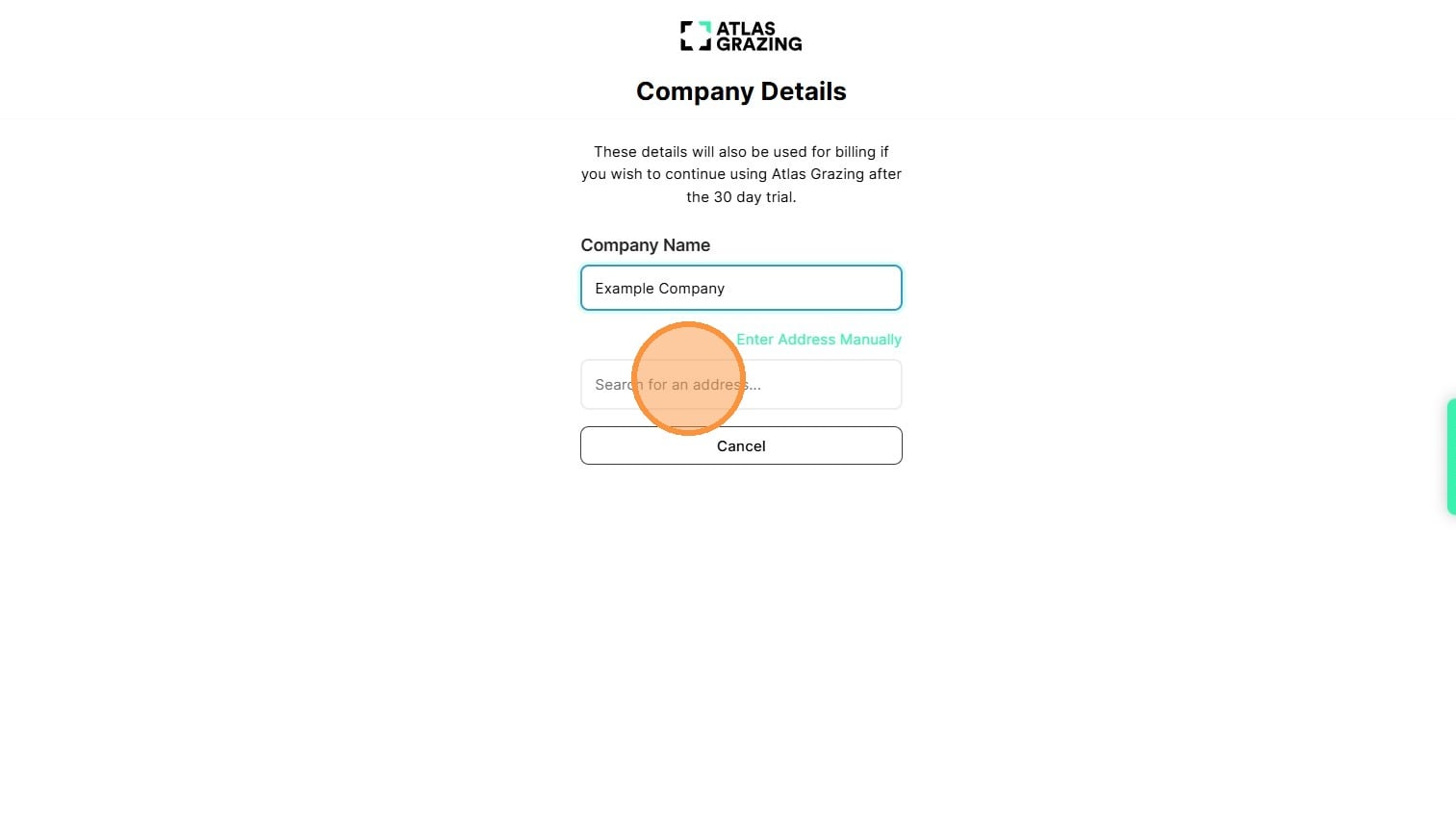
10. Start typing your the Company Address. This is the centralised address for the account, you can setup the property/properties with another unique address if required.
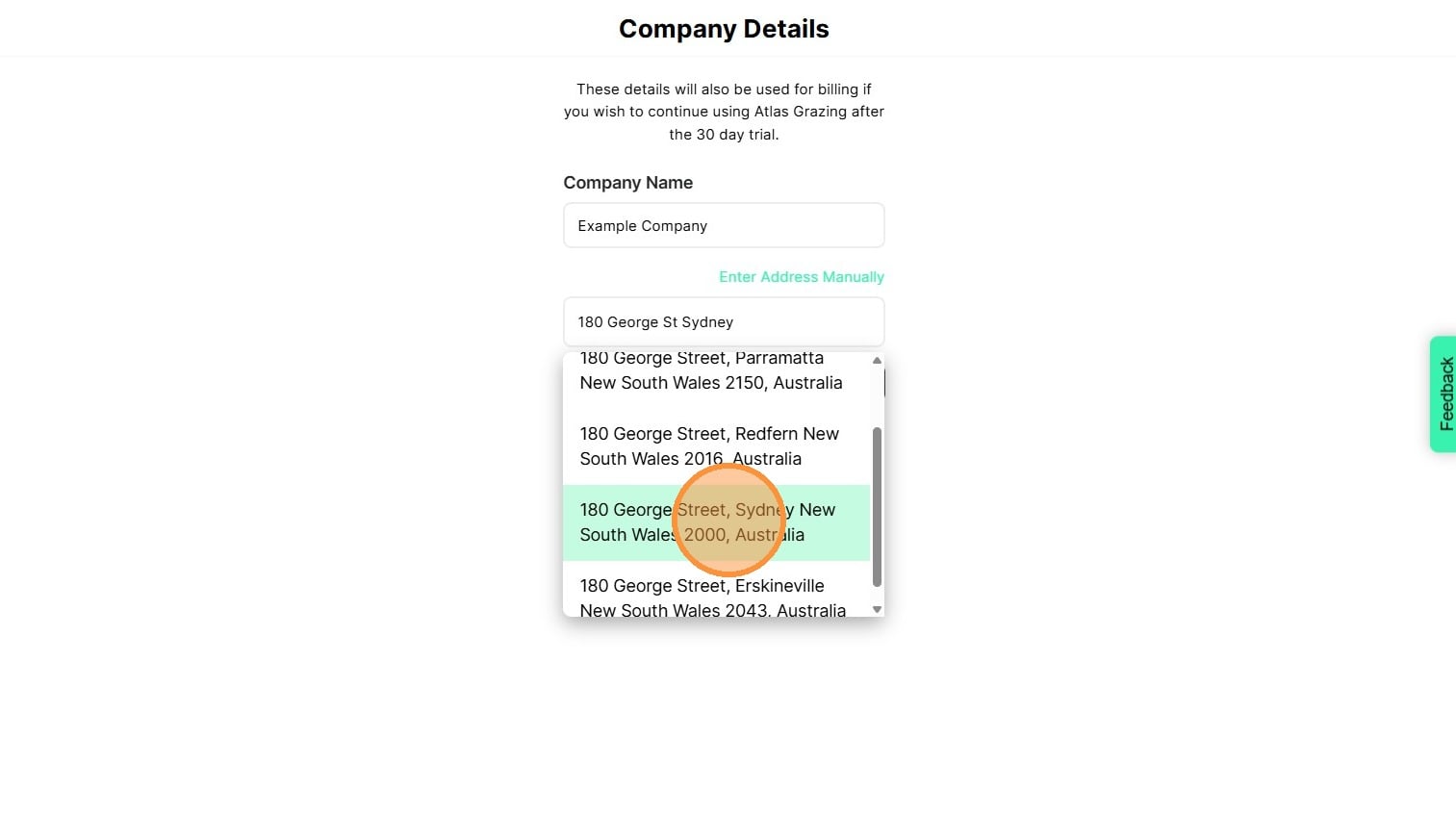
11. Select the correct address from the drop down list. If the correct address does not appear, select "Enter Address Manually" and complete the relevant fields.
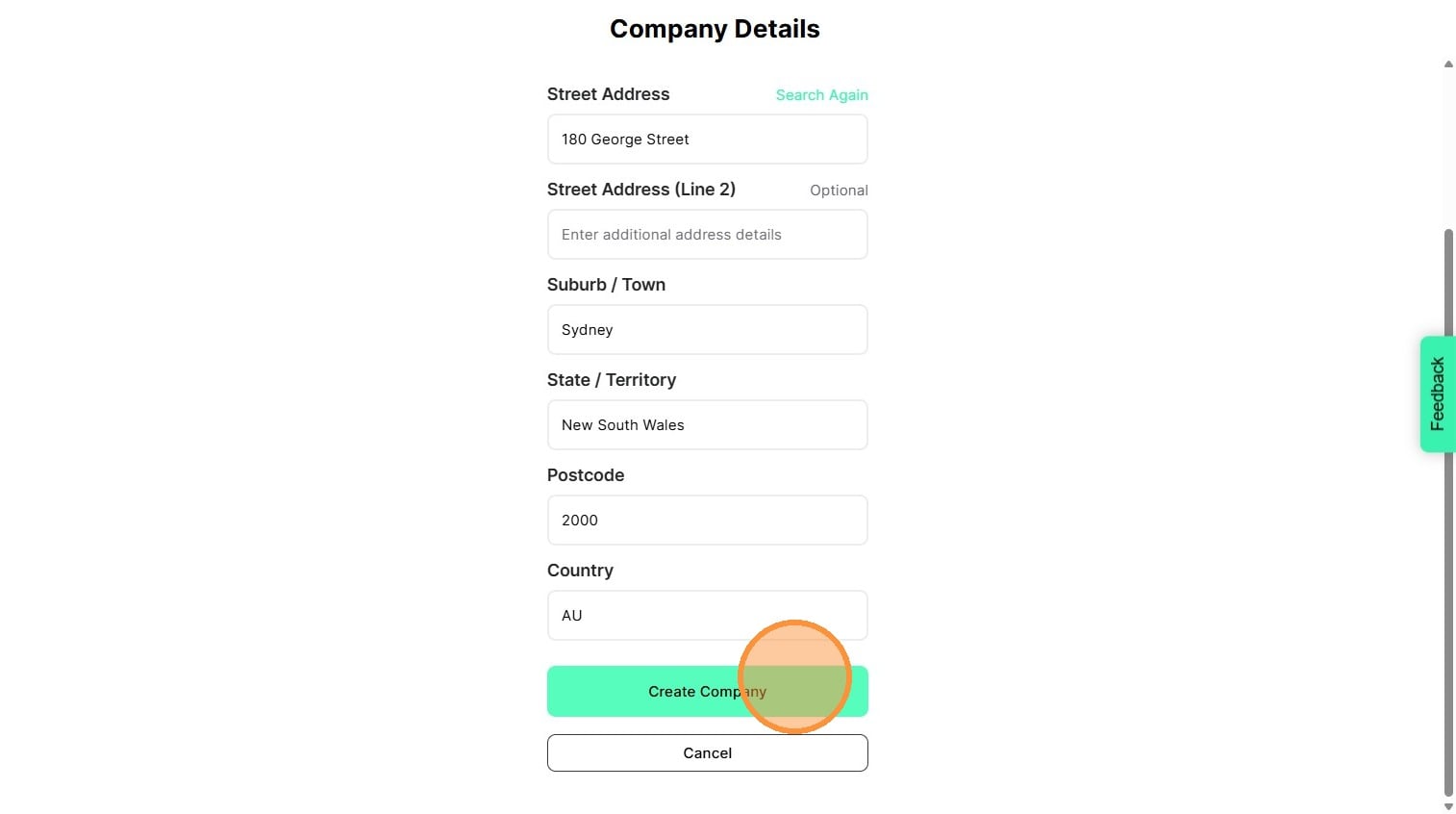
12. Check the address details are correct, edit if required. Click "Create Company"
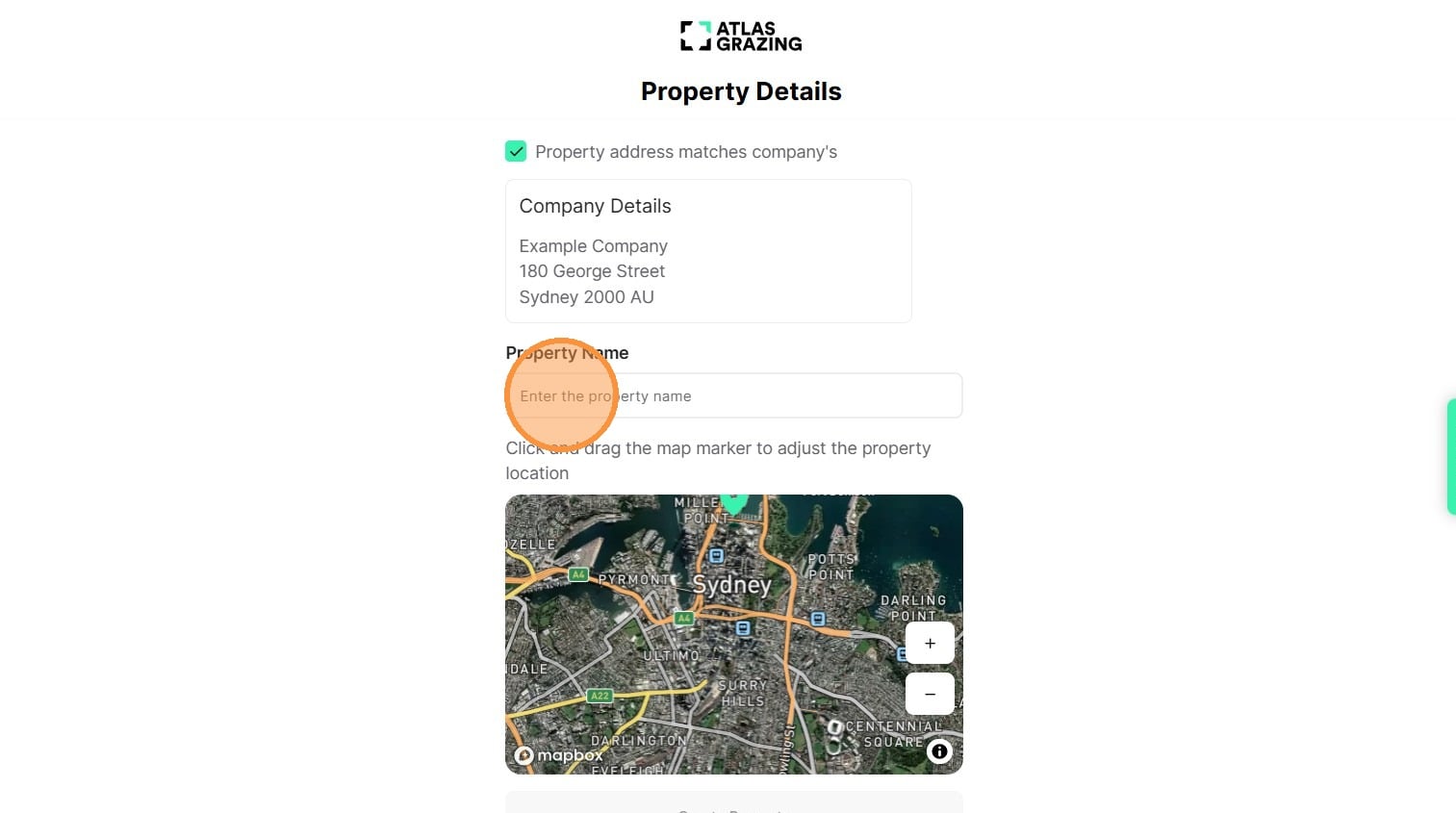
13. Enter the property name. If the property address is different to the company address, untick the box "property address matches company's" and enter the property address in the fields.
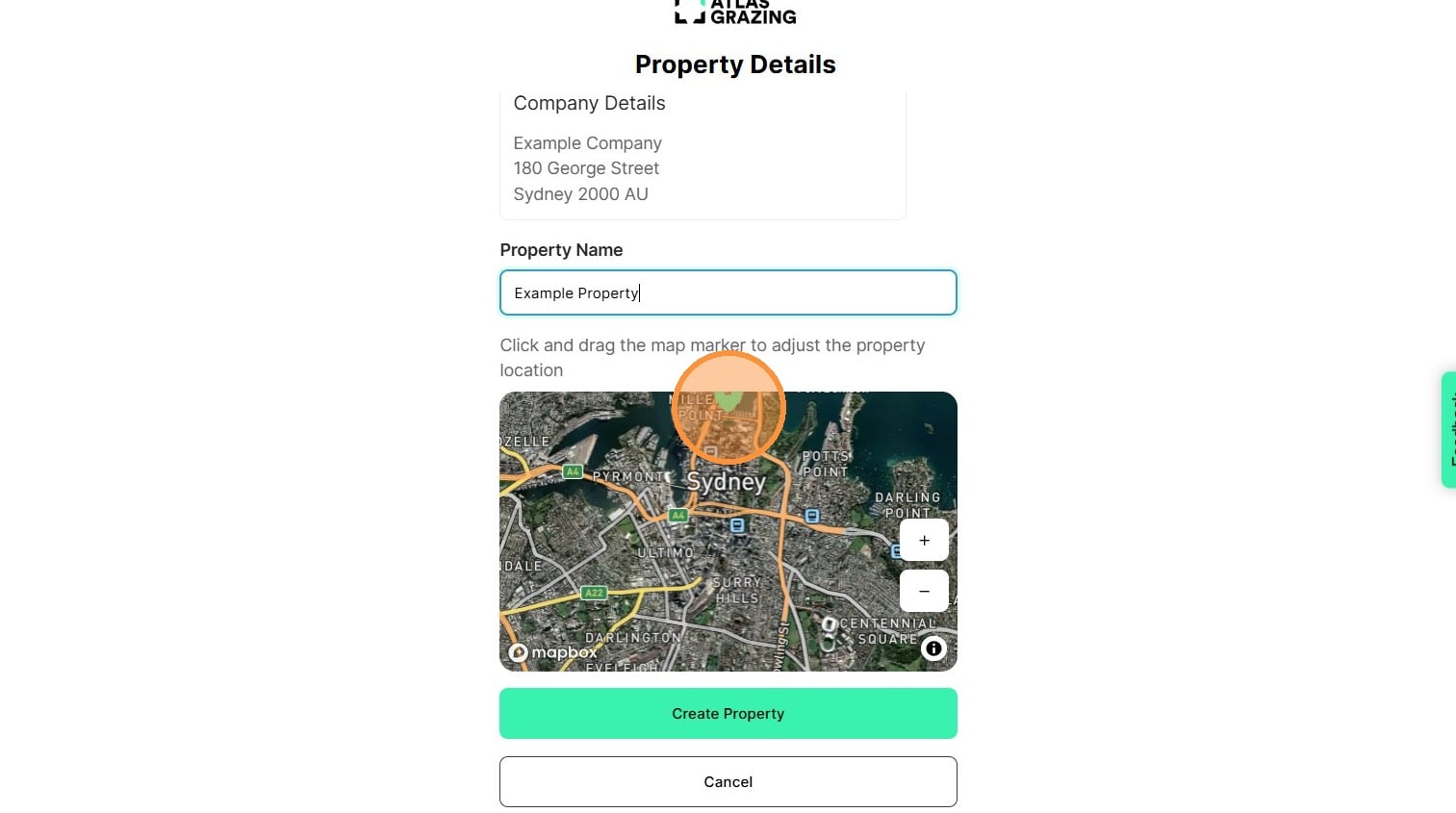
14. Drag the green pin and drop it on the home address of the property. This could be the front gate of the property, the house, yards or another location of your choosing. This becomes the centerpoint where your property map displays in Atlas Grazing.
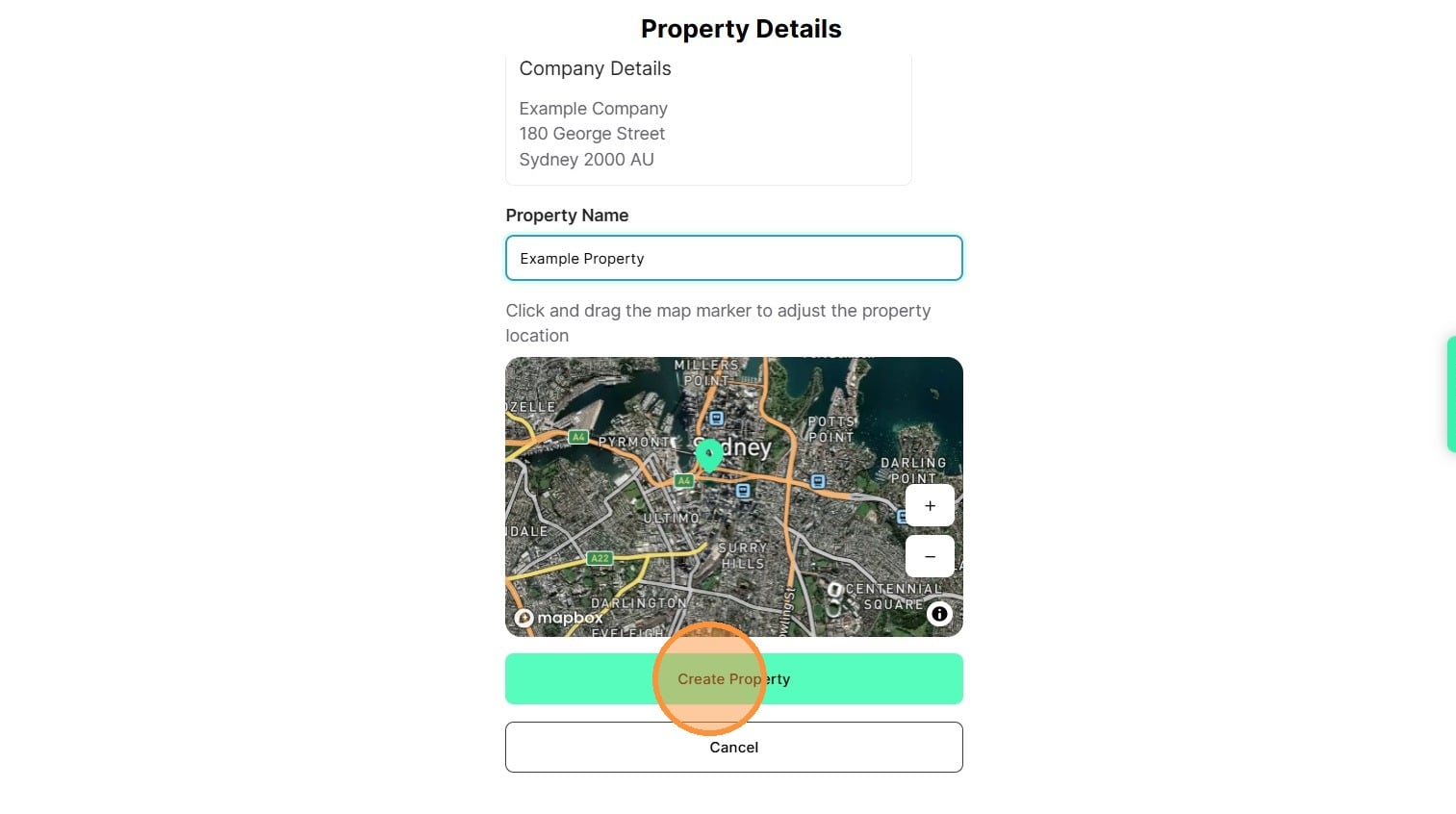
15. Select "Create Property"
16. You have now setup your new Atlas Grazing account!