
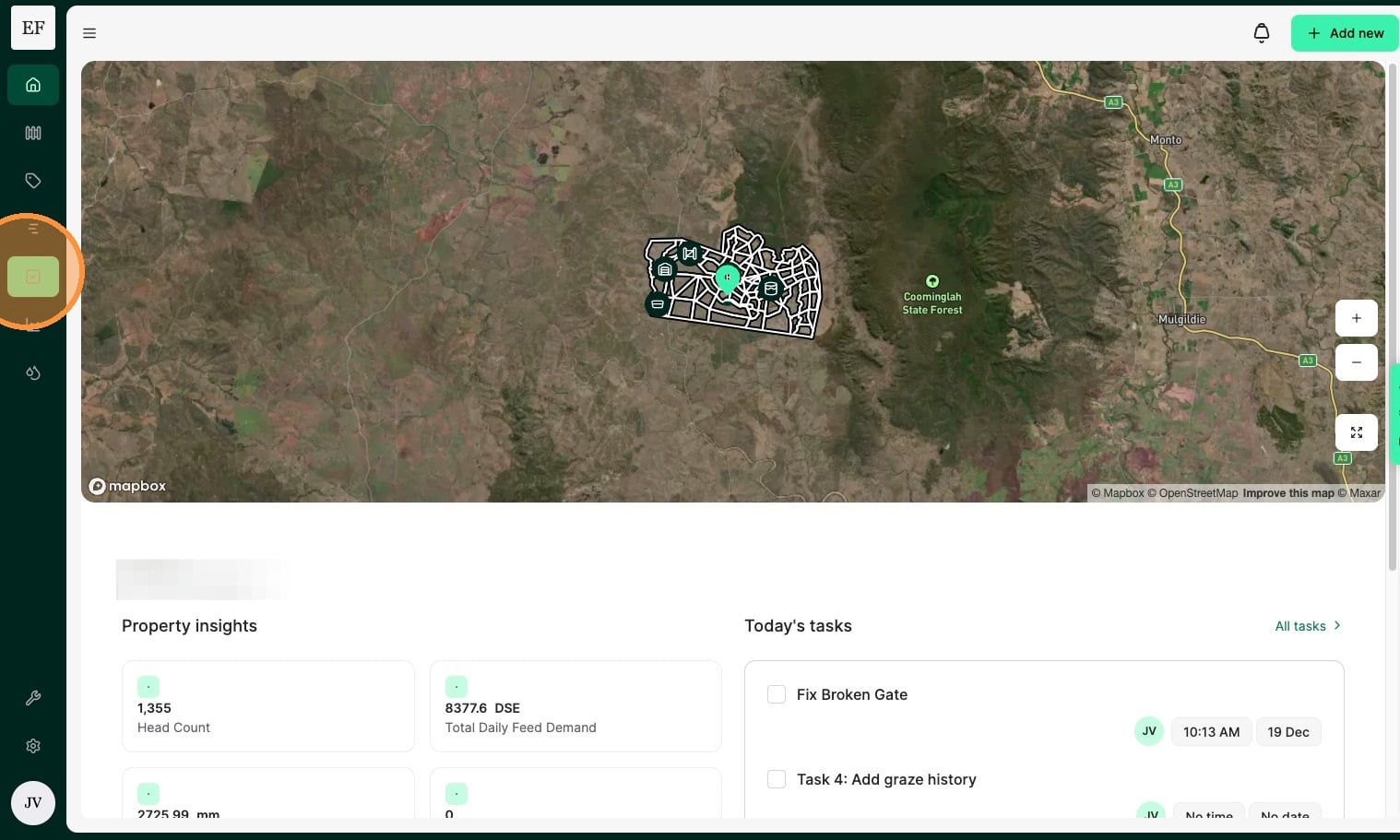
1. From the Home Dashboard select the "Task" icon
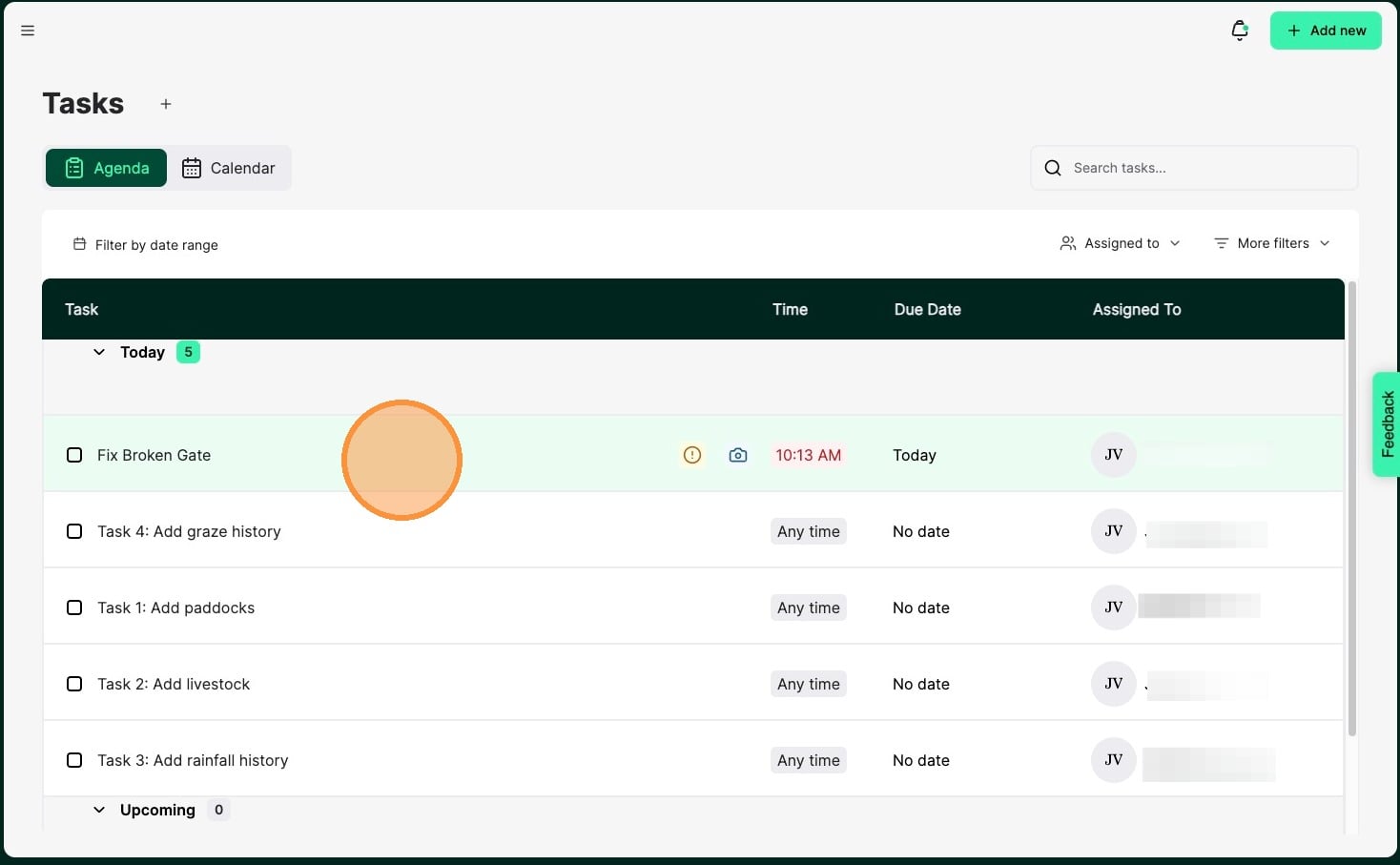
2. Click on the task you are going to complete.
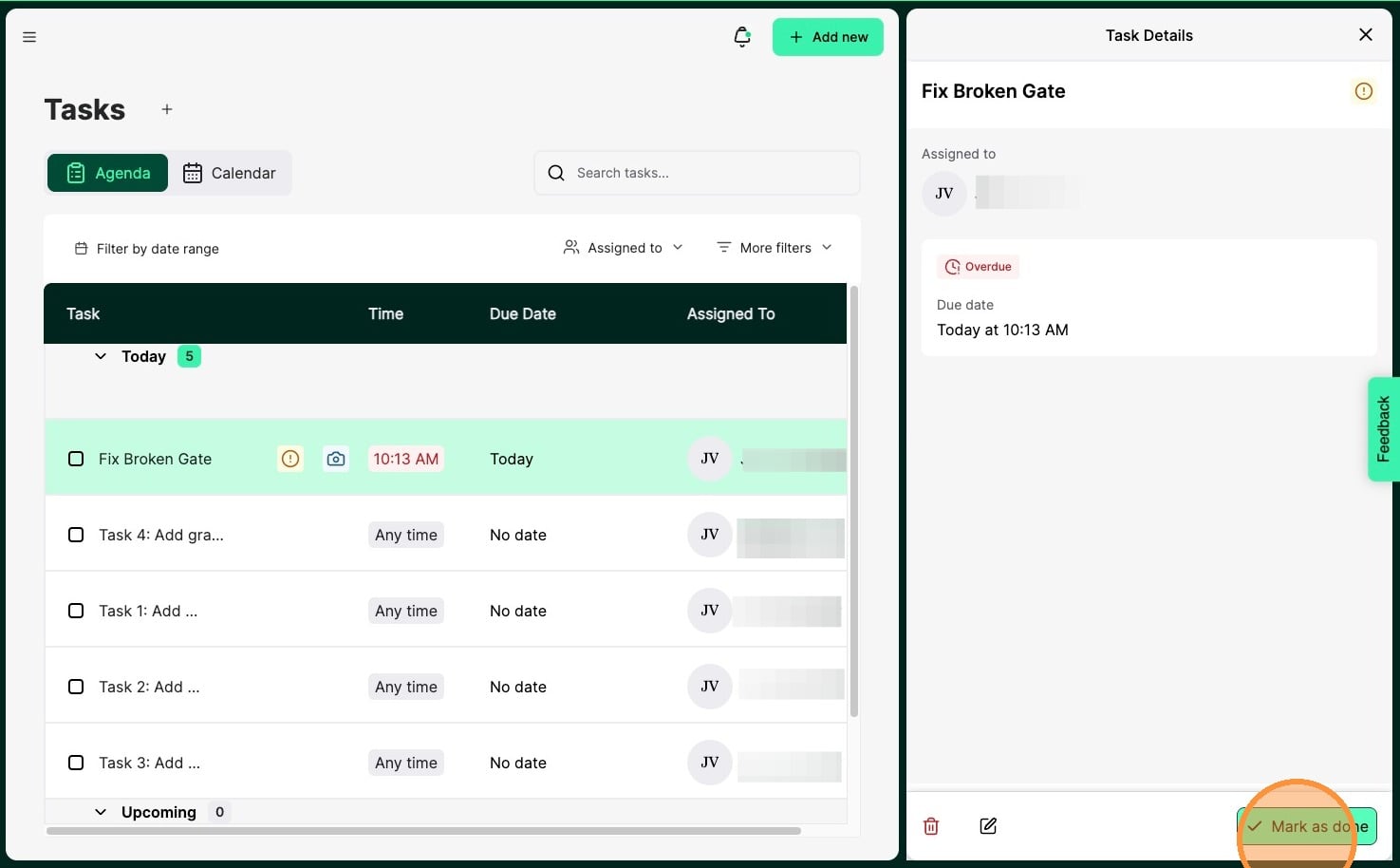
3. Select "Mark as done" to complete the task
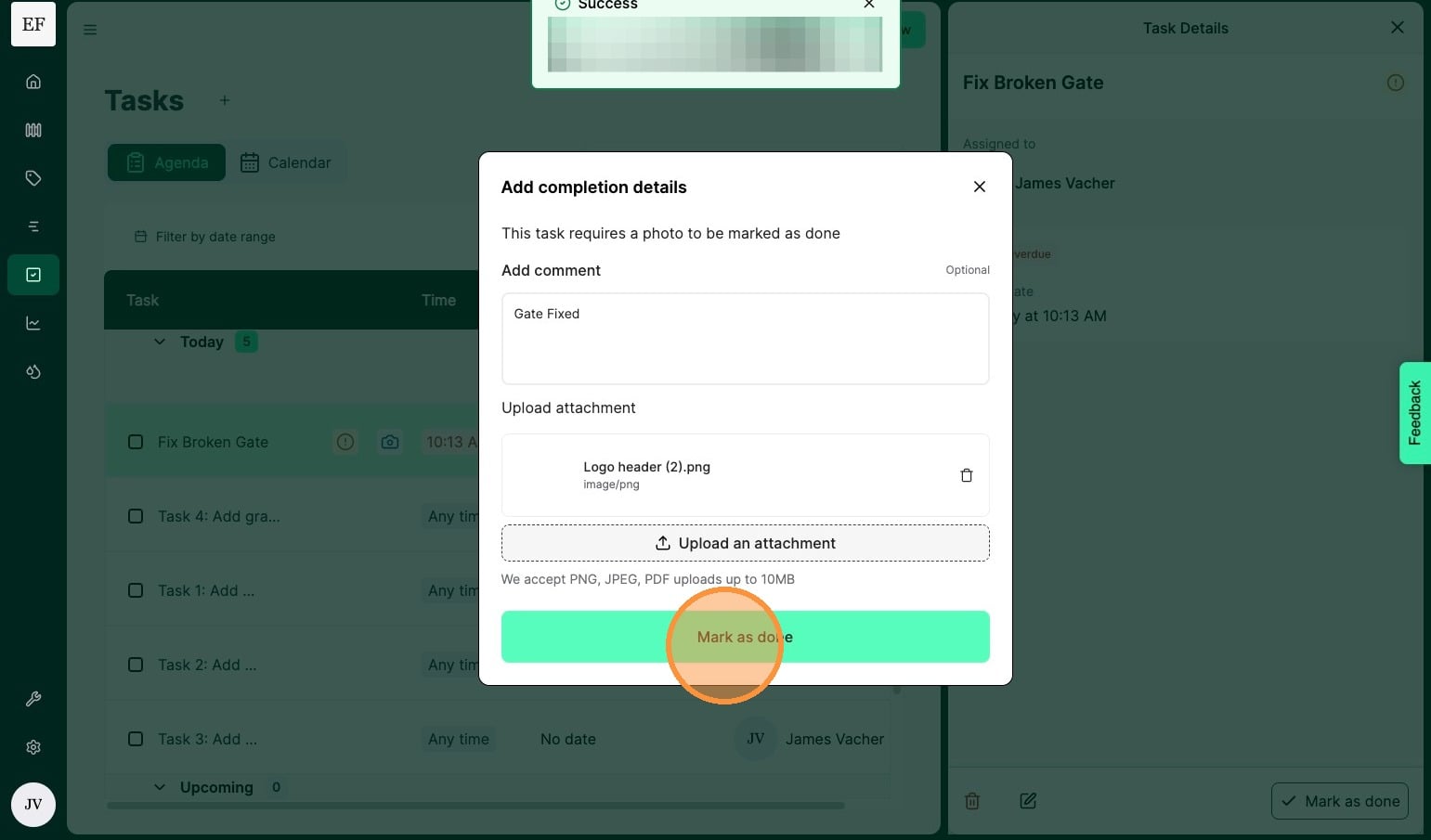
4. If a task requires a photo on completion, The photo attachment becomes a compulsory field. Use the Comments field to add a text comment to the completion of a task.
You can use the comment field without an attachment to advise other team members of things, e.g., the fence was repaired, but another issue was noted and might require review at a later date.
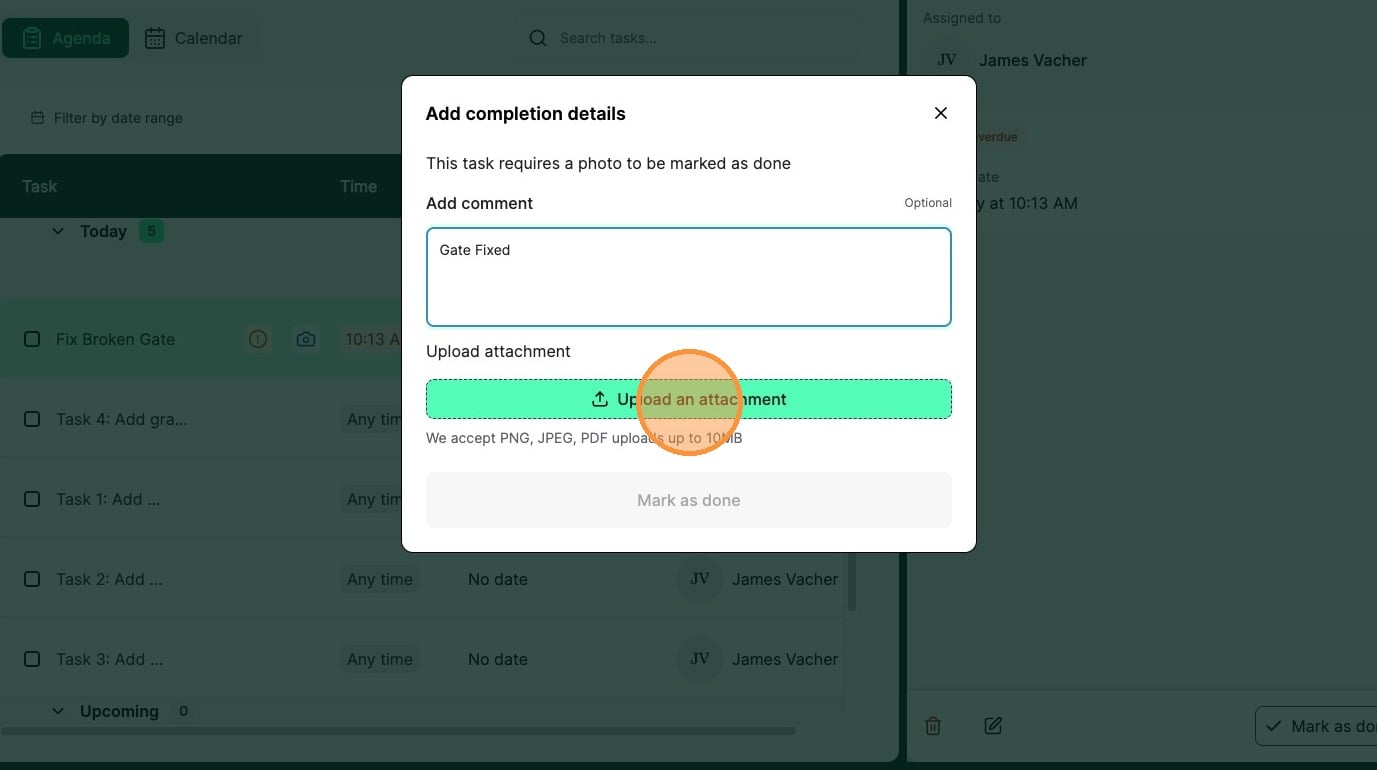
5. Select "Mark as done" to complete task
Note: Tasks, which have been completed can be transitioned backwards to incomplete by clicking into the task and then clicking on the done button