Tip: The Atlas Grazing Graze Planner enables you to visualise your graze history and plan upcoming moves across your property, easily identify patterns of grazing and recovery, and link these to long-term paddock insights. The Graze Chart displays a Graze Bar for each mob that shows the duration of a graze. Interacting with the Graze Bar will show you the Graze Details and the Graze Status: Completed, In Progress or Planned.
The key benefits of using the Graze Planner are:
See where you’ve grazed, what’s recovering, and what’s coming up.
Spot patterns quickly
Line up plans with reality
Learn from past moves
Planned grazes automatically create move tasks
Easy to adjust when plans change
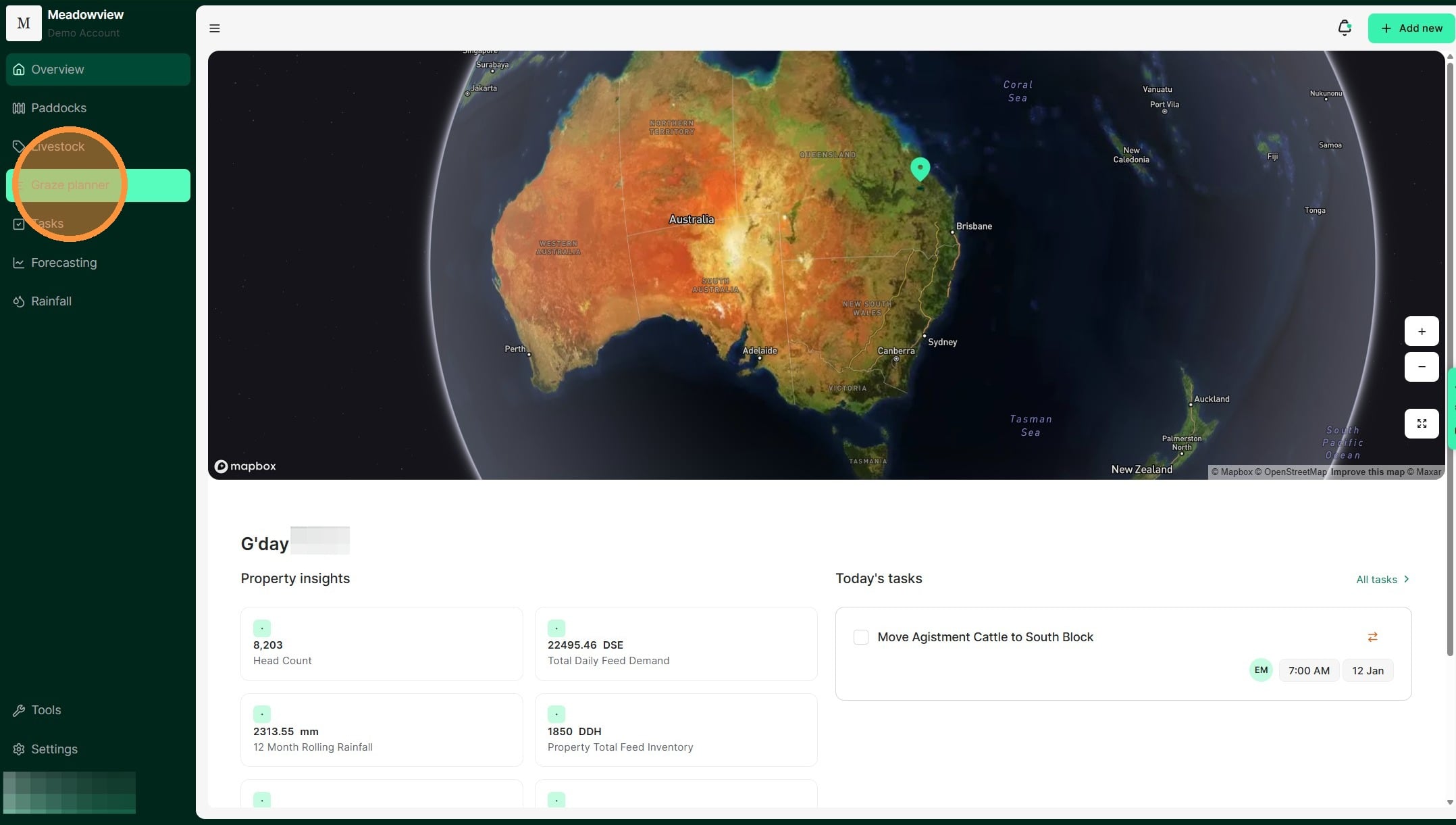
1. From the Home Dashboard, navigate to the "Graze Planner" tab on the side panel.
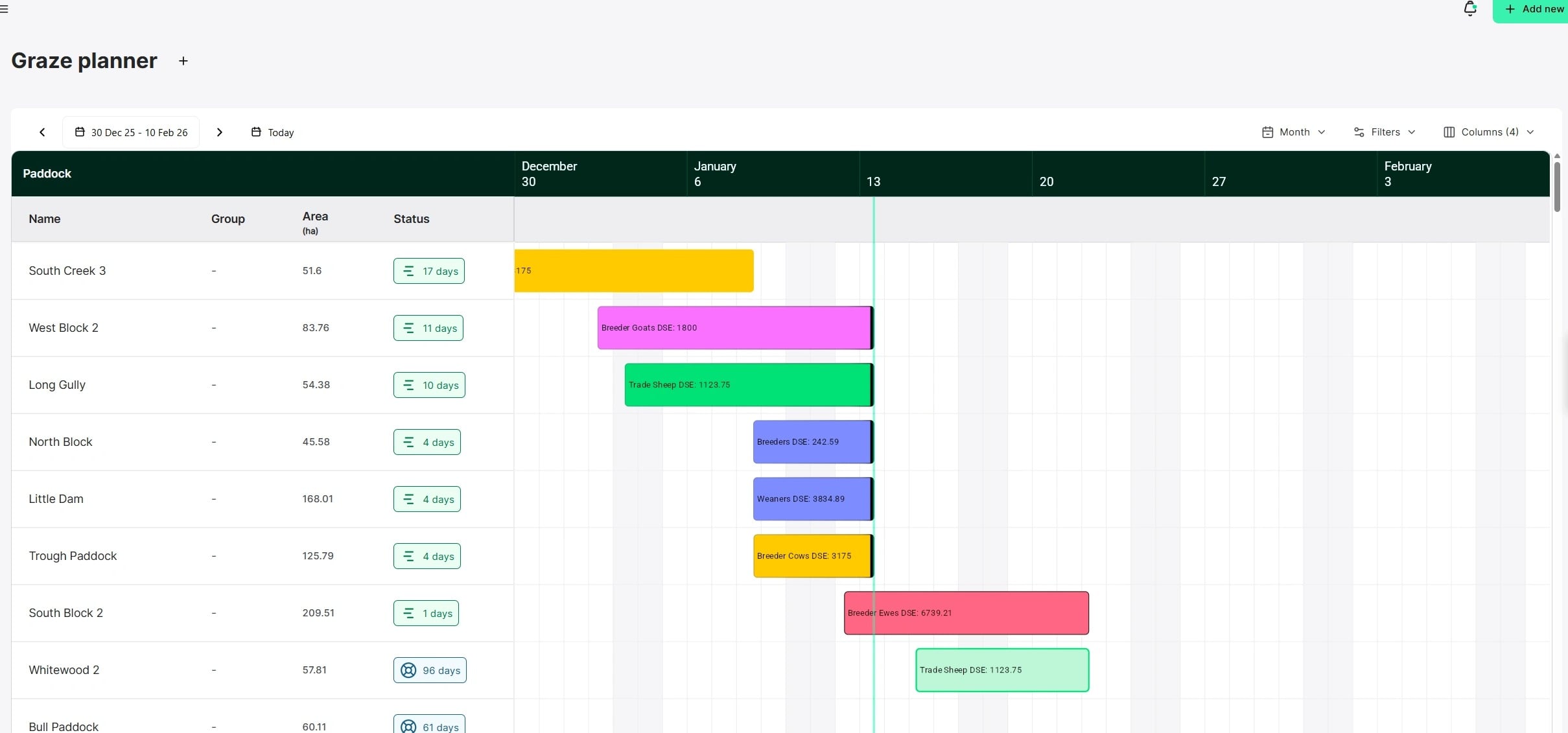
2. In the Graze Planner, grazing activity is displayed as Graze Bars. Each Graze Bar represents a single mob grazing in a paddock.
The colour of the Graze Bar matches the colour assigned to that mob, making it easy to distinguish between mobs at a glance. The length of the Graze Bar indicates the duration of the graze period, in other words, how long that mob was in that paddock. The Graze Bar displays the mob name and Total Daily Demand of the mob in the user’s preferred Animal Unit (e.g., DSE, LSU, AU, SAU) rating of the mob.
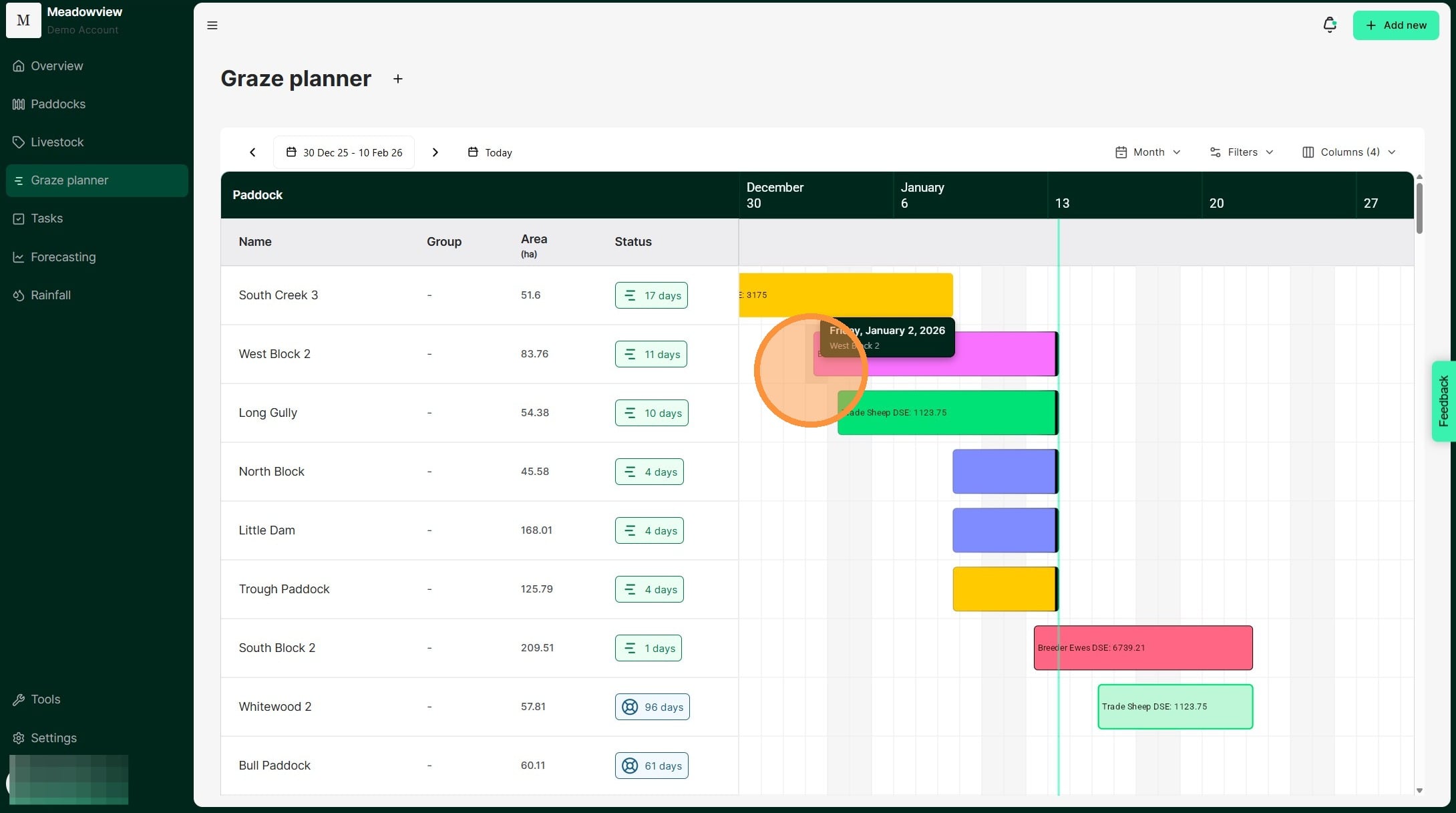
3. The Graze Planner will be automatically displayed in a month view. Each block on the planner reflects a day. However grazes are measured to exact times in their yield calculations. You can hover over the block to see the date.
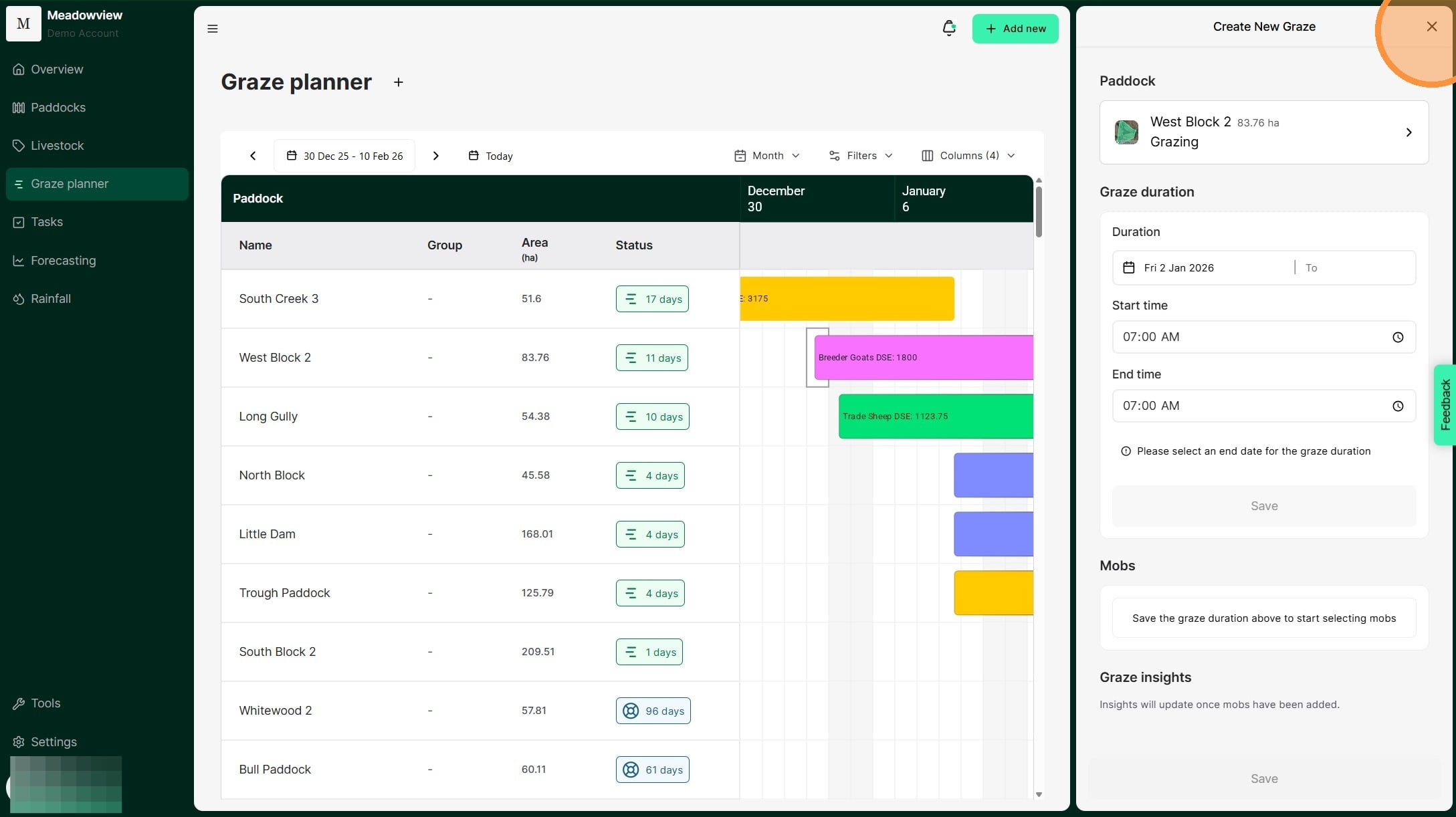
4. Clicking on a date (or block) in the Graze Planner will open the window to create a new graze.
You can follow our guide to learn how to create a planned graze.
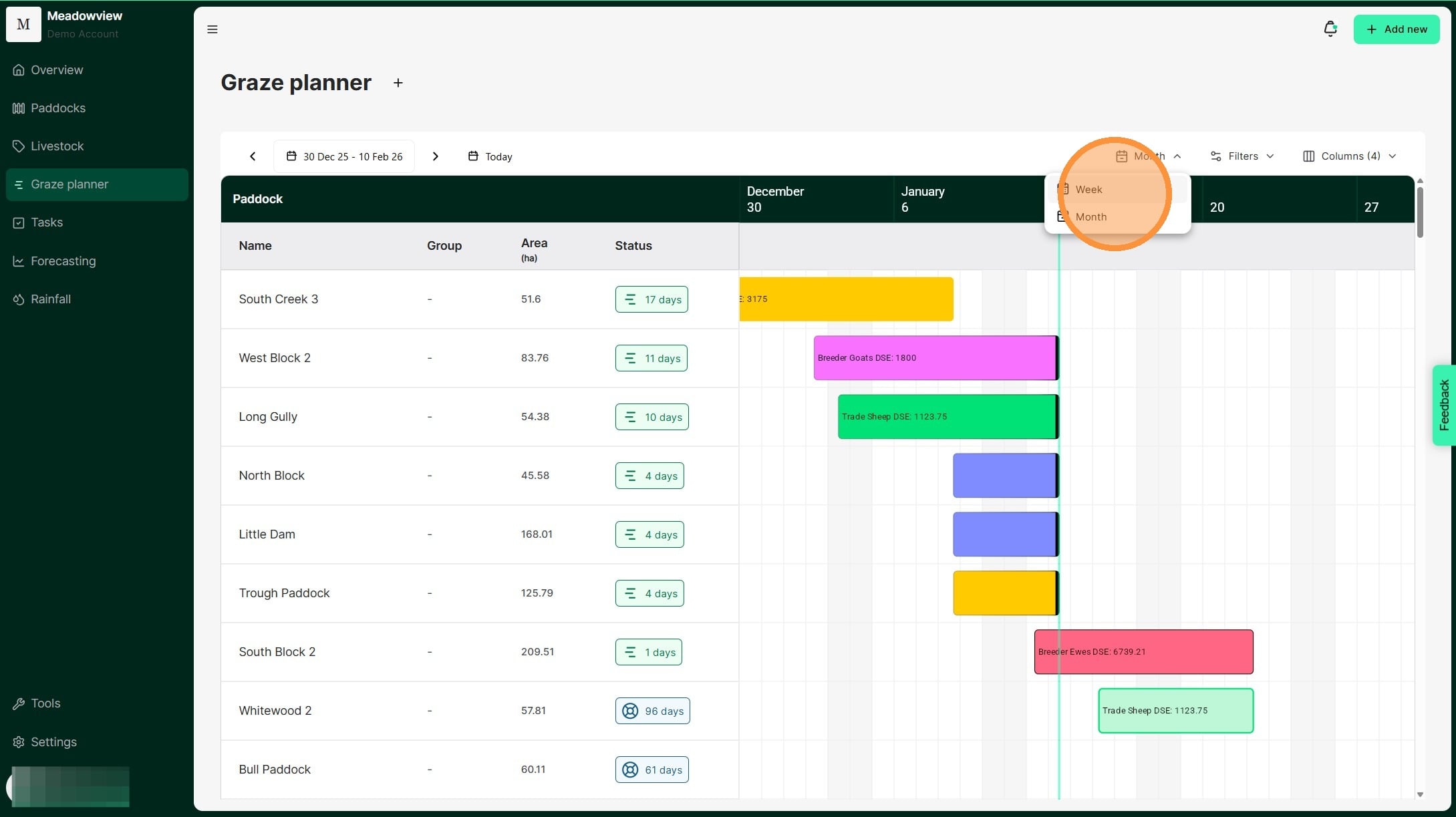
5. To view the Graze Planner by week instead of month, click the drop-down box and select 'Week'
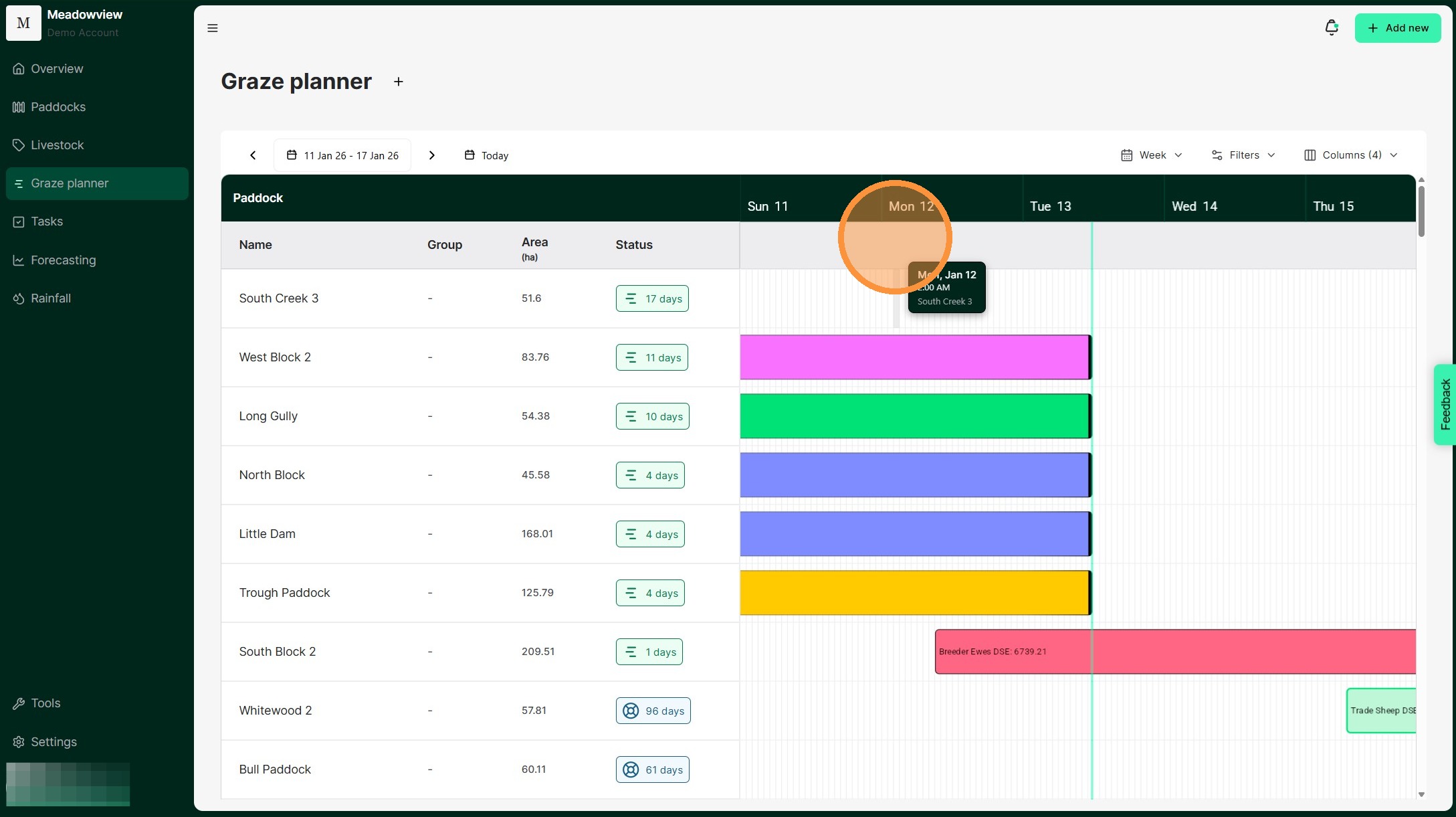
6. In the Week View, each block represents one hour. This view is useful when livestock are being moved multiple times per day or when mob moves need to be planned for specific times, allowing for more precise scheduling and graze data.
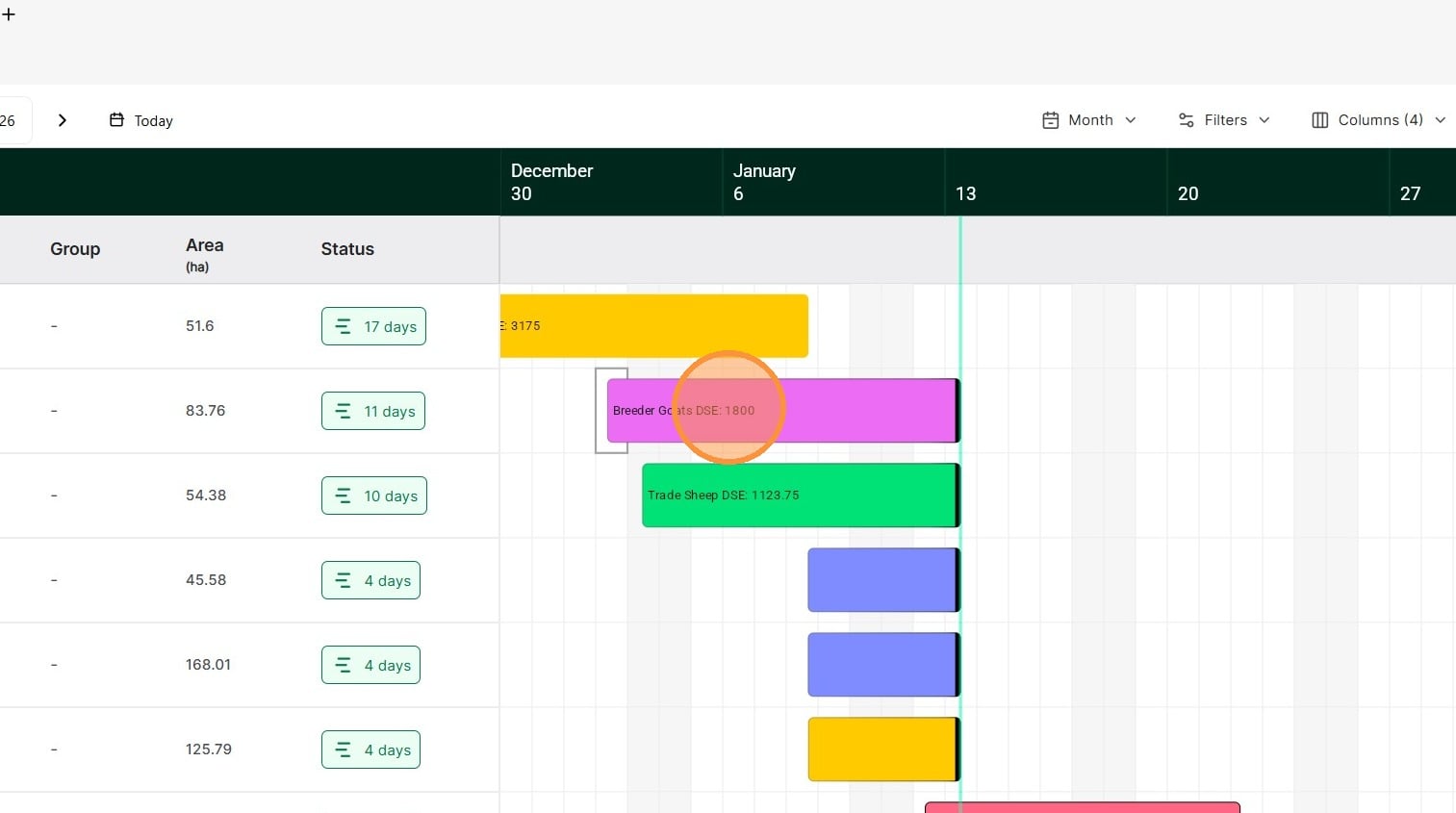
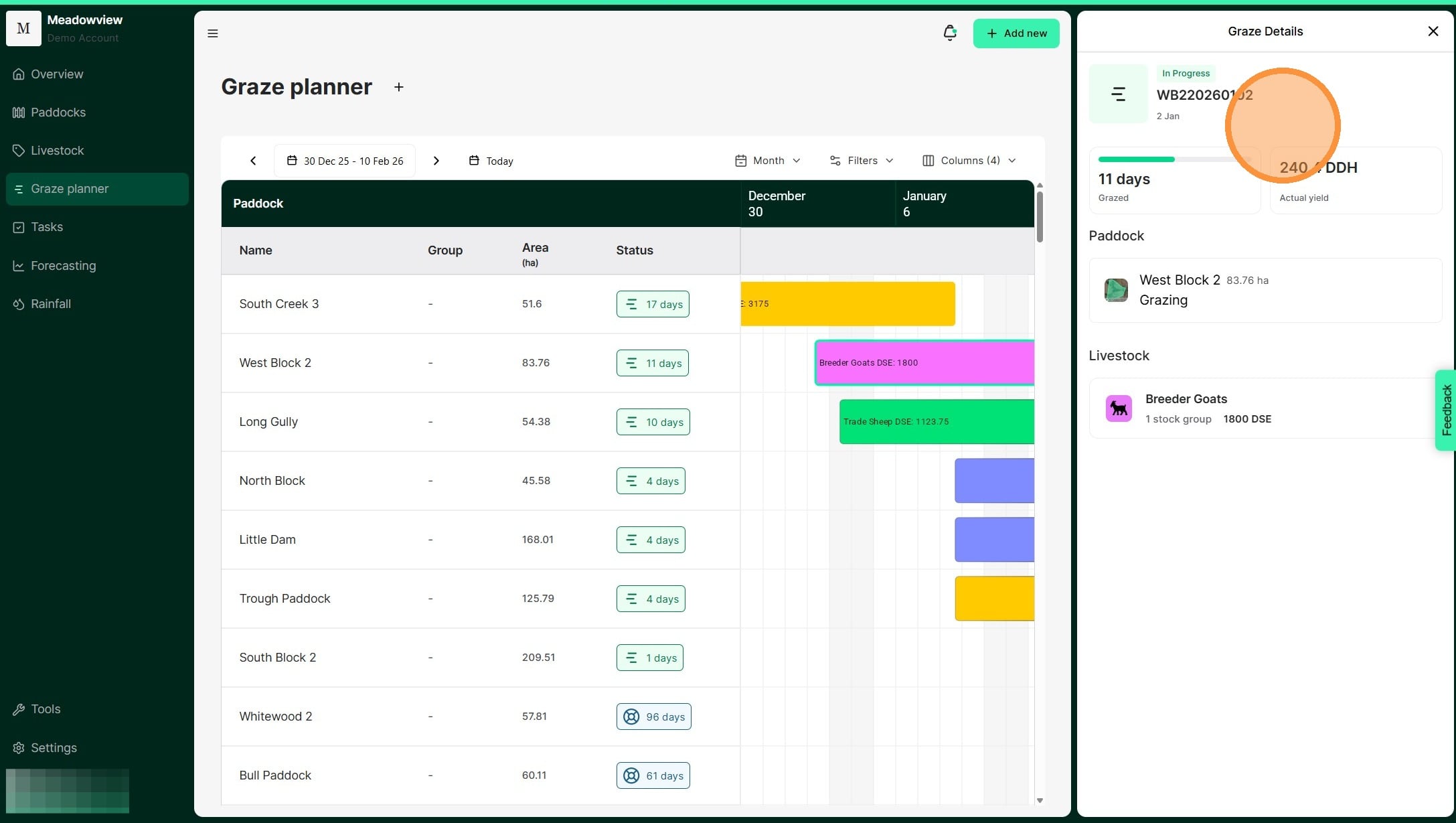
7. Selecting a Graze Bar for a mob will open the Graze Details Window.
8. From the Graze Details Window, you can see all the information relating to the graze length, yield, paddock, and mob for each graze.
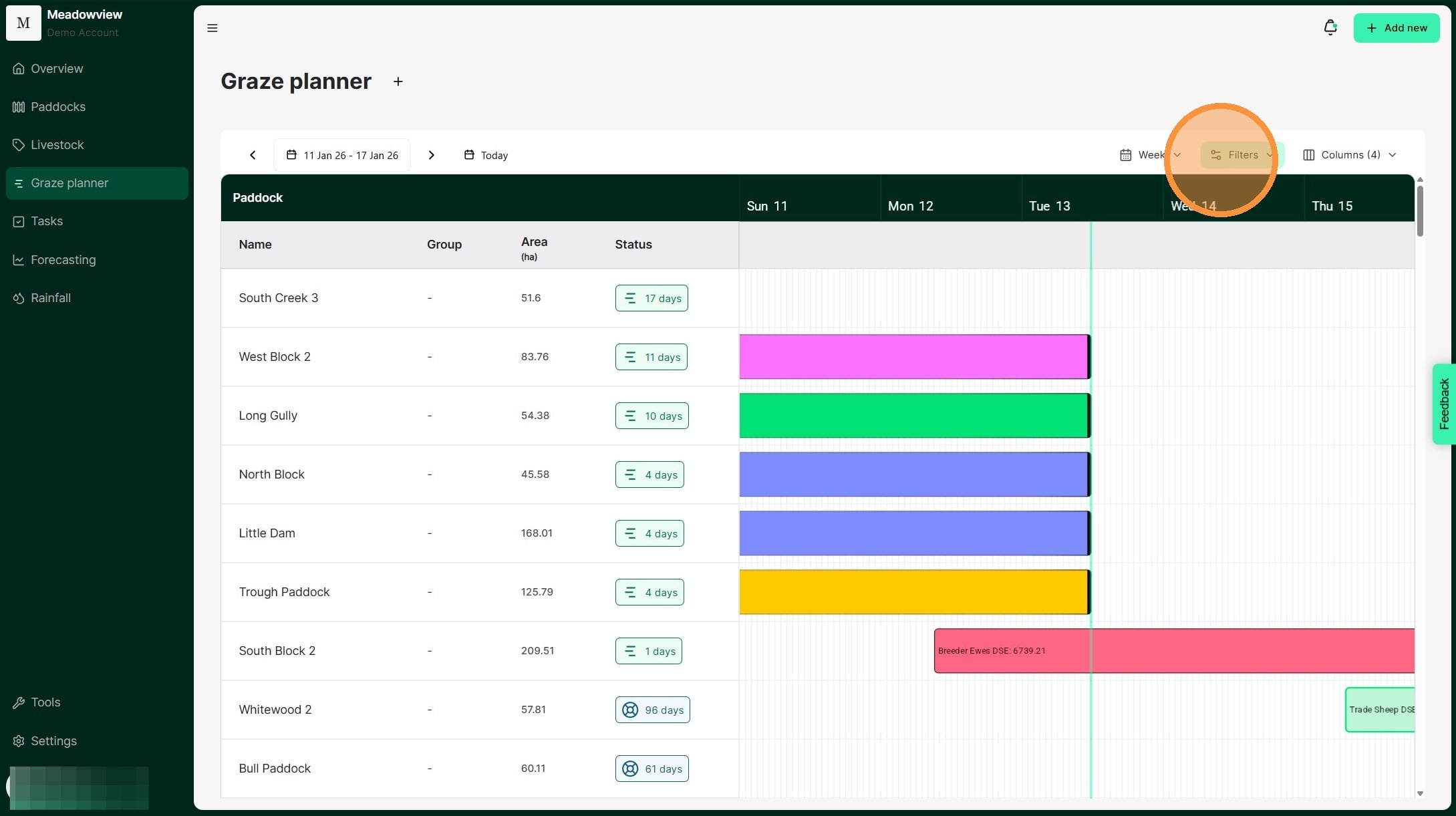
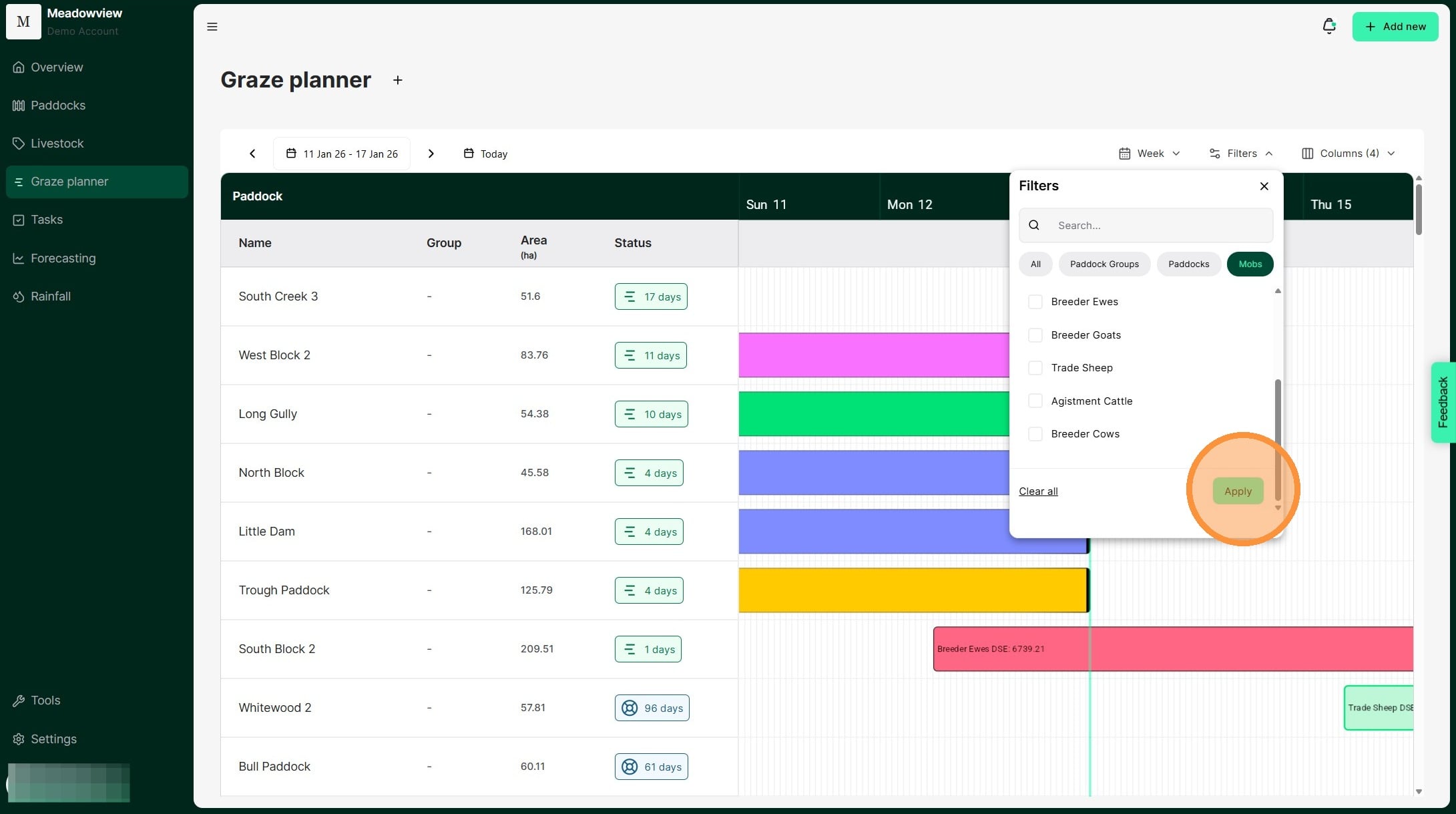
9. The Graze Planner can be filtered to show specific paddocks, paddock groups and/or mobs by selecting the "Filter" tab.
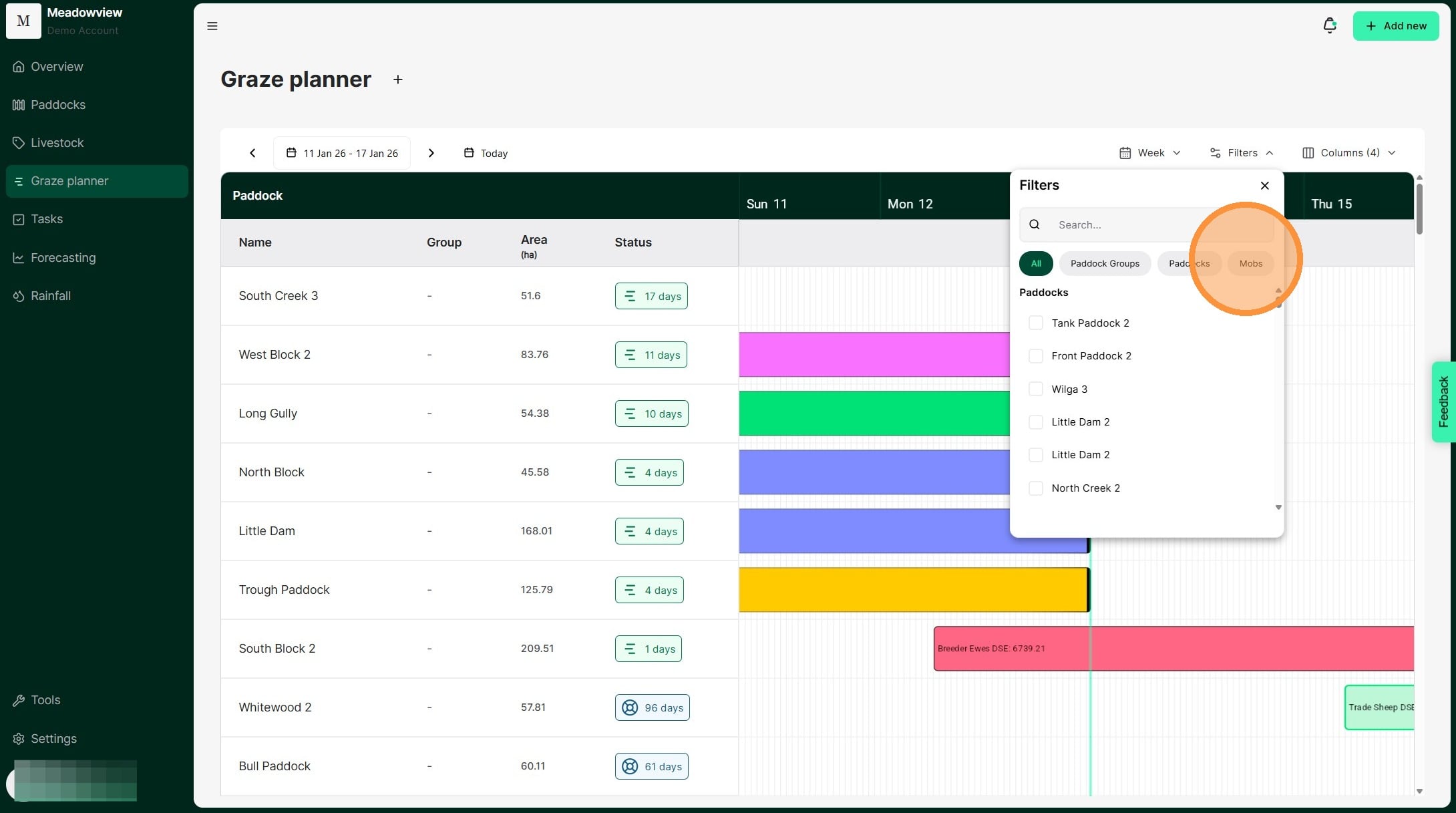
10. Select the type of filter you want to use, i.e paddocks, paddock groups or mobs.
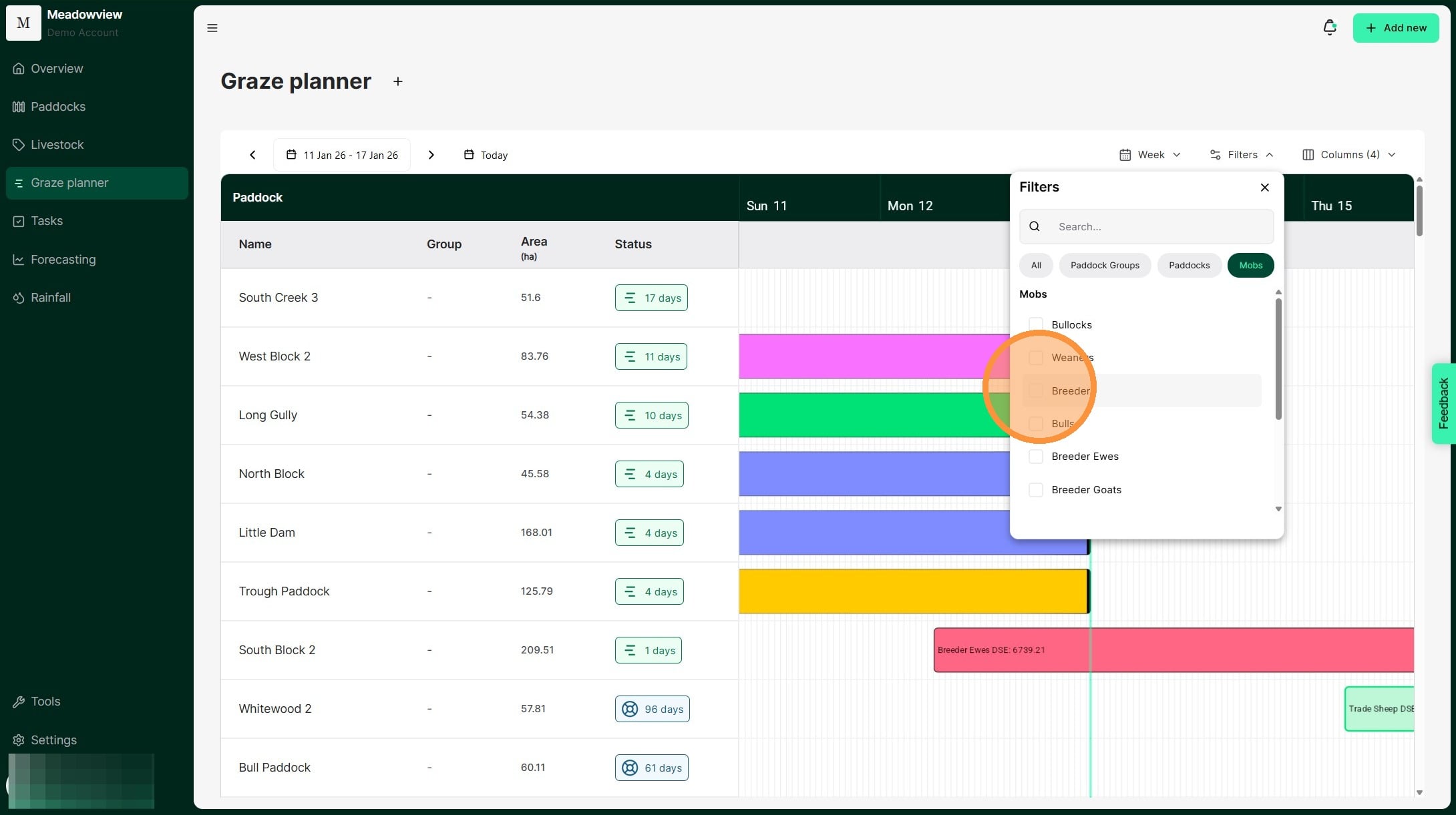
11. Scroll or search for the paddock group, paddock, or mob you want to view. For example, to see only your Breeder mob's current graze, select that mob from the list.
12. Once you have selected the fields you wish to view click "Apply"
13. The Graze Planner will now display the filtered mob's graze.
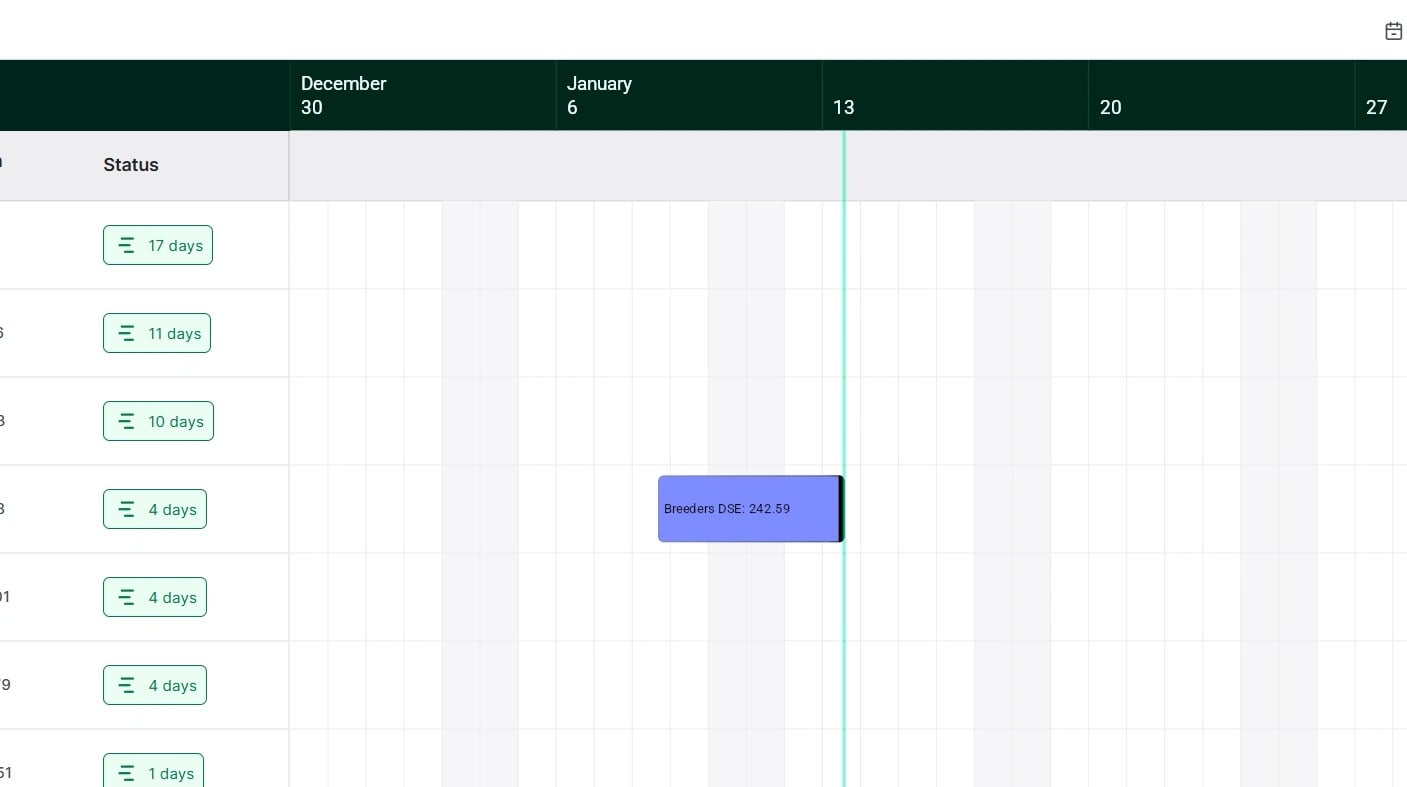
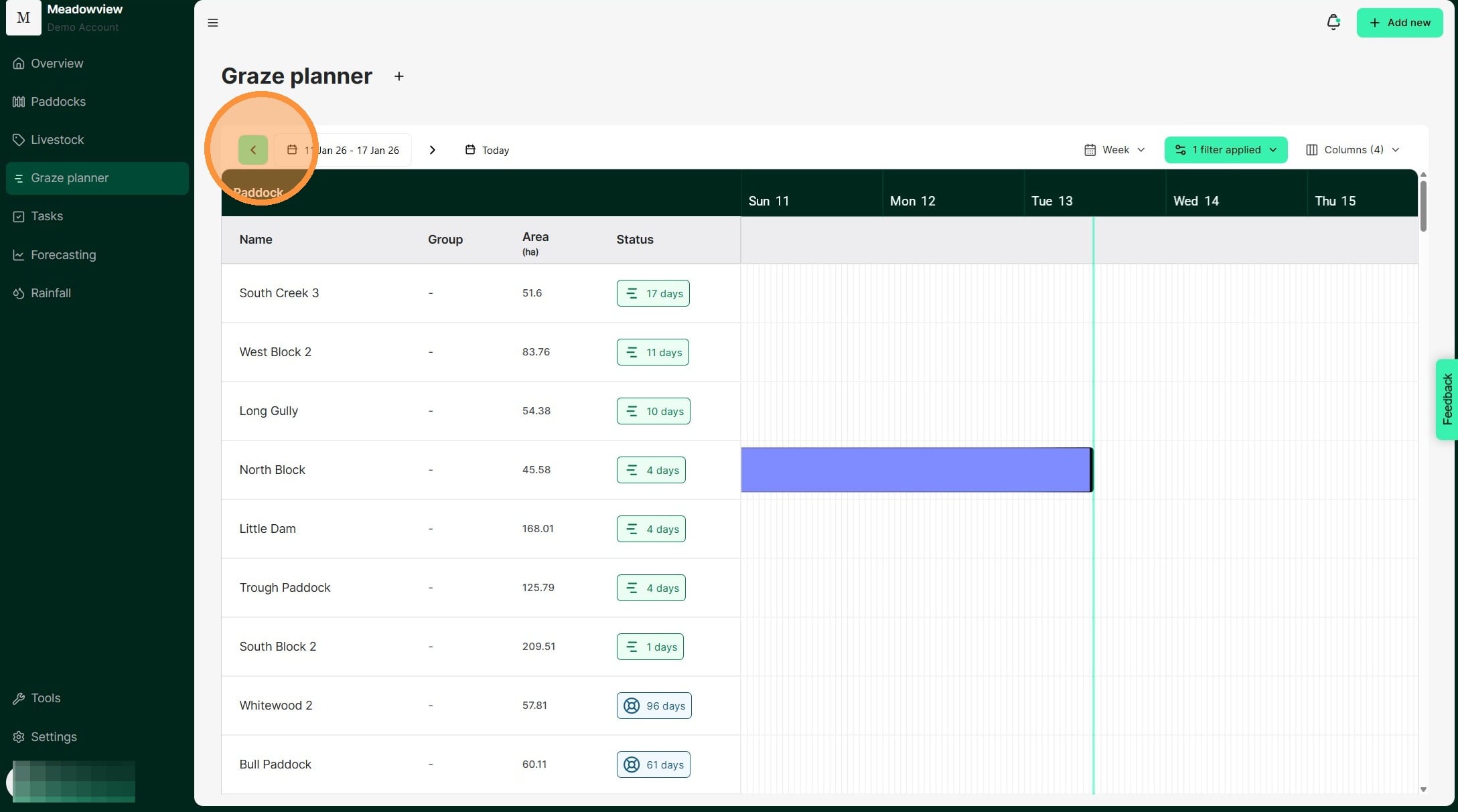
14. View past grazes by clicking the back arrow. Click 'Today' to return to current grazes.
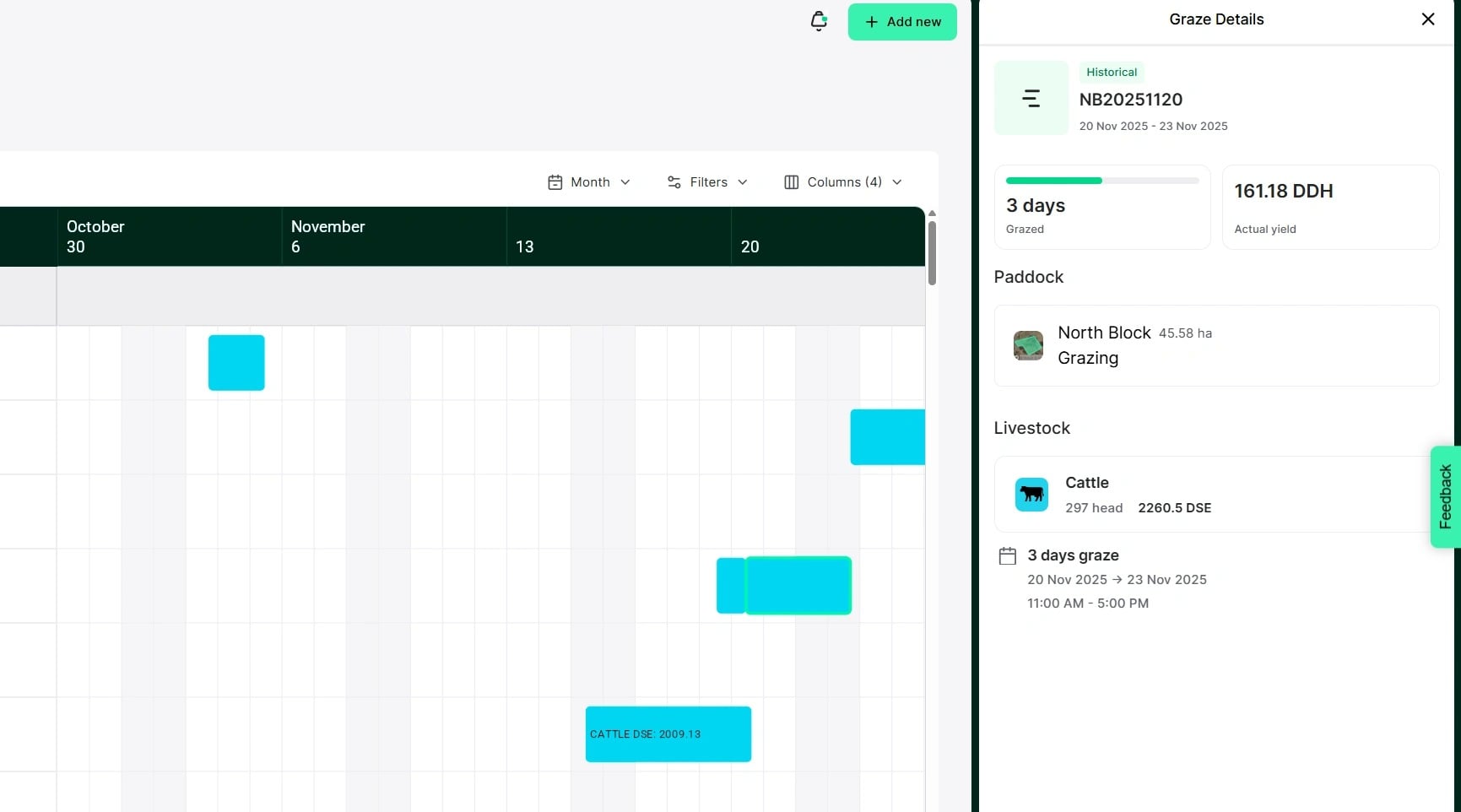
15. Historical grazes you bulk uploaded into Atlas Grazing appear as shown below.
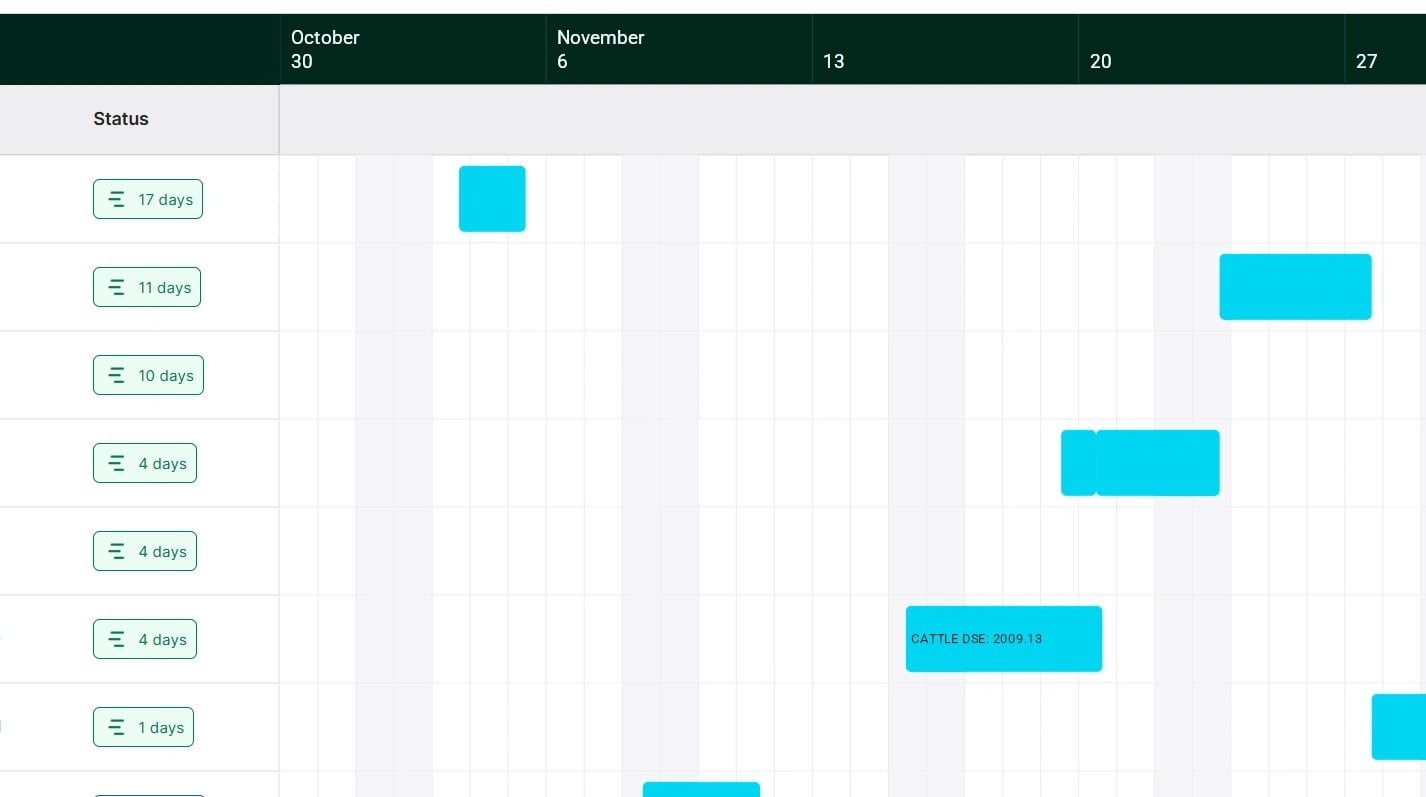
16. Like current grazes, click the Graze Bar to view Graze Details.
17. The Status Column shows the current days in graze in green.
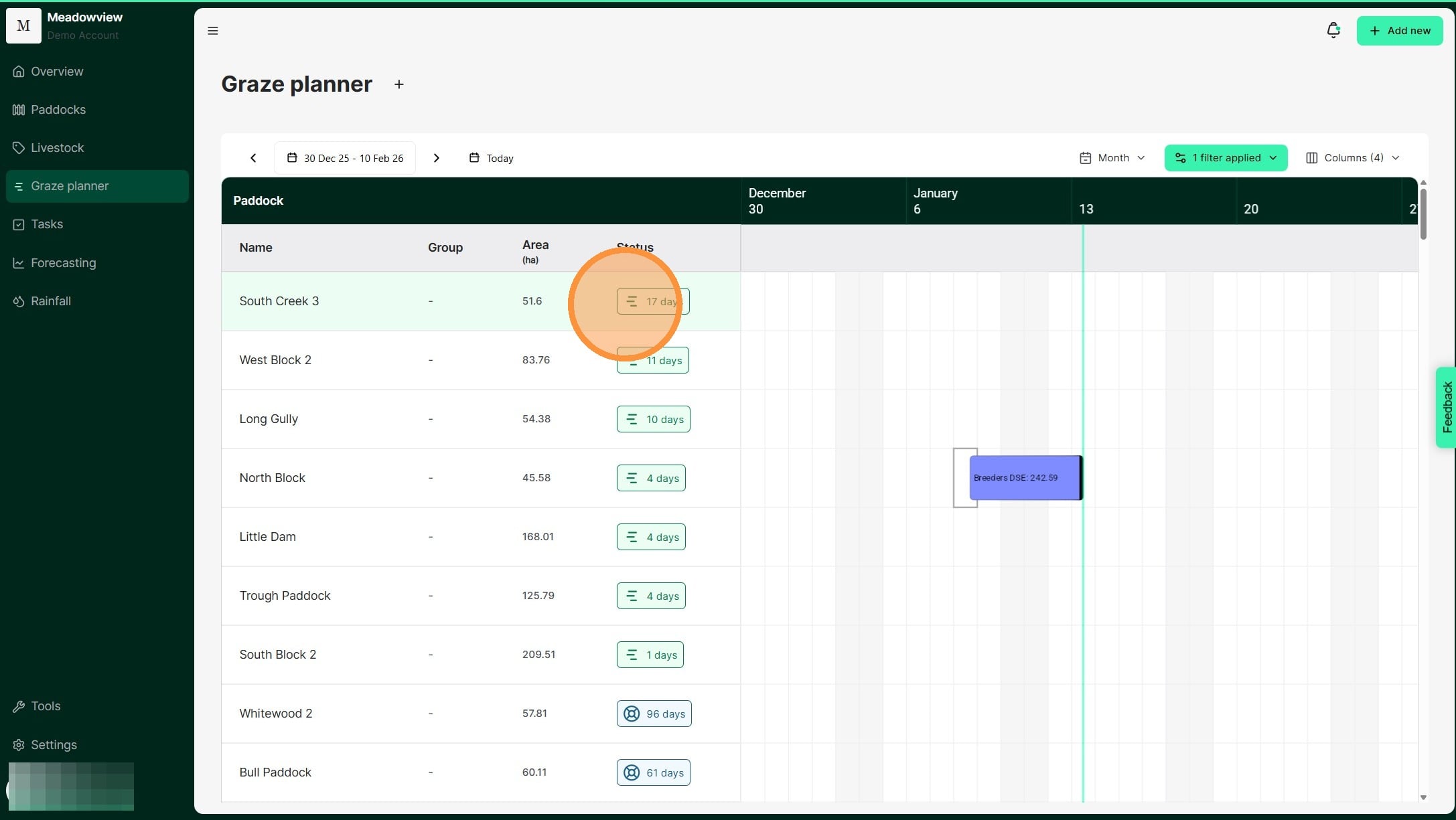
18. The Status Column shows the current days in rest in blue.
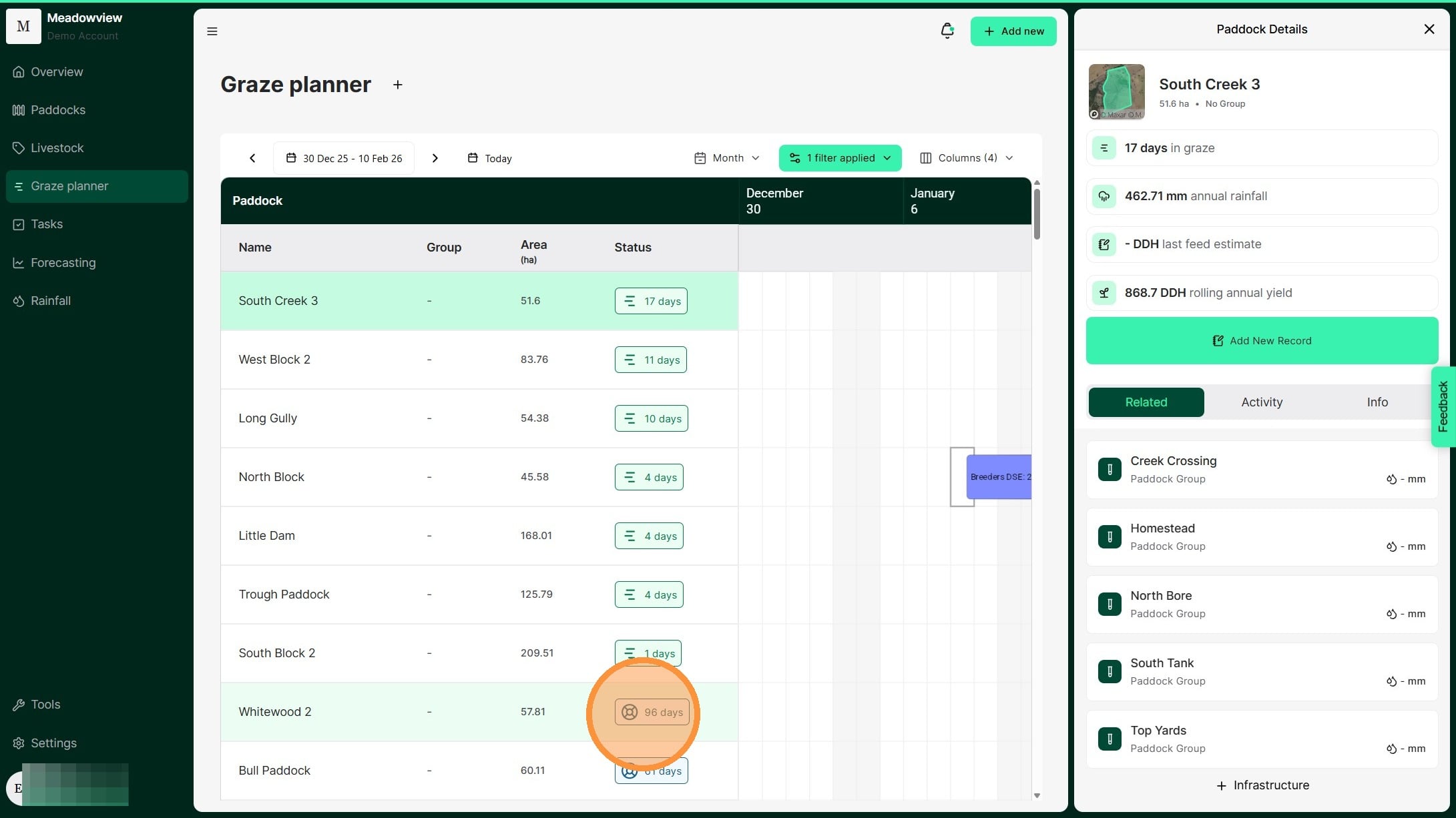
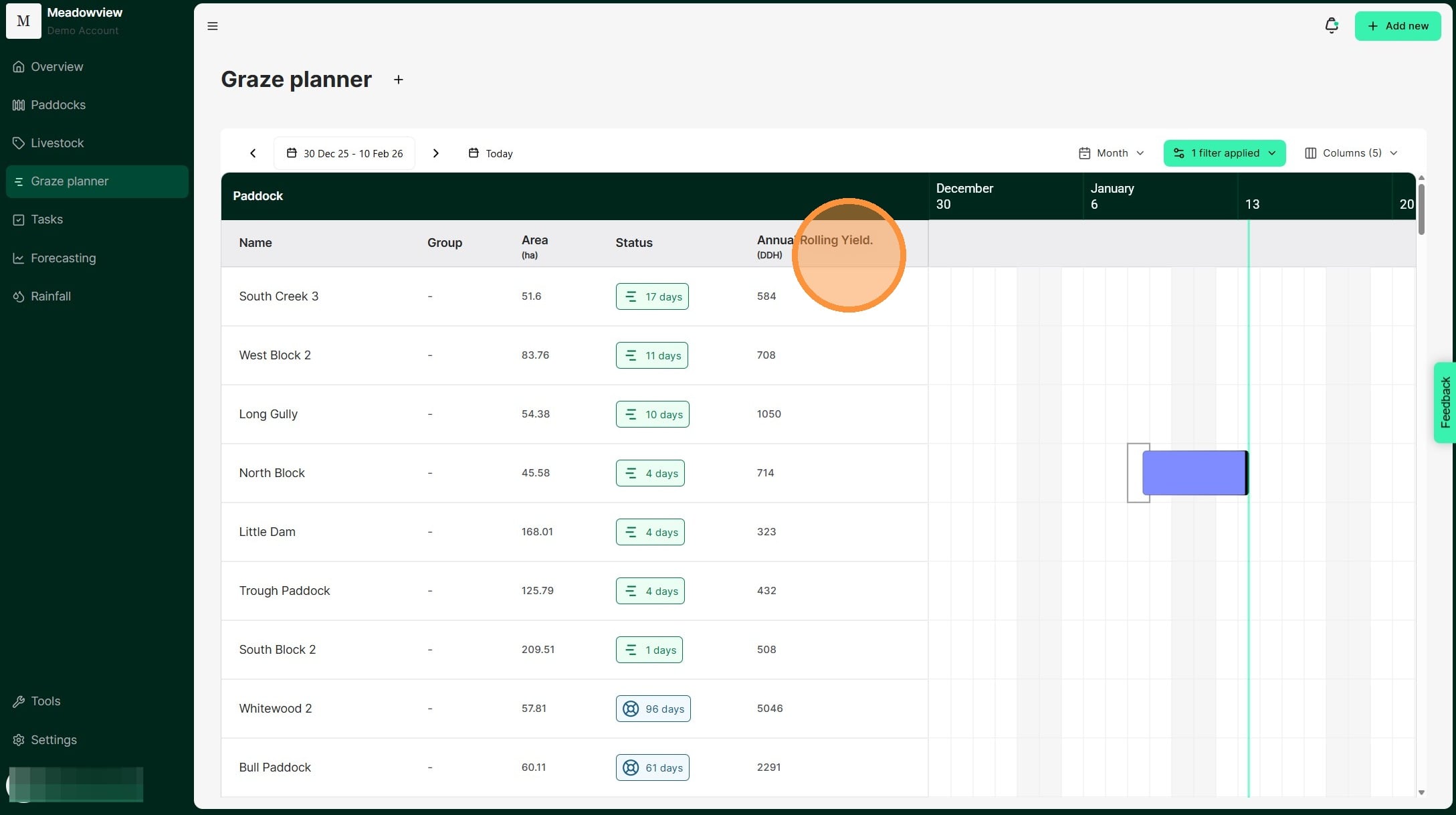
19. Click the Columns tab to select which [[metric ]]appears for each paddock.

20. Select the insight you would like to see for each paddock.
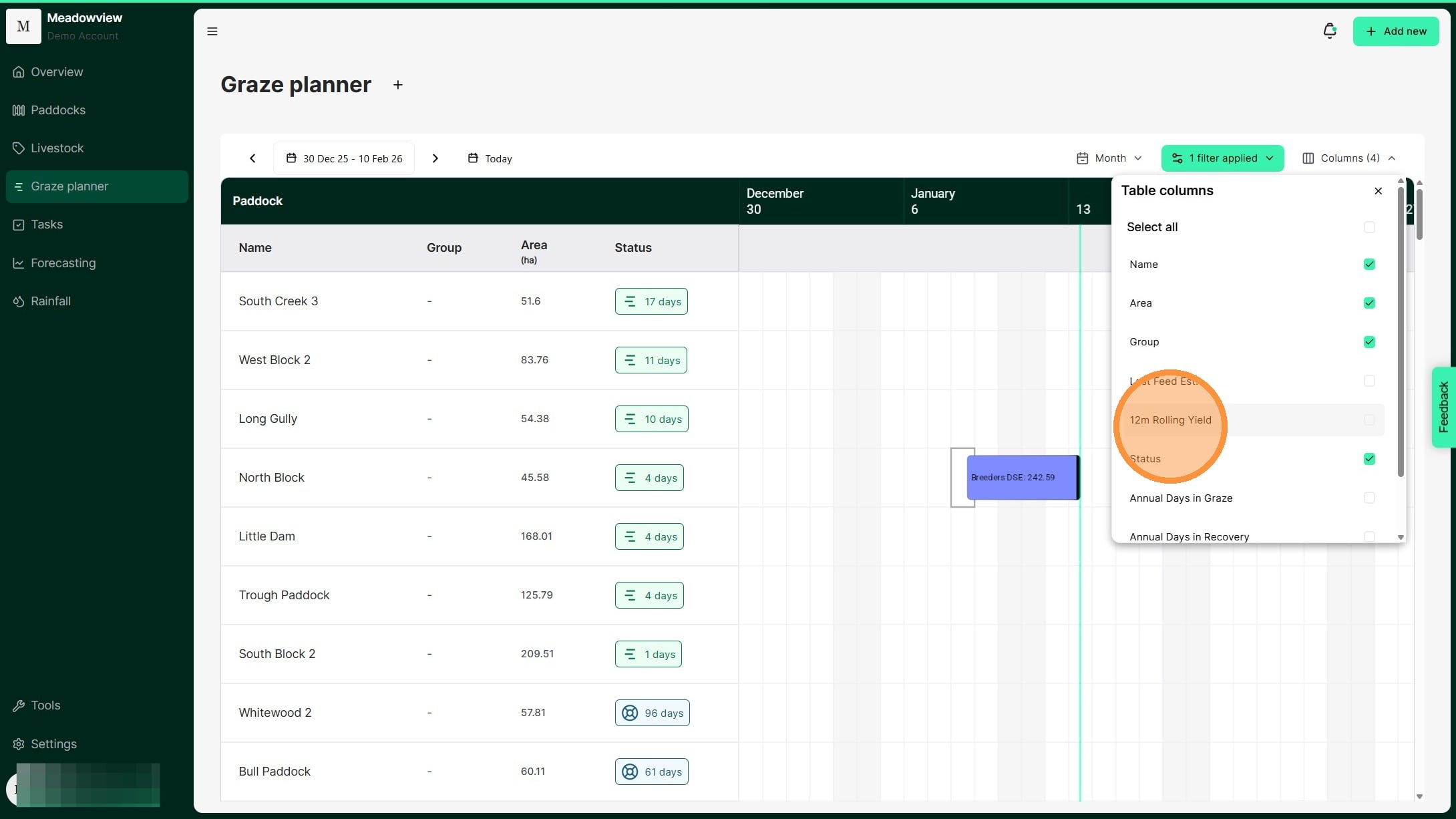
21. Once you have selected the insights you wish to view click "Apply"
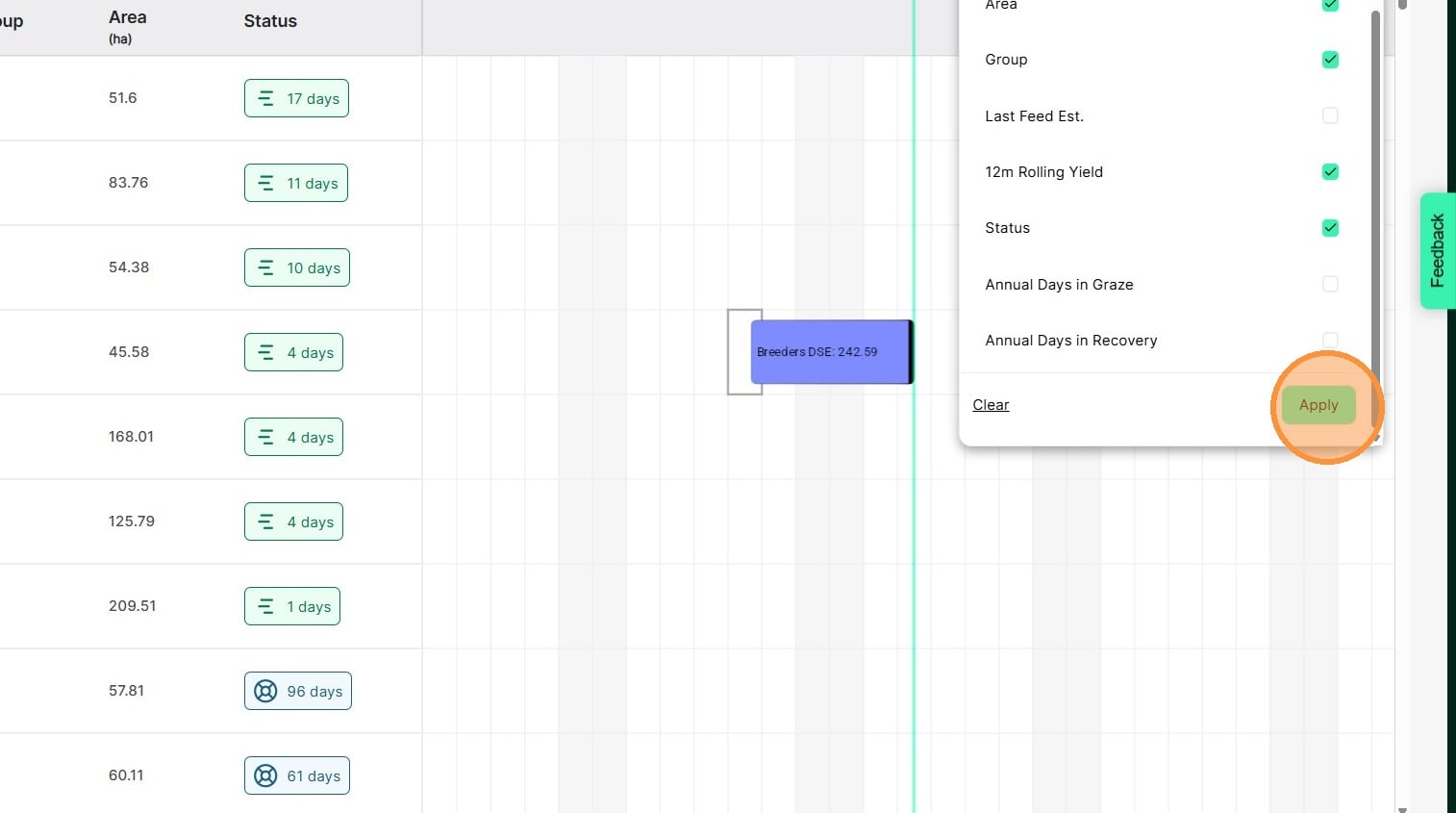
22. The insight will now appear on your Graze Planner so you can see graze metrics while you plan.