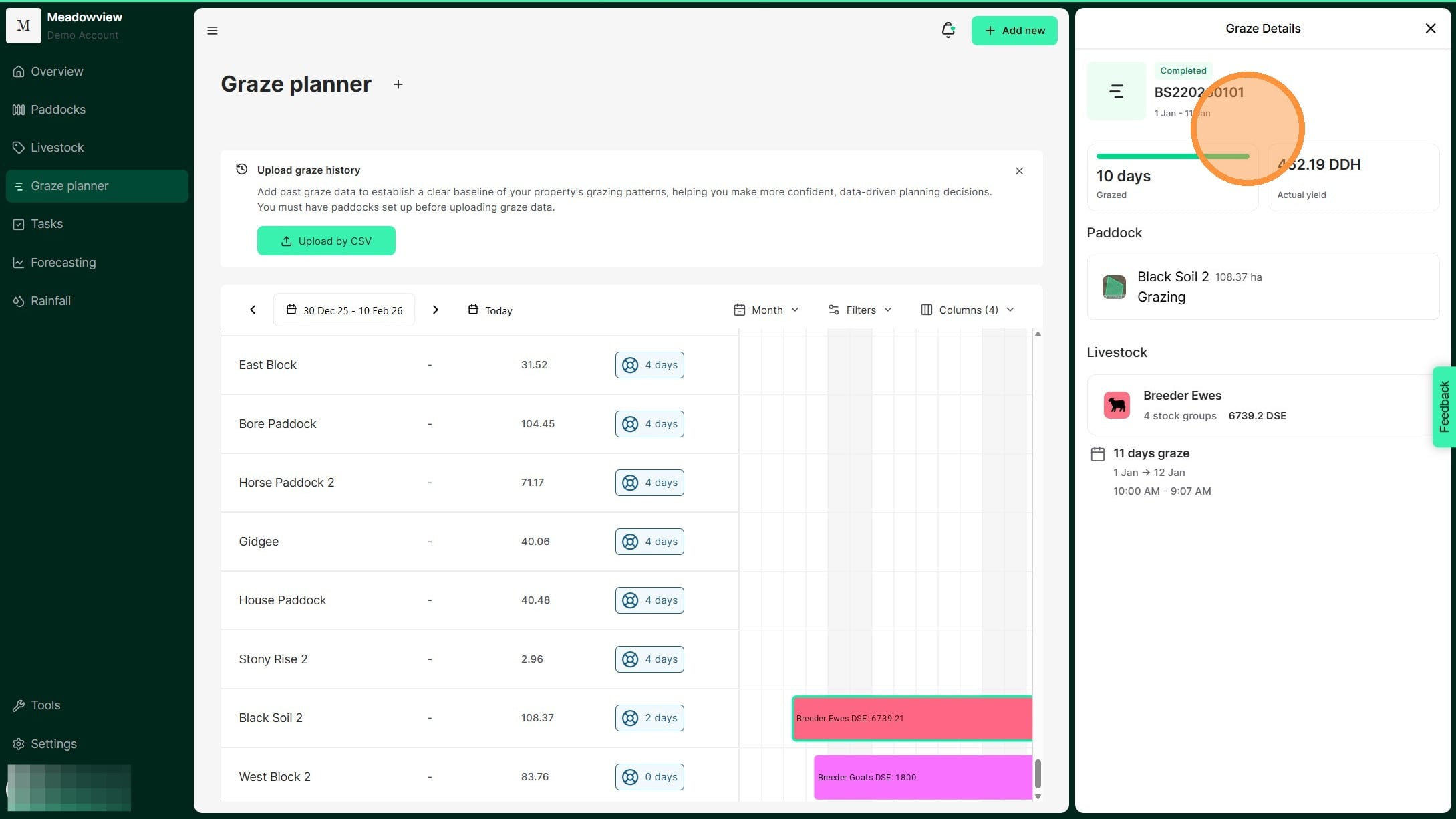
1. From the Home Dashboard, navigate to the Graze Planner tab on the side panel.
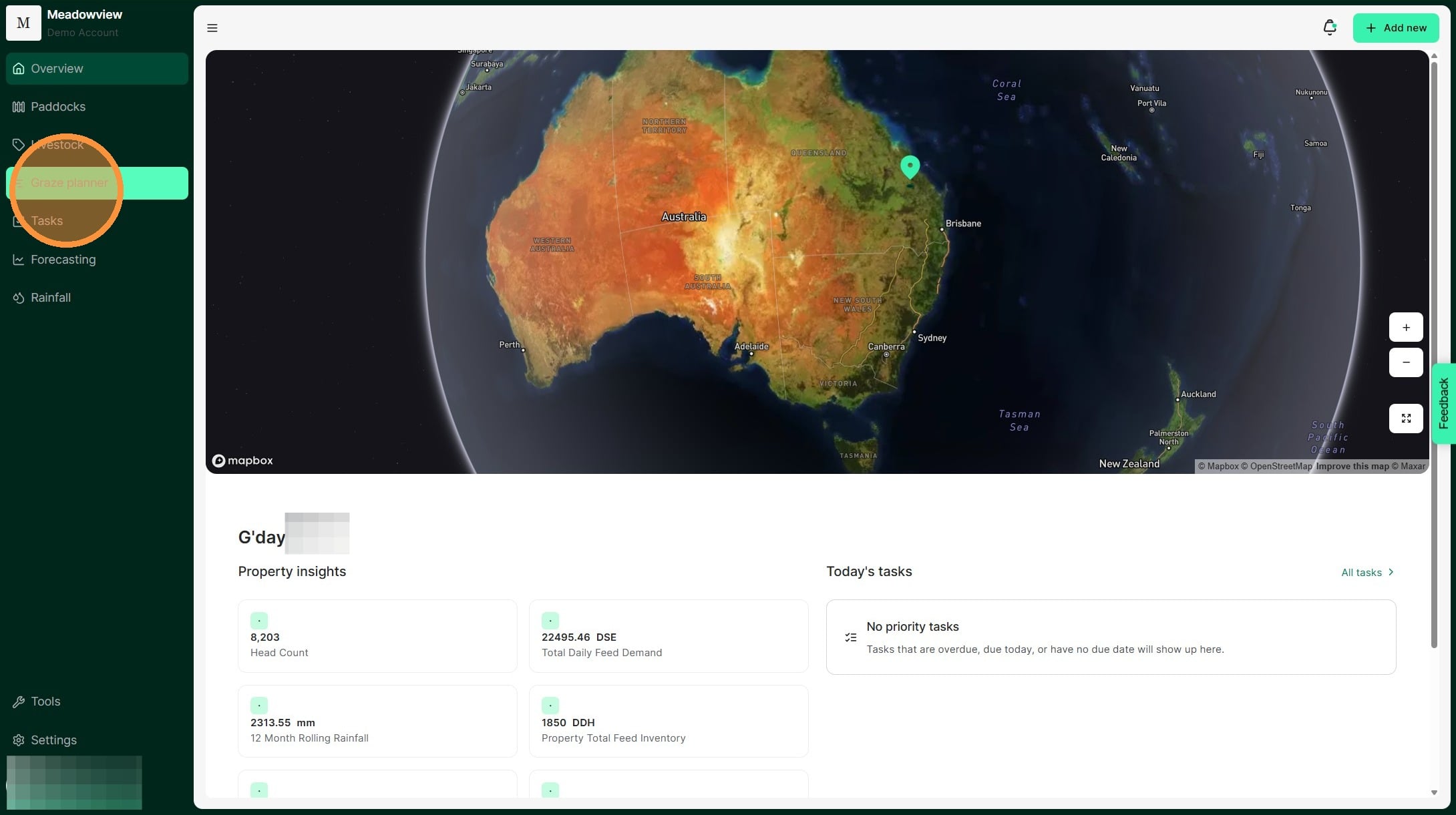
2. The green line represents today's date. The Graze Bar is the coloured row which represents the mob and the duration of it’s graze in that paddock.
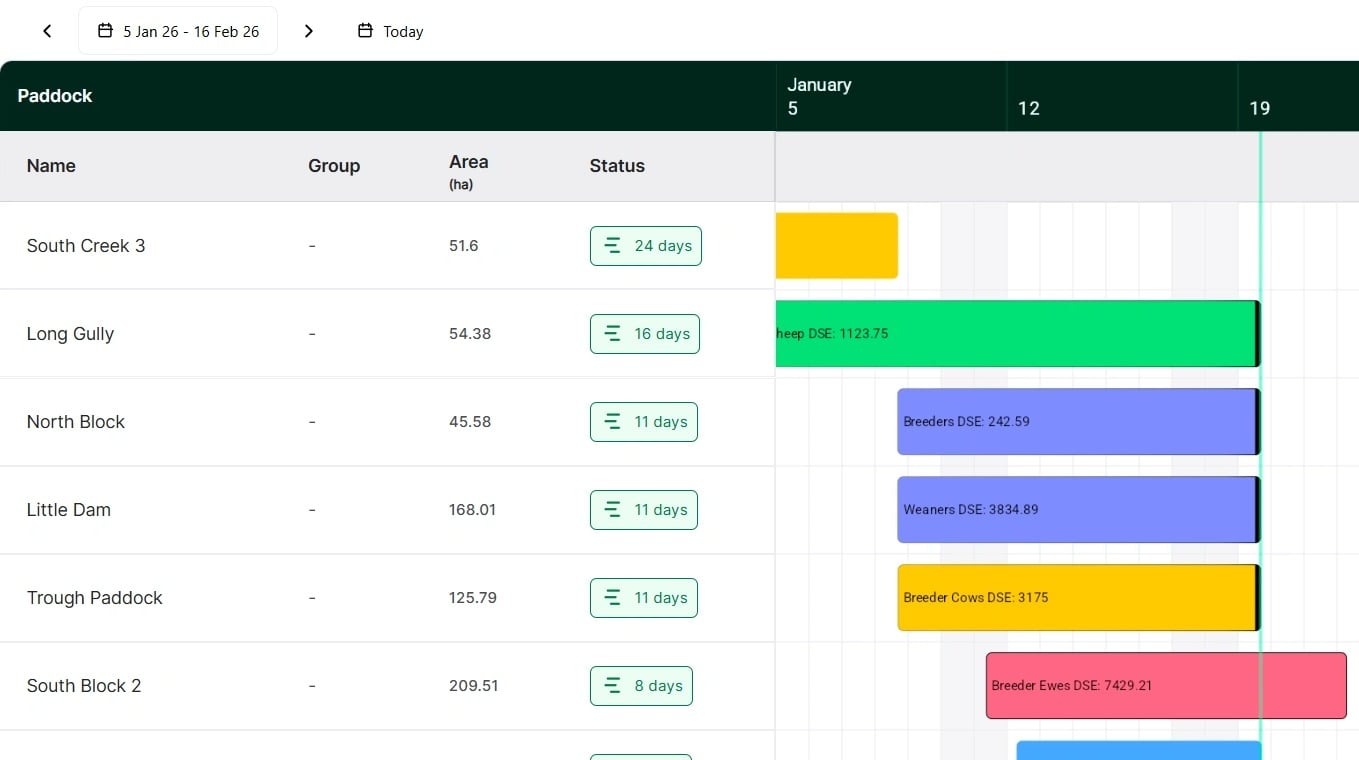
3. If you have bulk uploaded historical grazes into Atlas Grazing, they will show as blue bars like below. You can’t modify historical grazes, but if you want to modify the last graze, you can do so by editing the move, as shown below.
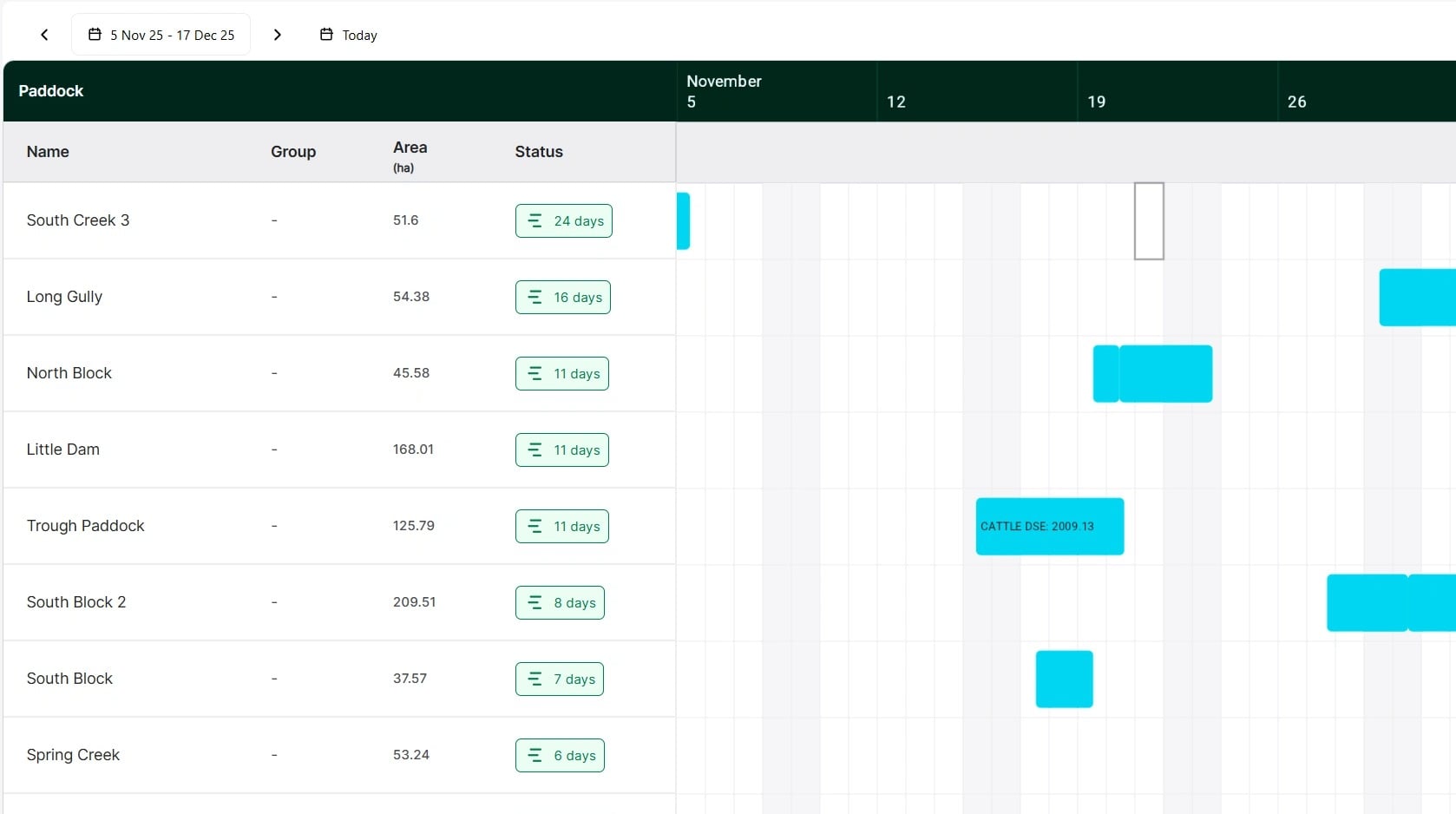
4. Completed grazes show end dates before the green line, as shown below.
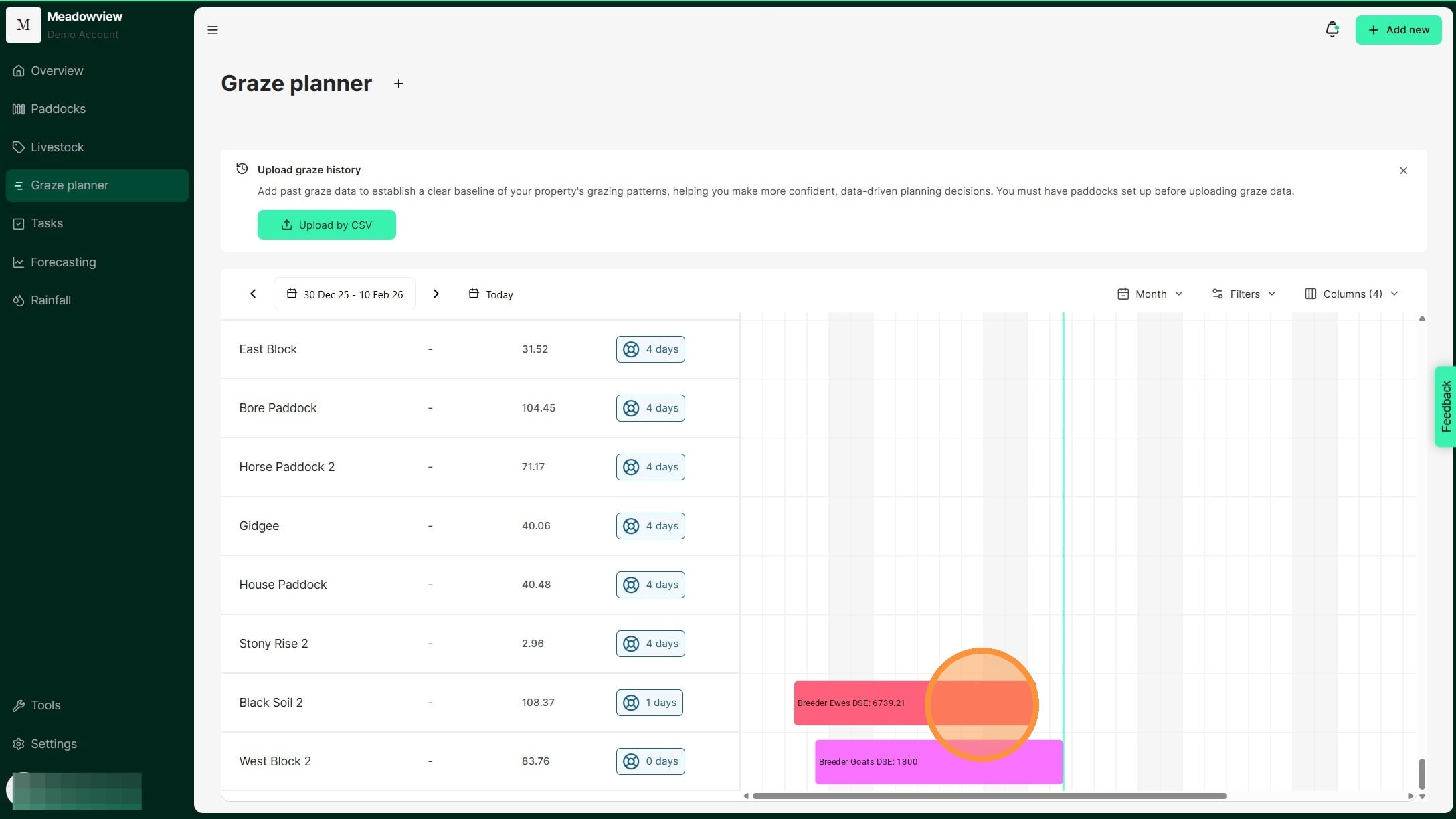
5. Clicking on the Graze Bar will open the side view and show the details of the graze. This gives you an overview of the key graze metrics, including the graze duration, graze yield, paddock details, and mob details.
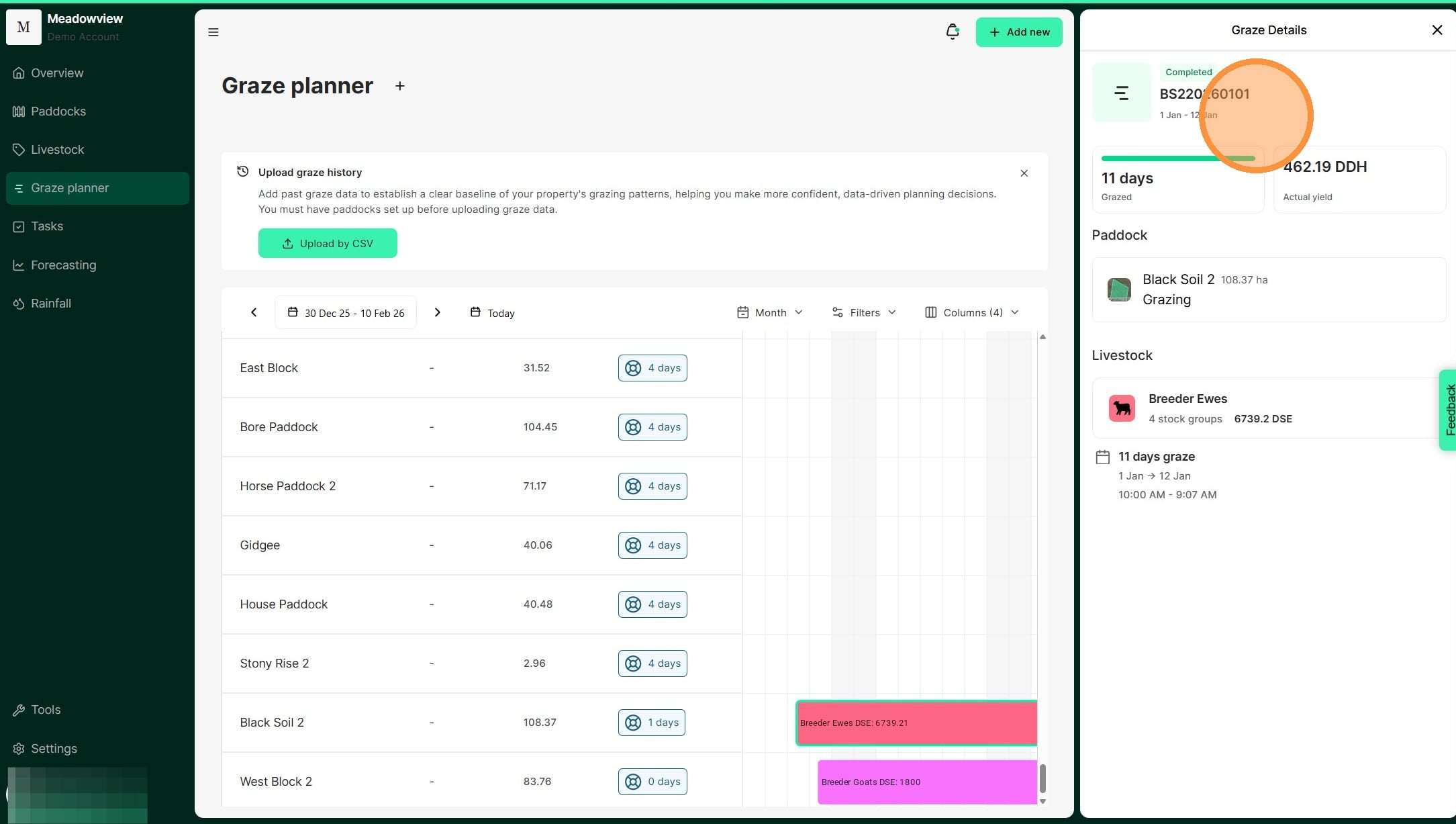
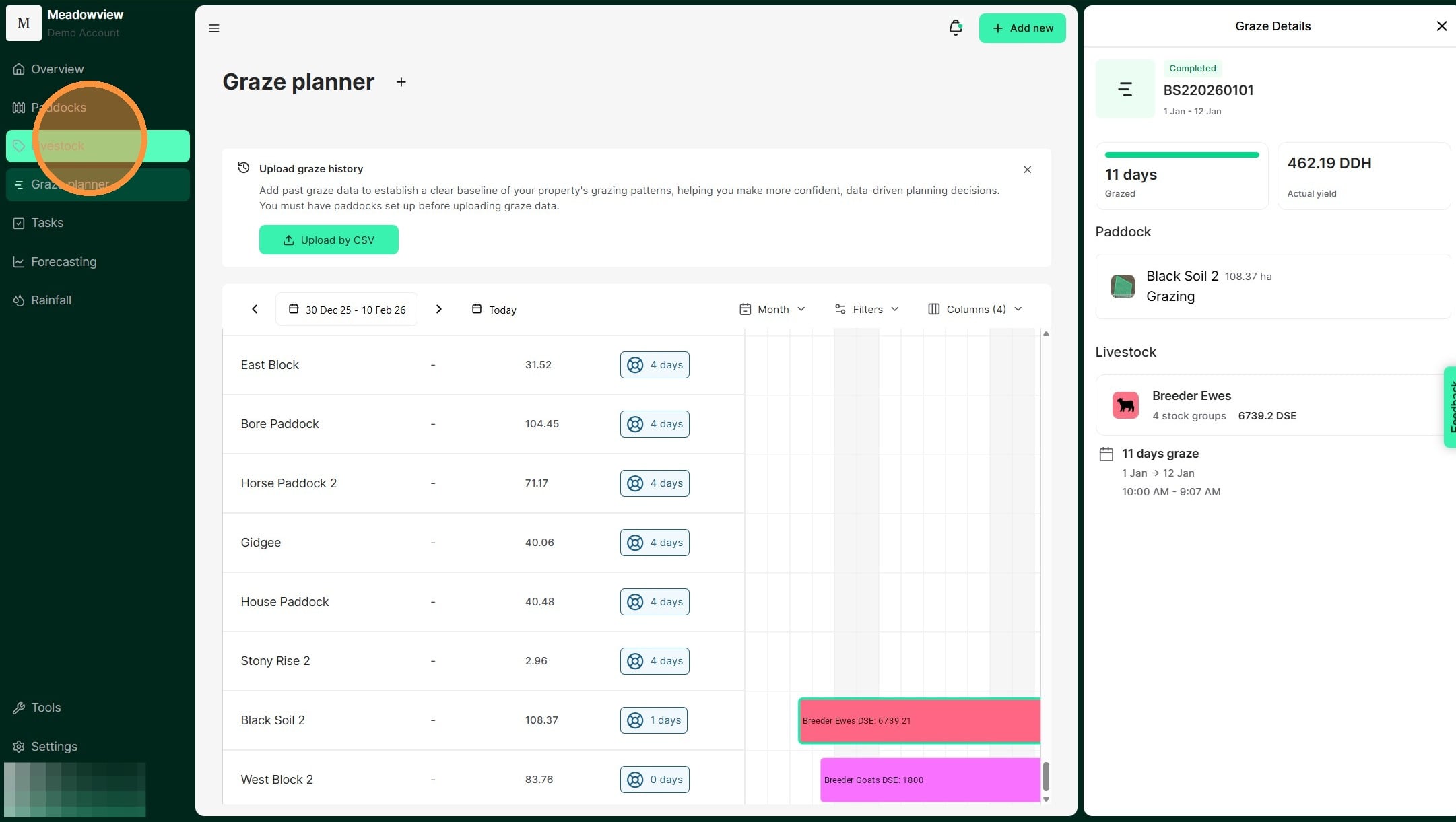
6. To edit graze details, go to the Livestock tab.
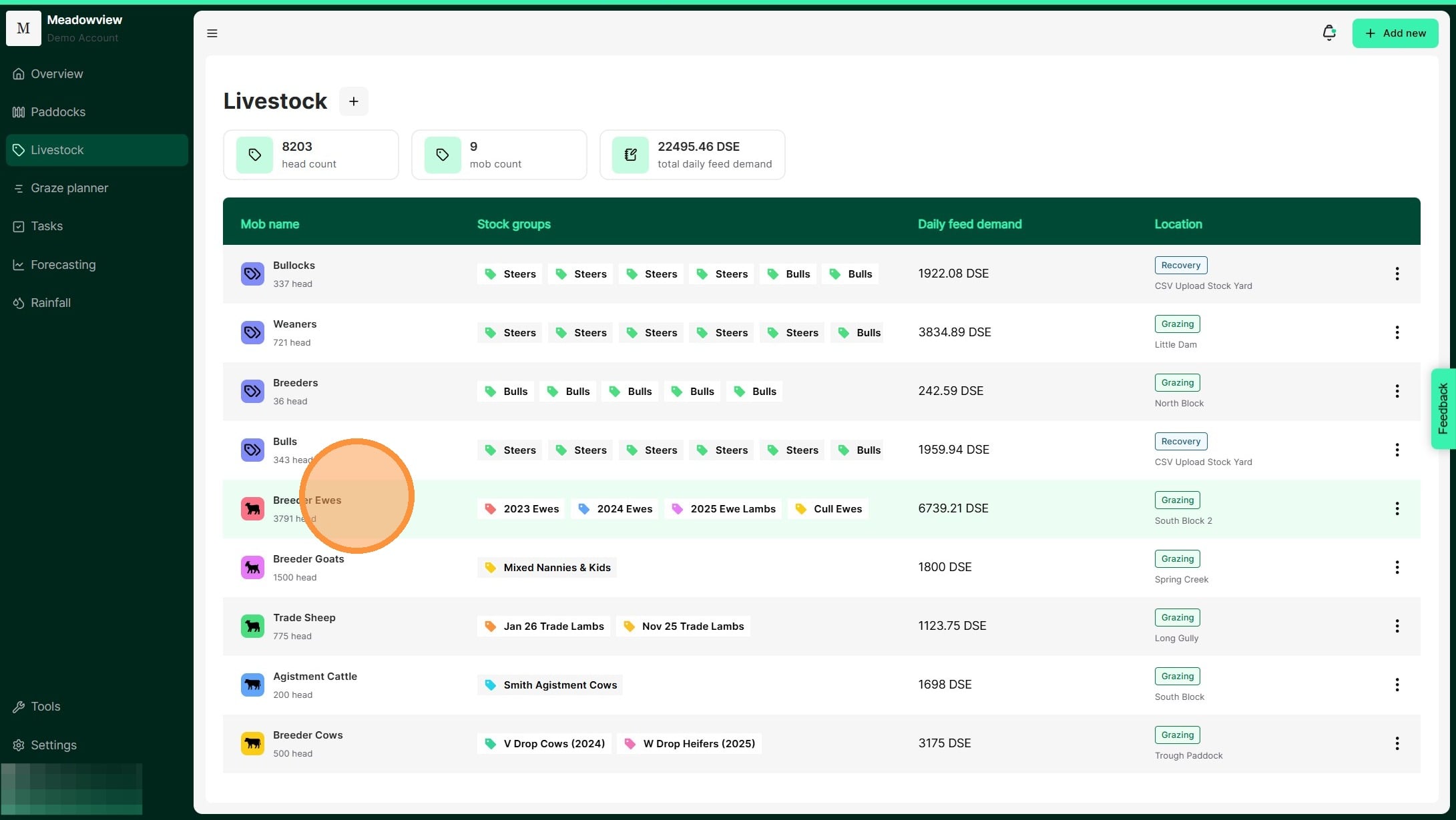
7. Select the relevant mob from the list.
8. Select the "Activity" tab
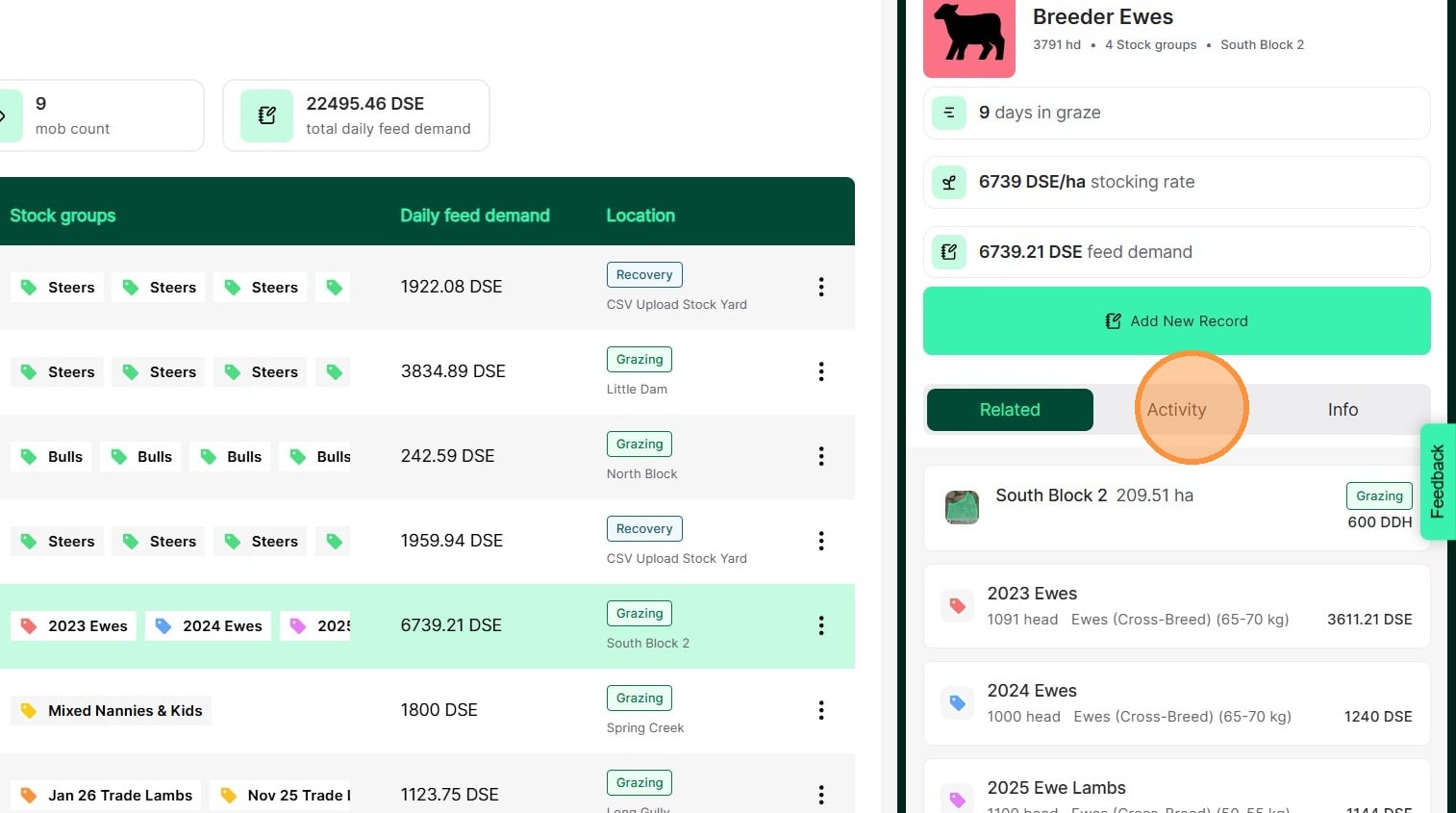
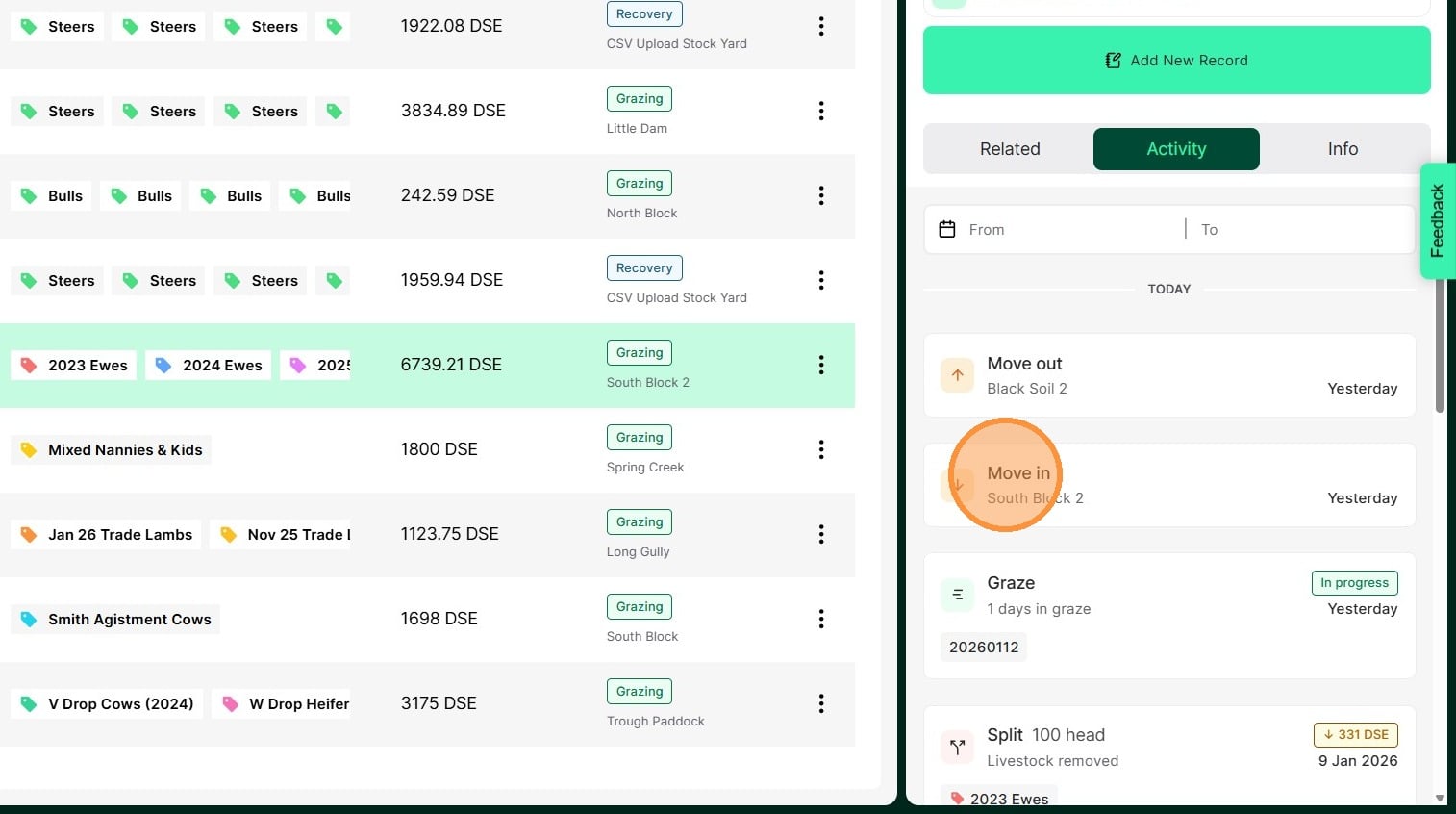
9. Select "Move in" to view the paddock the mob moved into
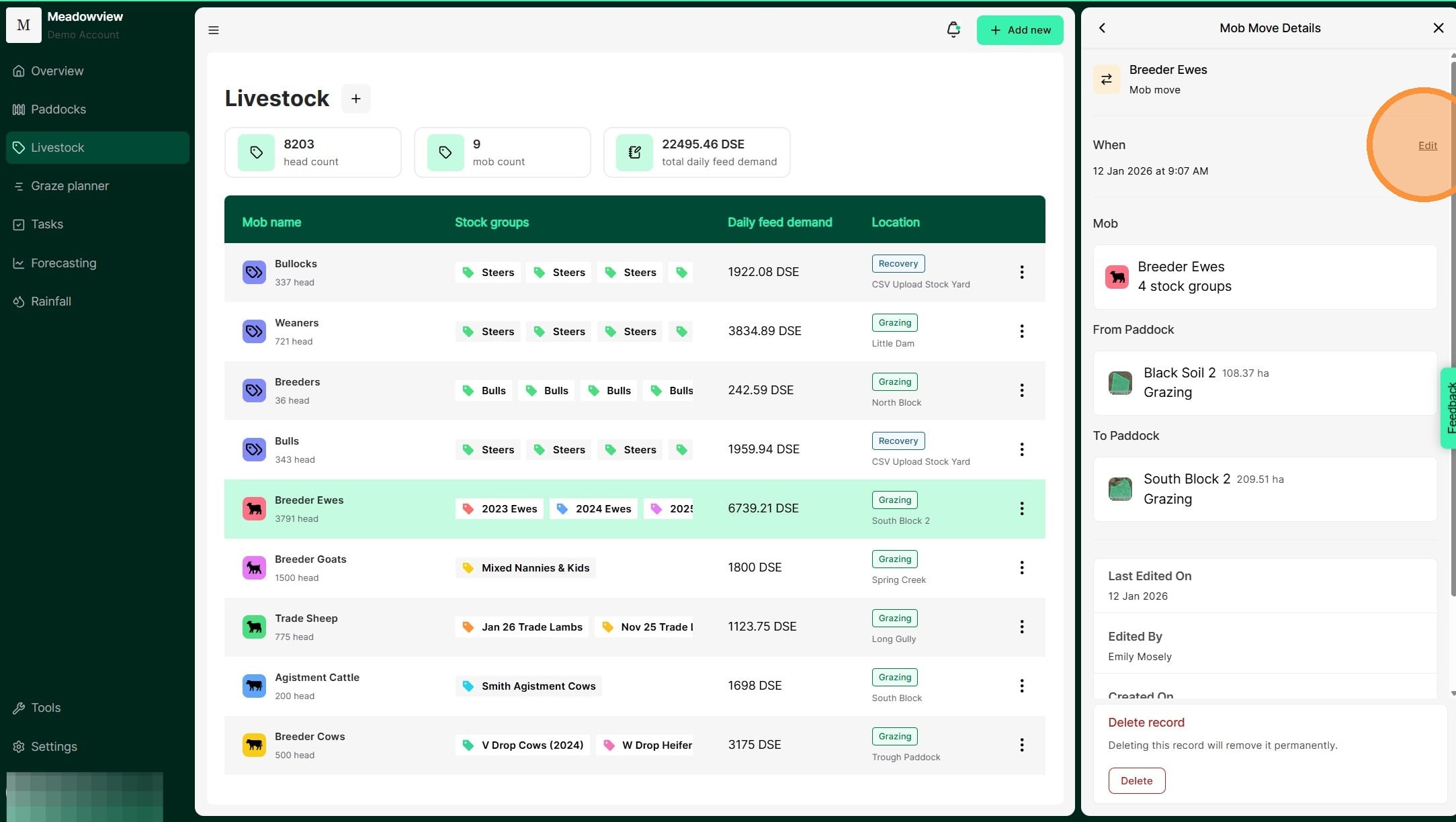
10. Select "Edit"
11. Enter the date and time you need to update. For example, below we need to make the graze one day shorter.
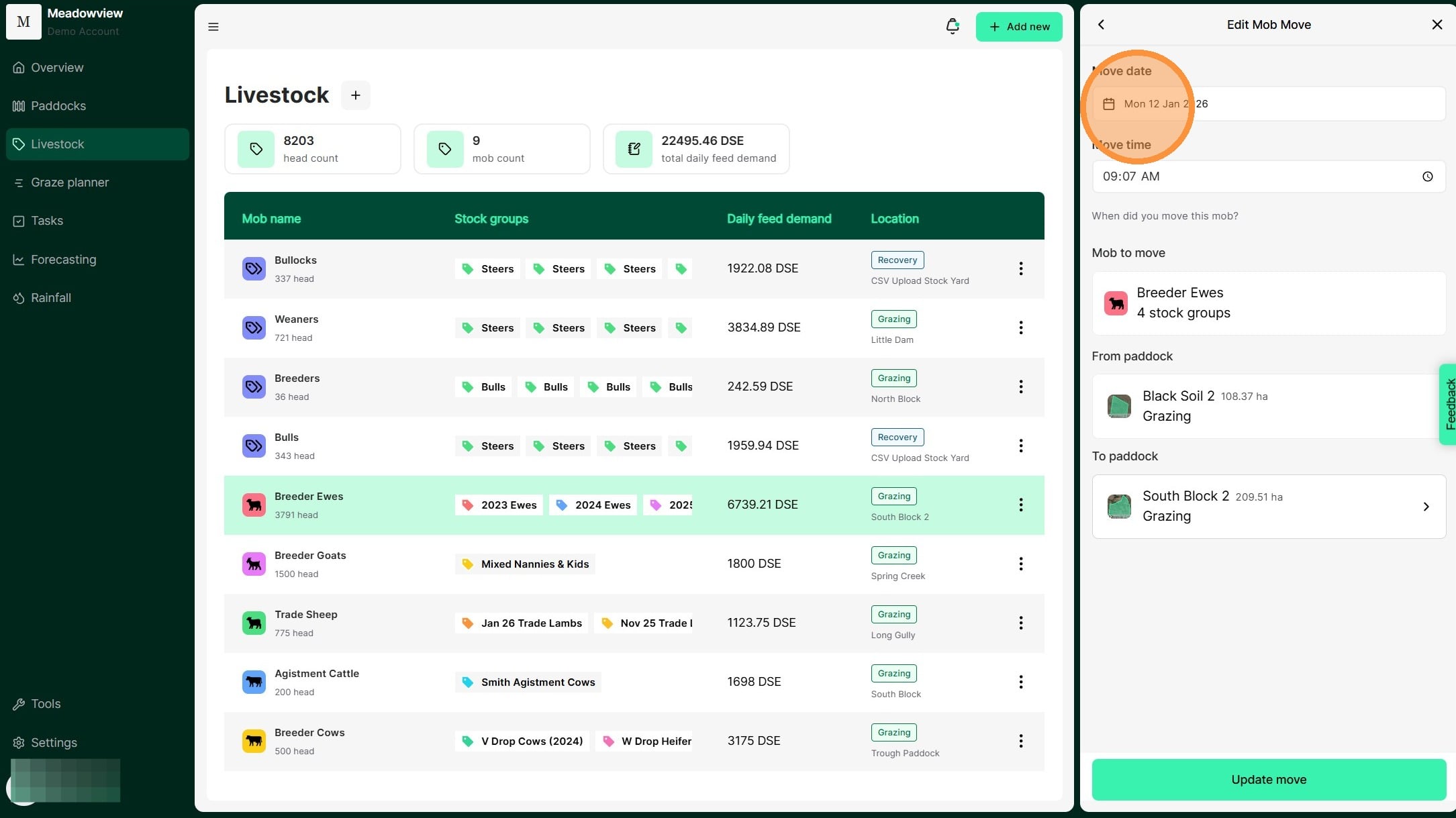
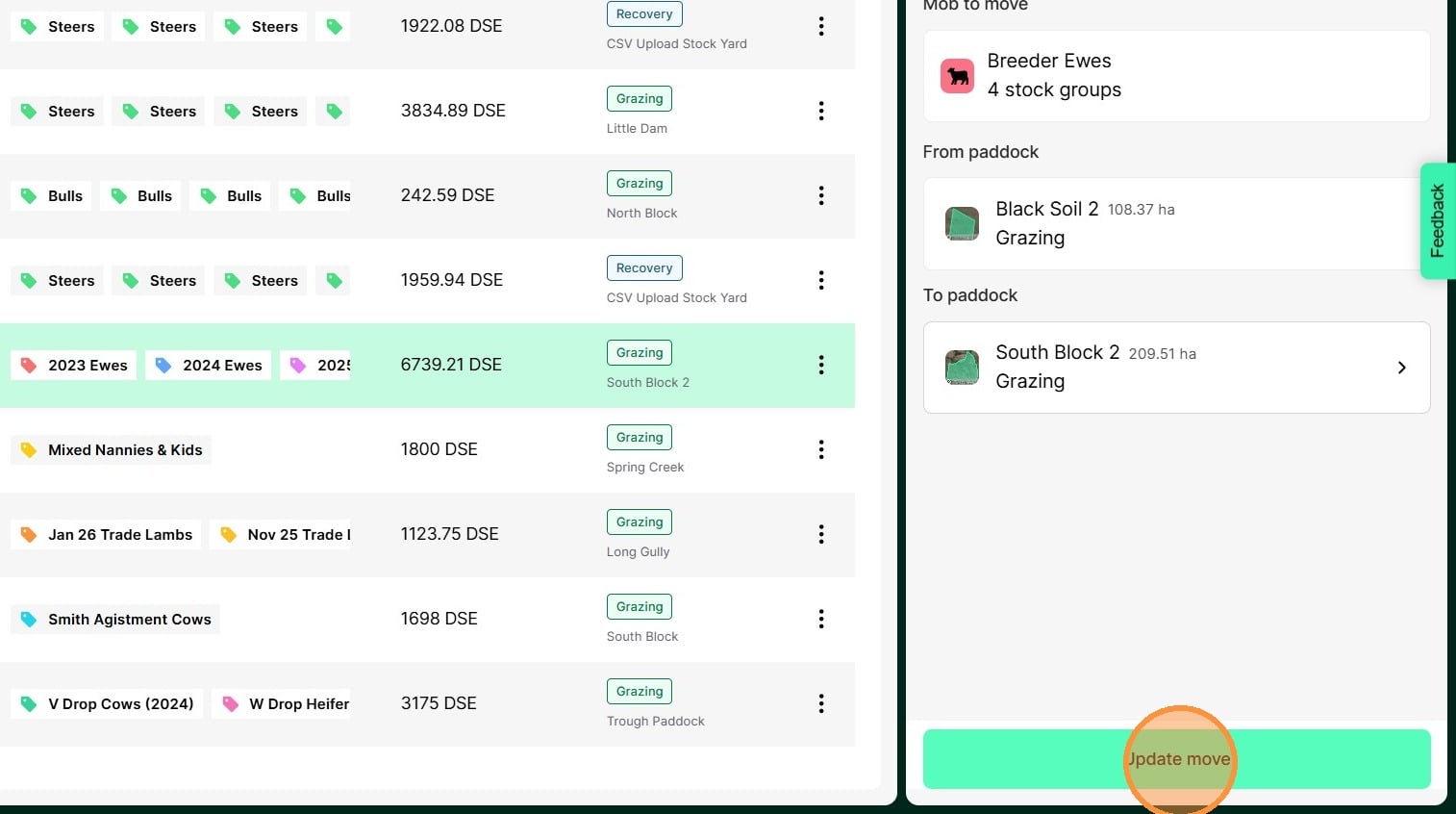
12. Review the updated move details and select "Update Move" to complete.
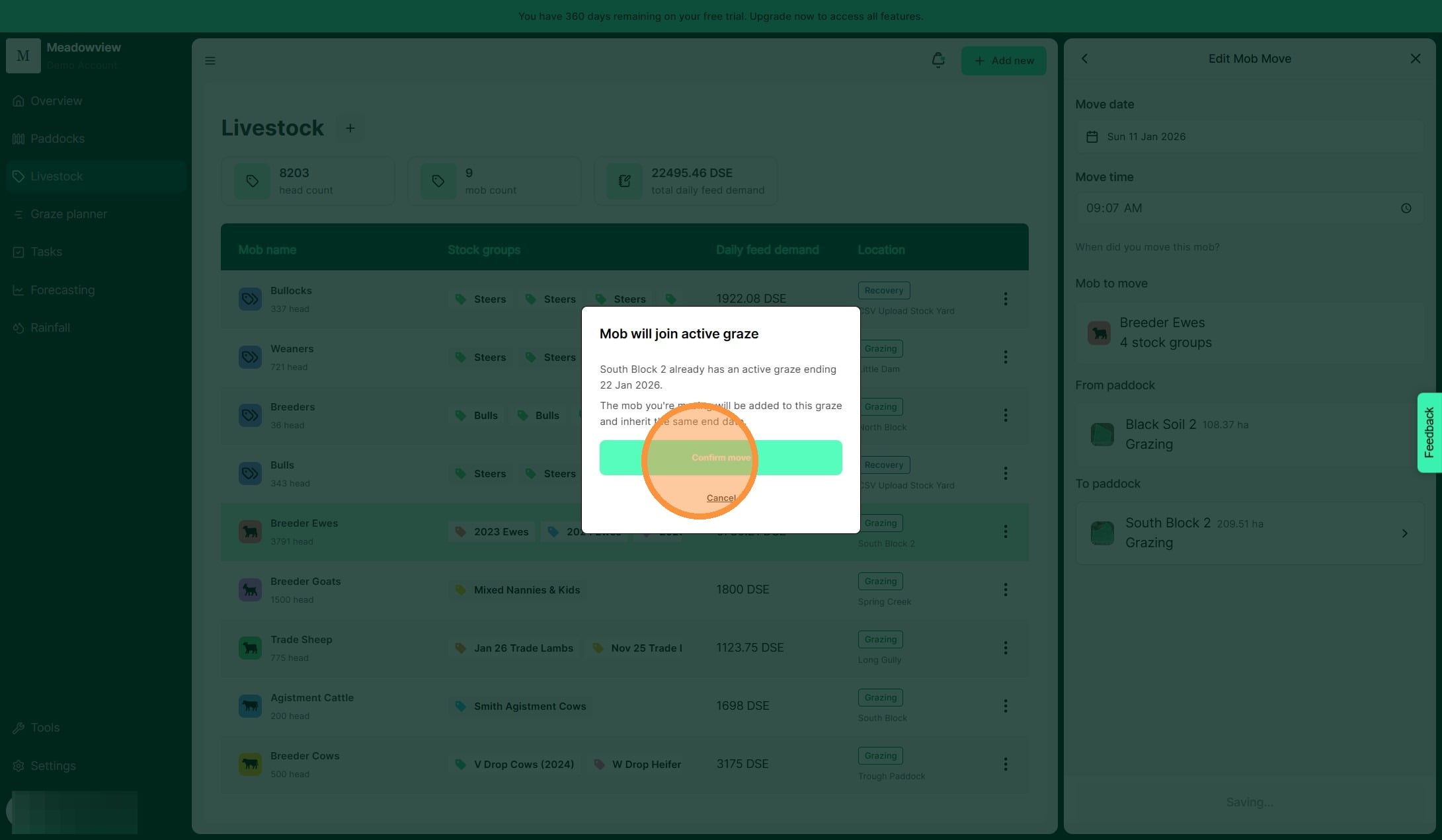
13. You'll see an alert that this move conflicts with another planned graze. Click 'Confirm move' to proceed.
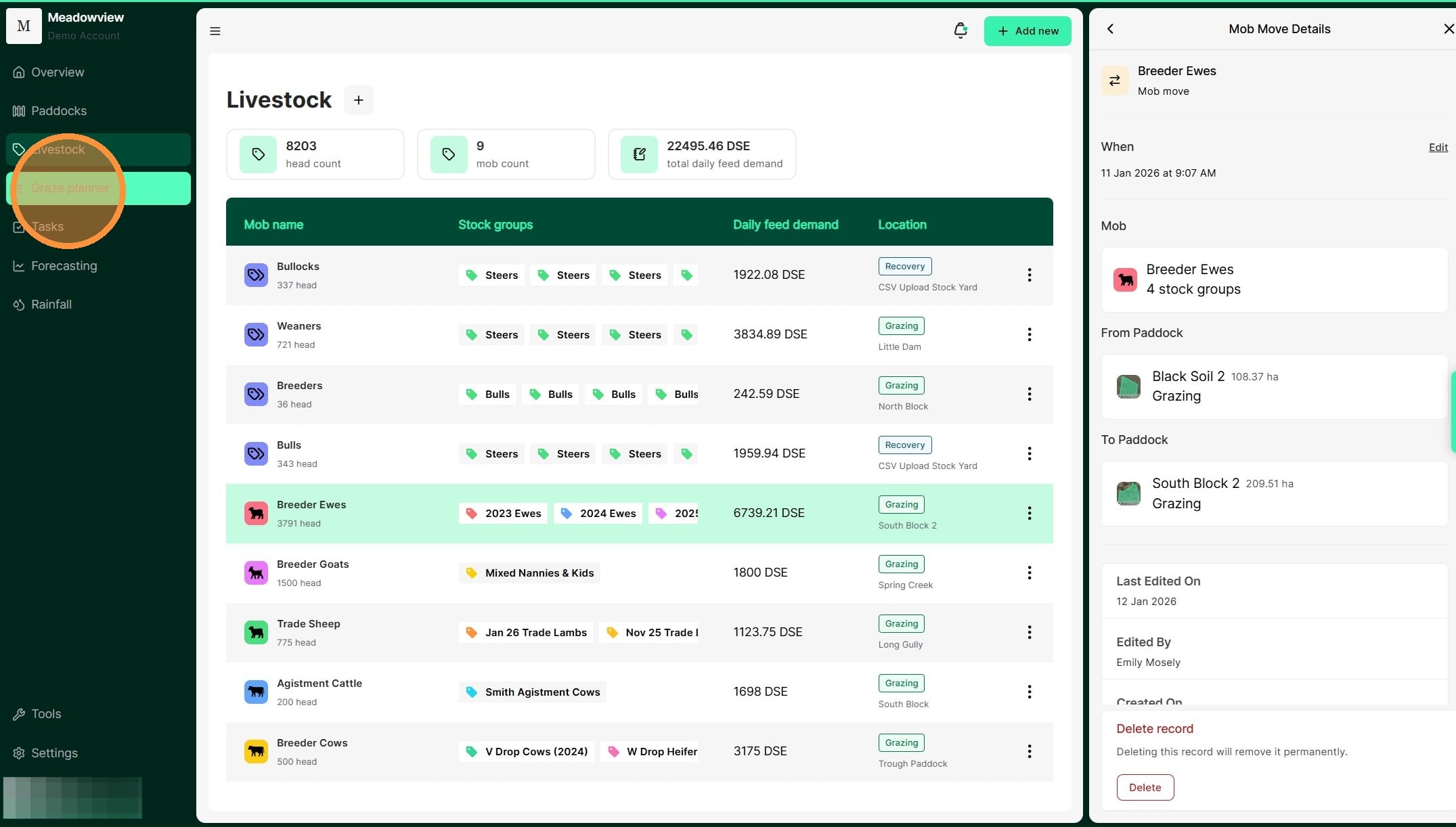
14. To view the updated graze, select "Graze planner".
15. Click on the relevant Graze Bar.
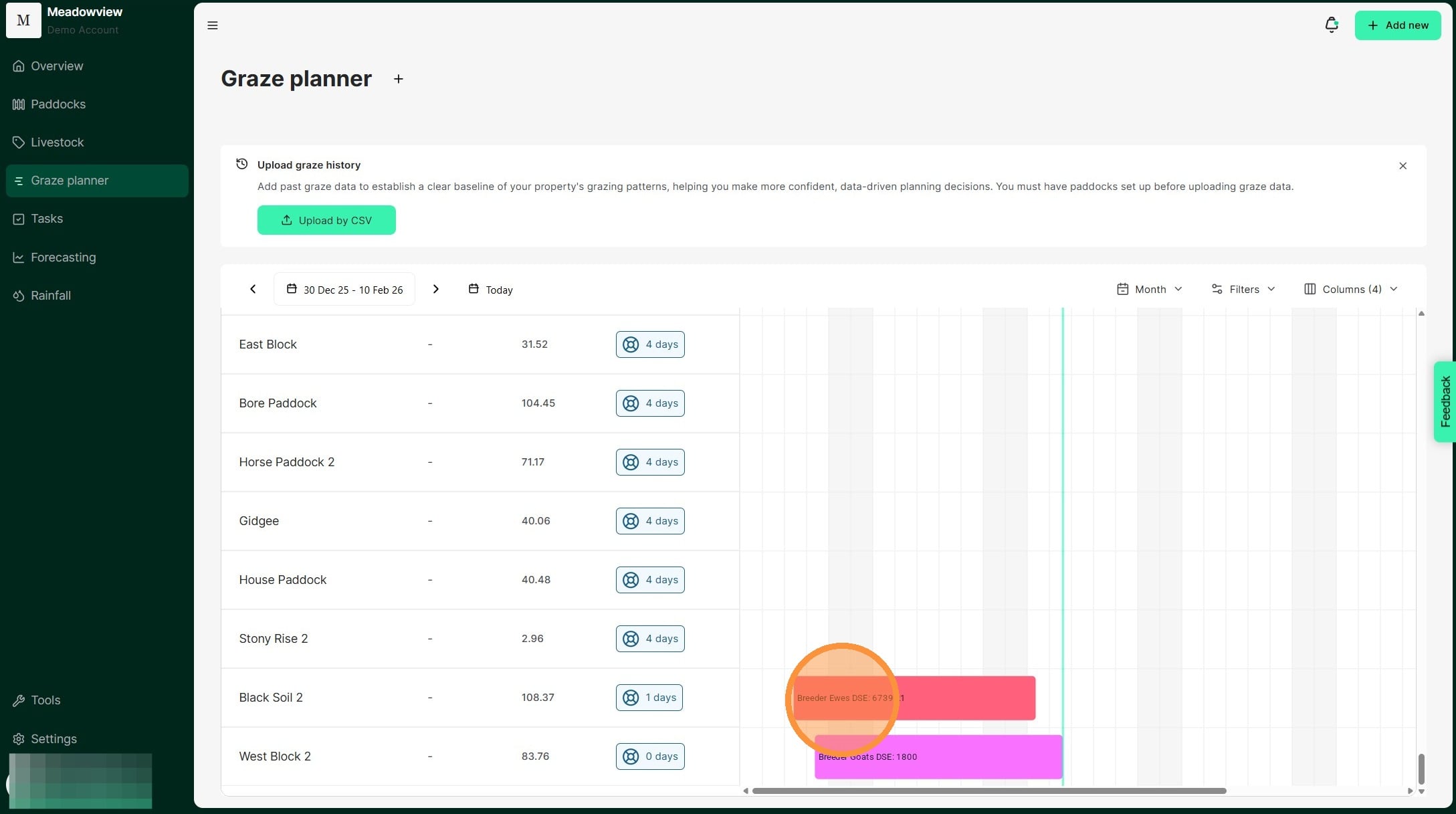
16. The graze is now 1 day shorter based on your updated dates. As shown below.