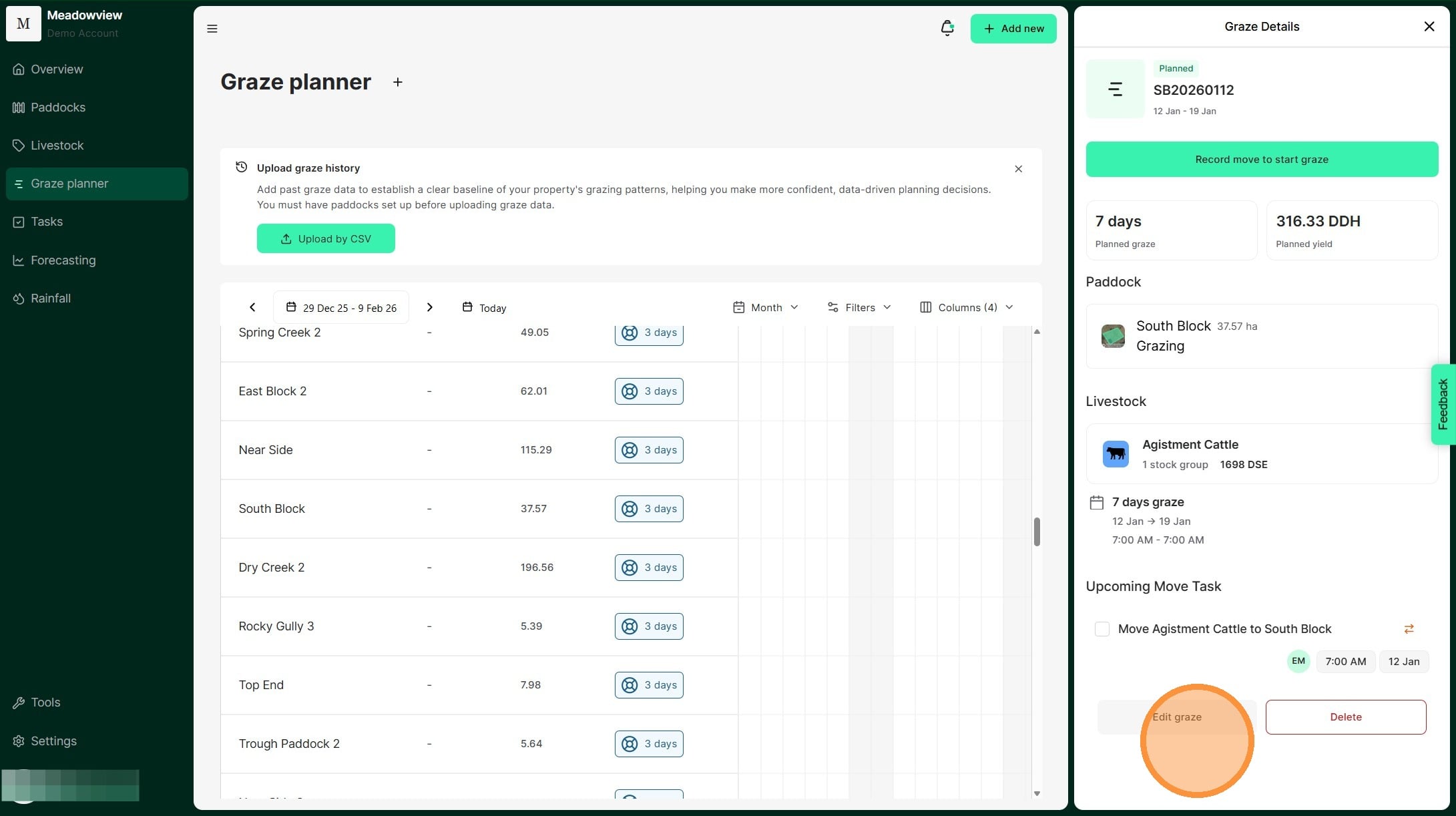
Tip: Planning upcoming mob moves helps you confidently match feed availability with livestock demand. By planning mob moves in advance, you can also anticipate and organise operational needs. Scheduled mob moves recorded in Atlas Grazing, show the paddock, dates, and expected graze duration for each mob.
The Graze Planner tool in Atlas Grazing makes it easy to create, track, and adjust upcoming mob moves. We assist you in determining how long livestock should graze a paddock when using feed estimates and estimated yields. Atlas Grazing will also automatically generate tasks for each move, ensuring nothing is missed.
1. From the Home Dashboard select "Graze planner"
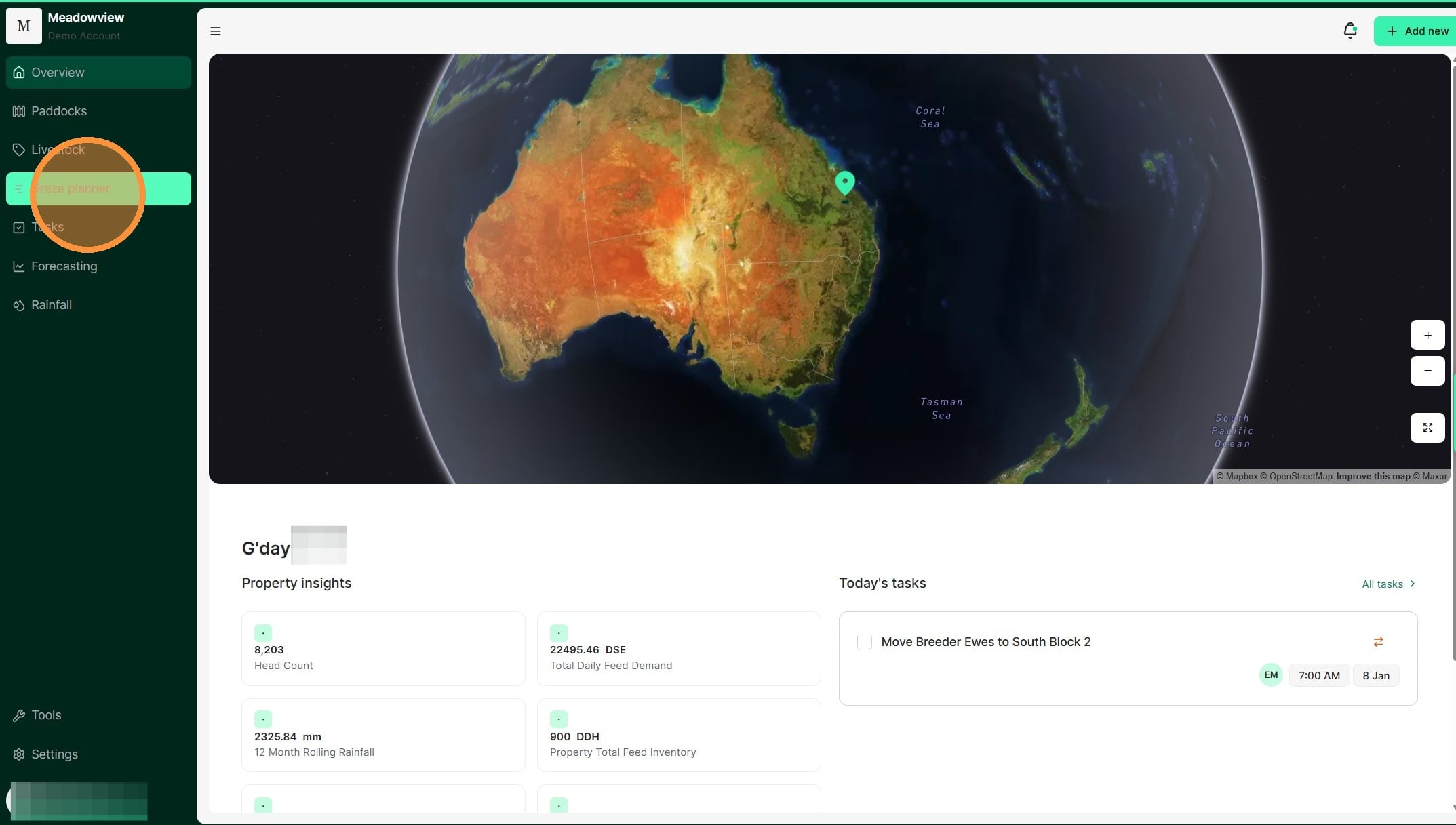
2. Select the paddock in which you want to create a new upcoming mob move.
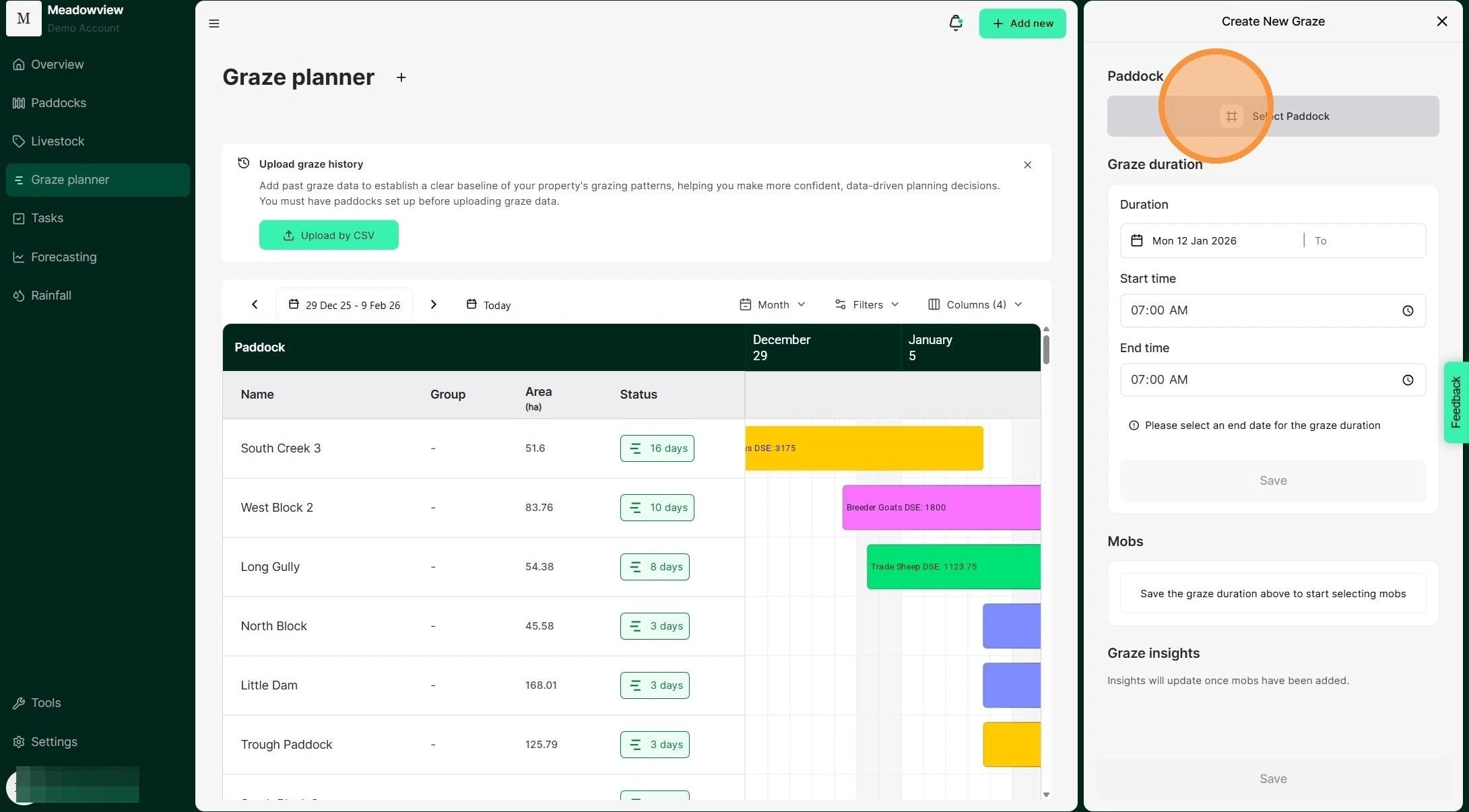
3. The the relevant paddock row, click on the date you want to create a new planned graze from. The days and dates will show as you hover over the blocks.
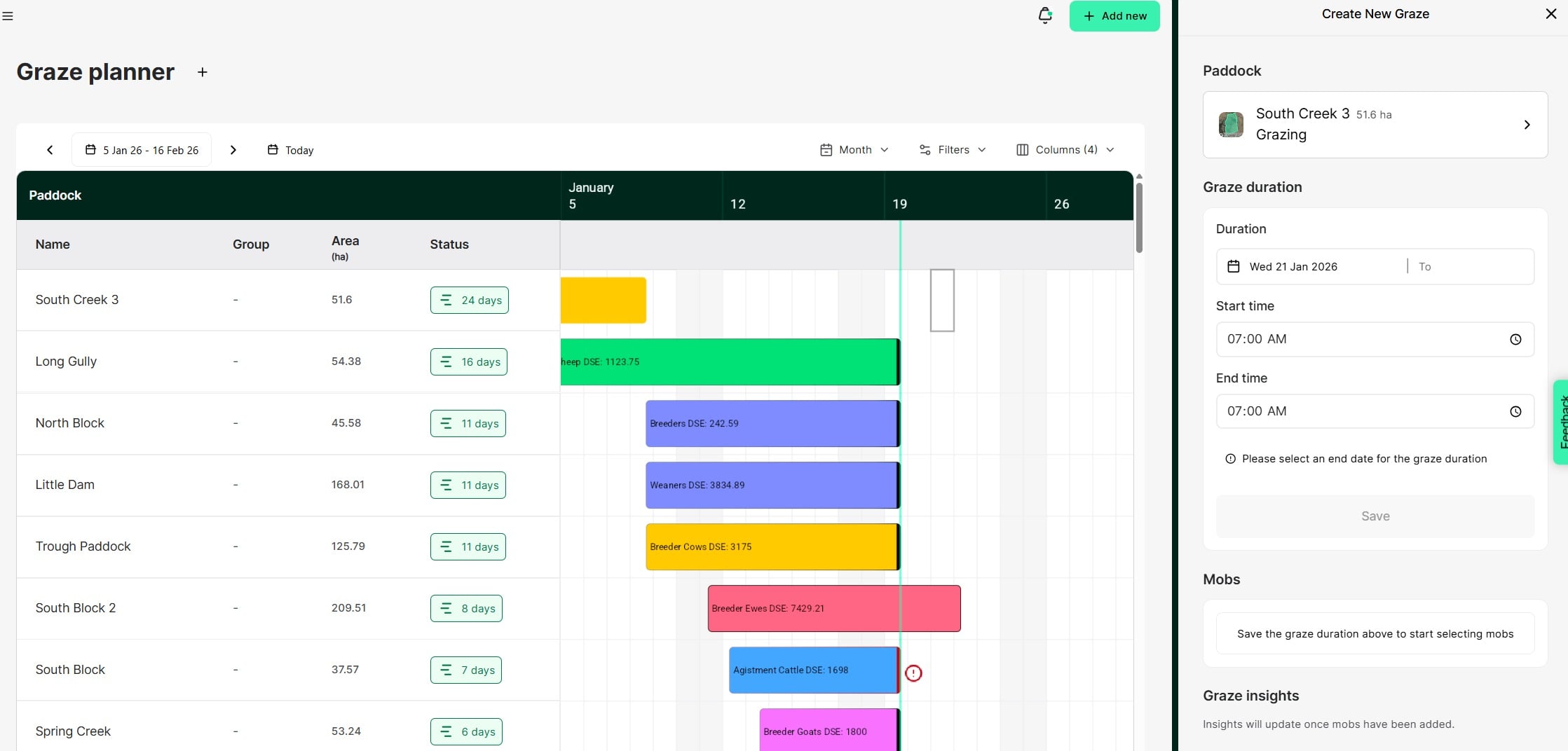
4. Search for or select the relevant paddock from the paddock list.
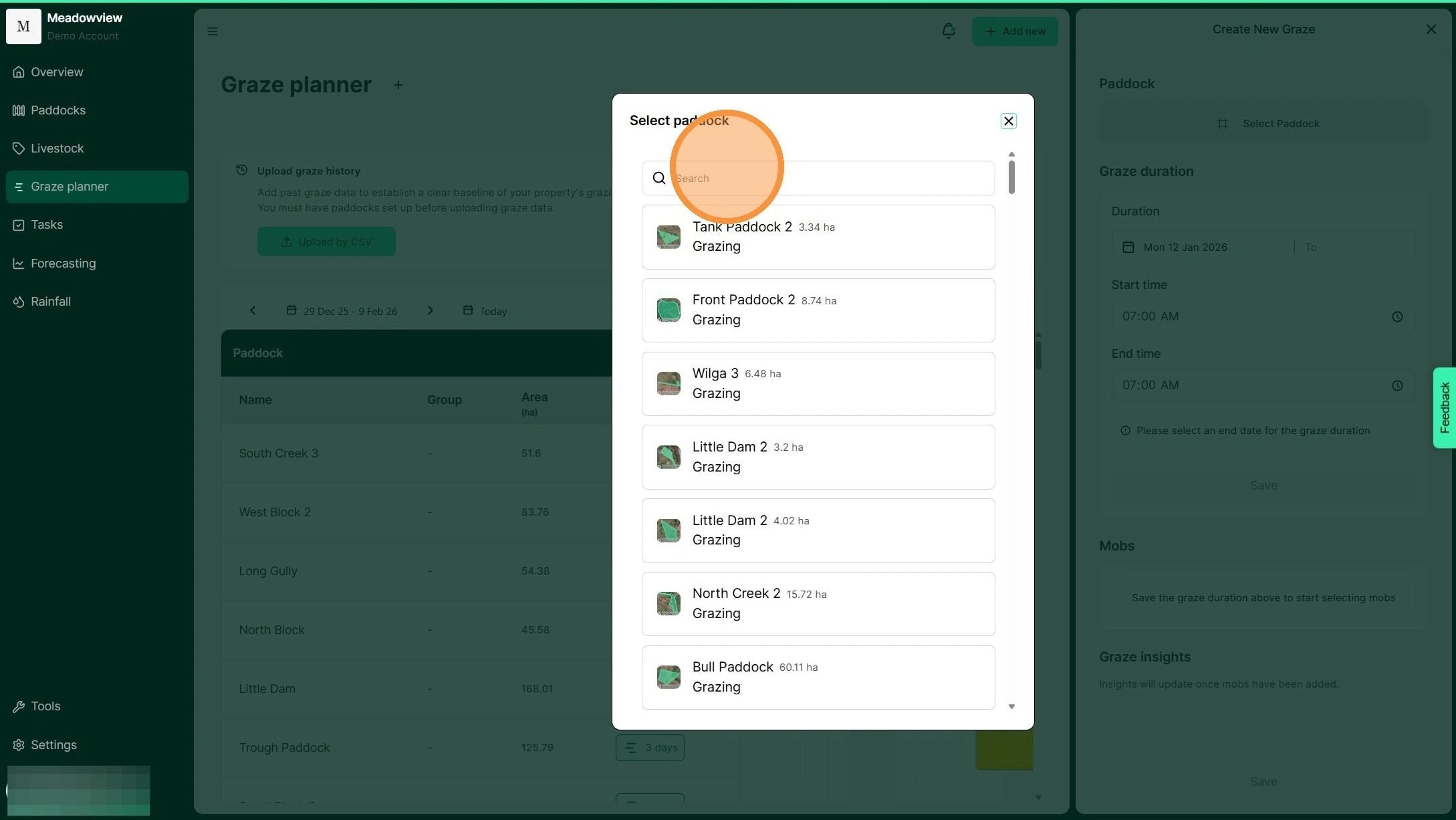
5. Enter the desired start and end dates of the upcoming mob move.
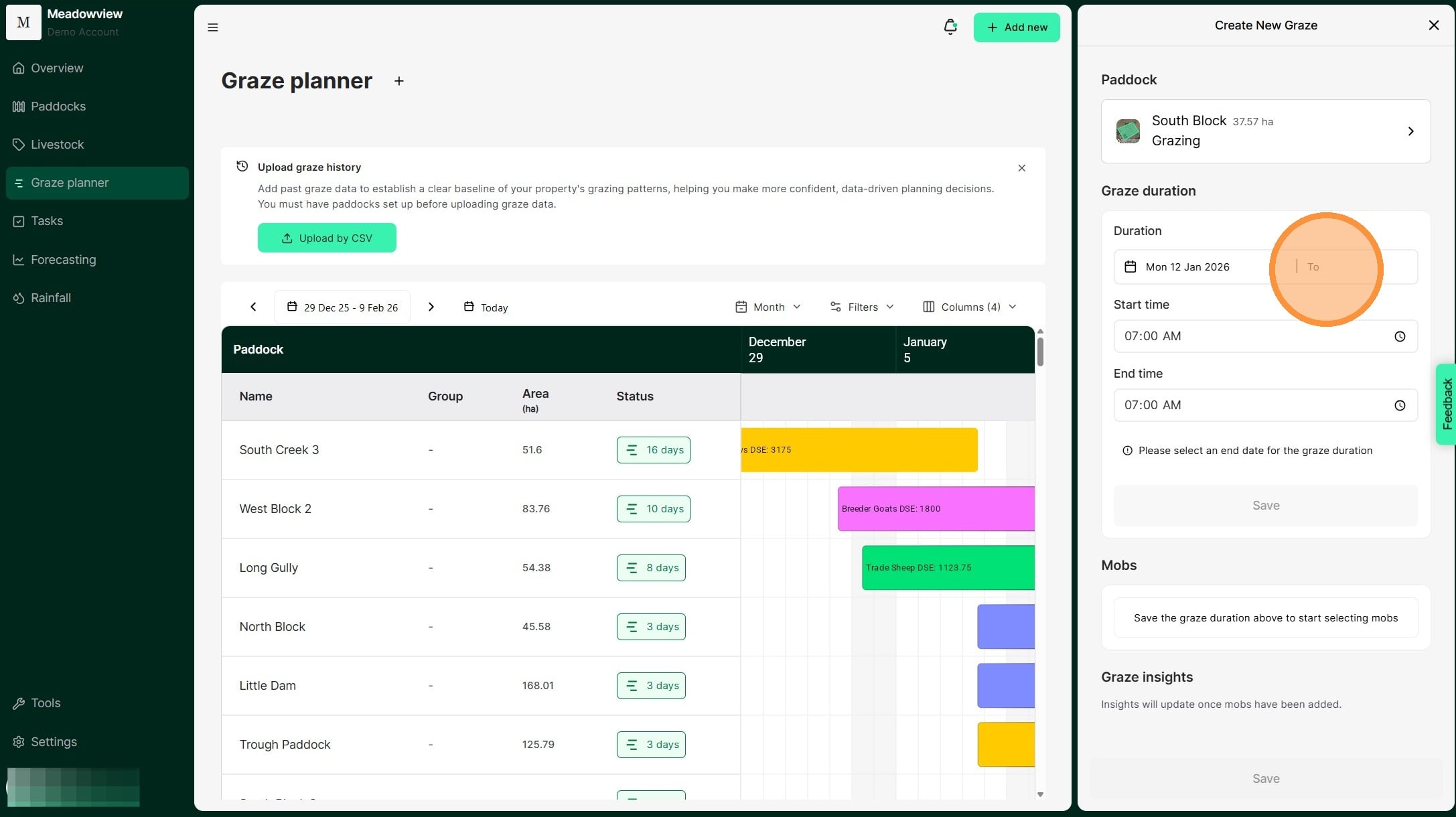
6. Update the start and end time of the upcoming mob move. Then select "Save"
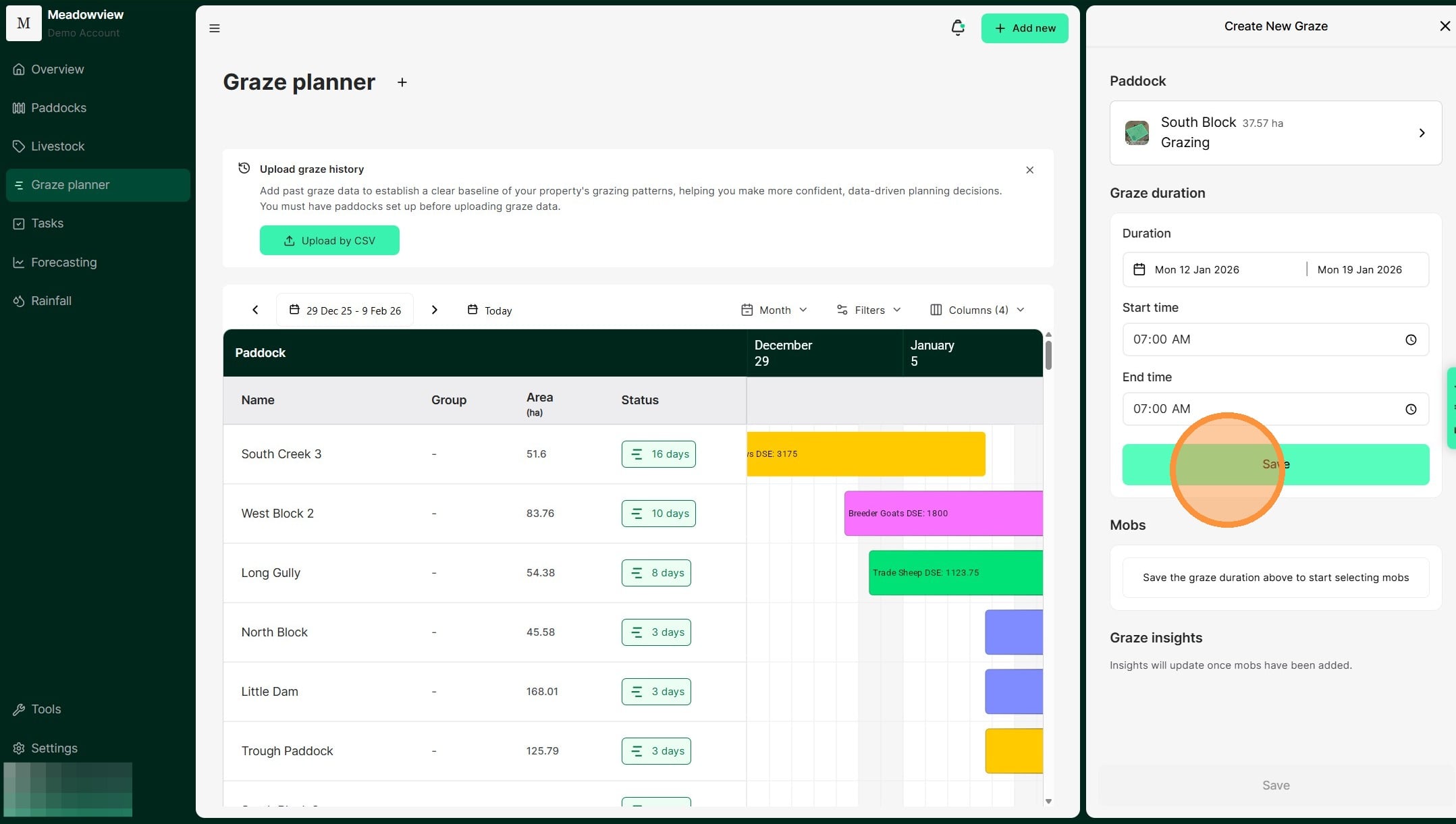
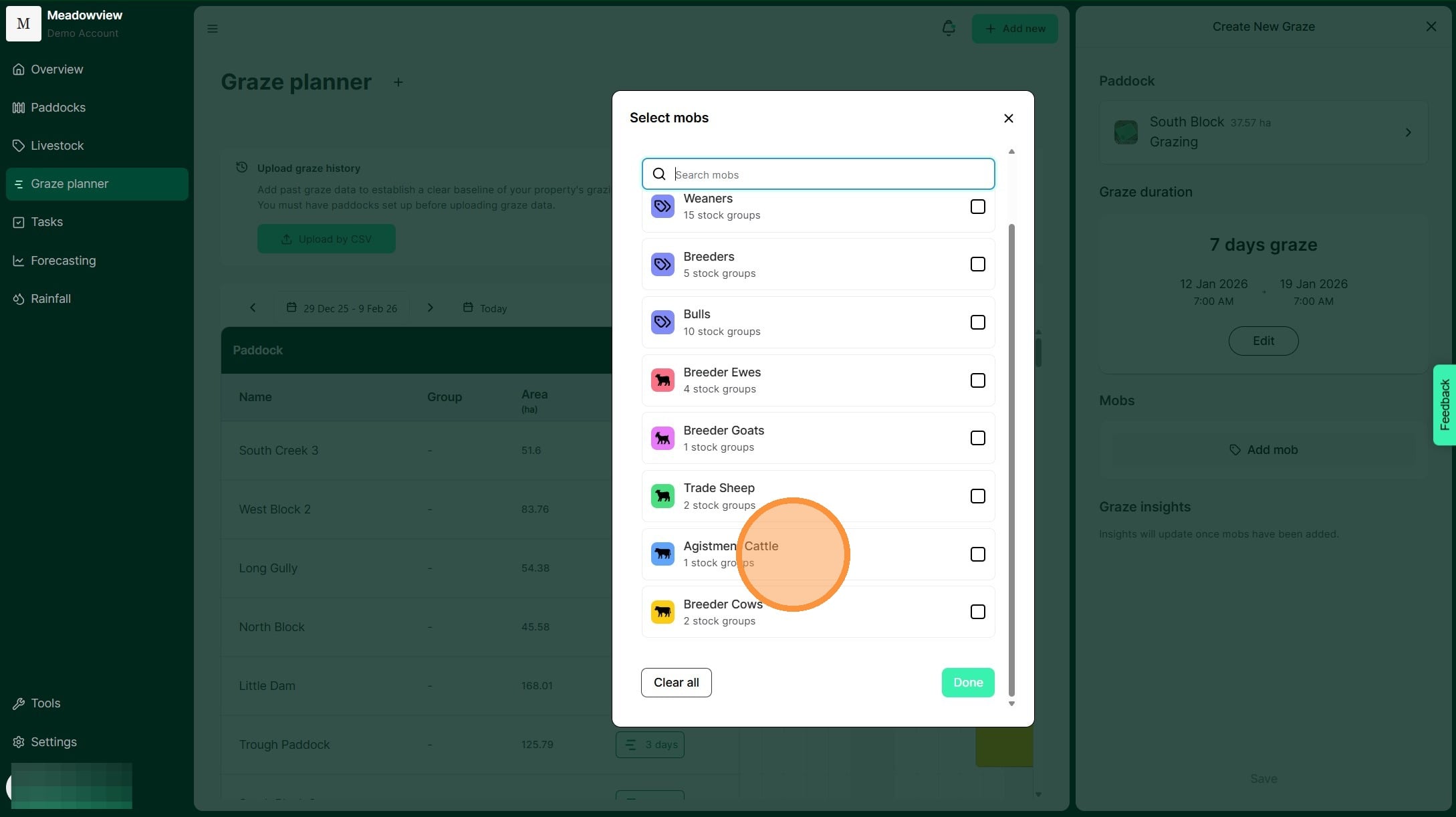
7. Select "Add mob"
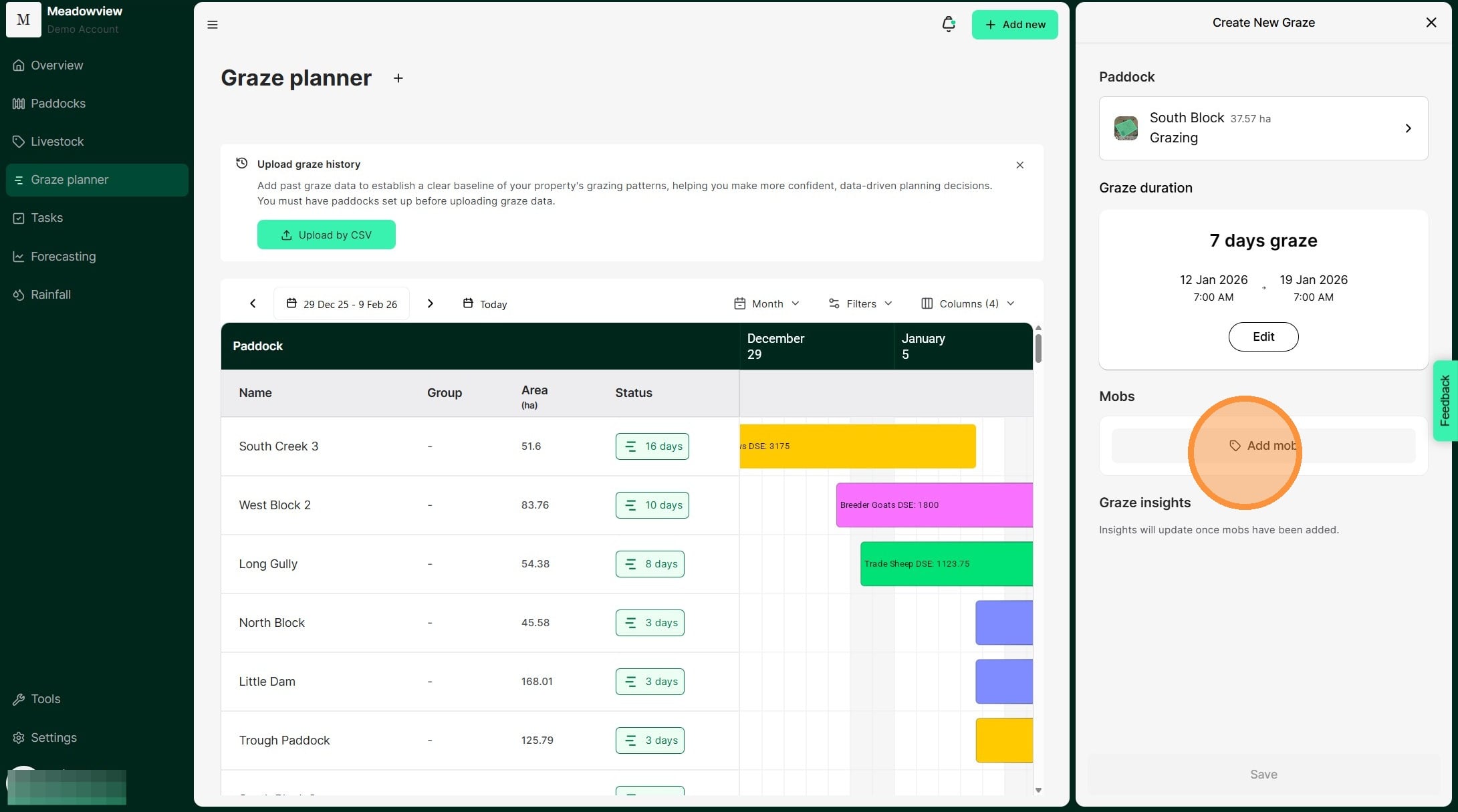
8. Select the relevant mob from the mob list. Then select "Done"
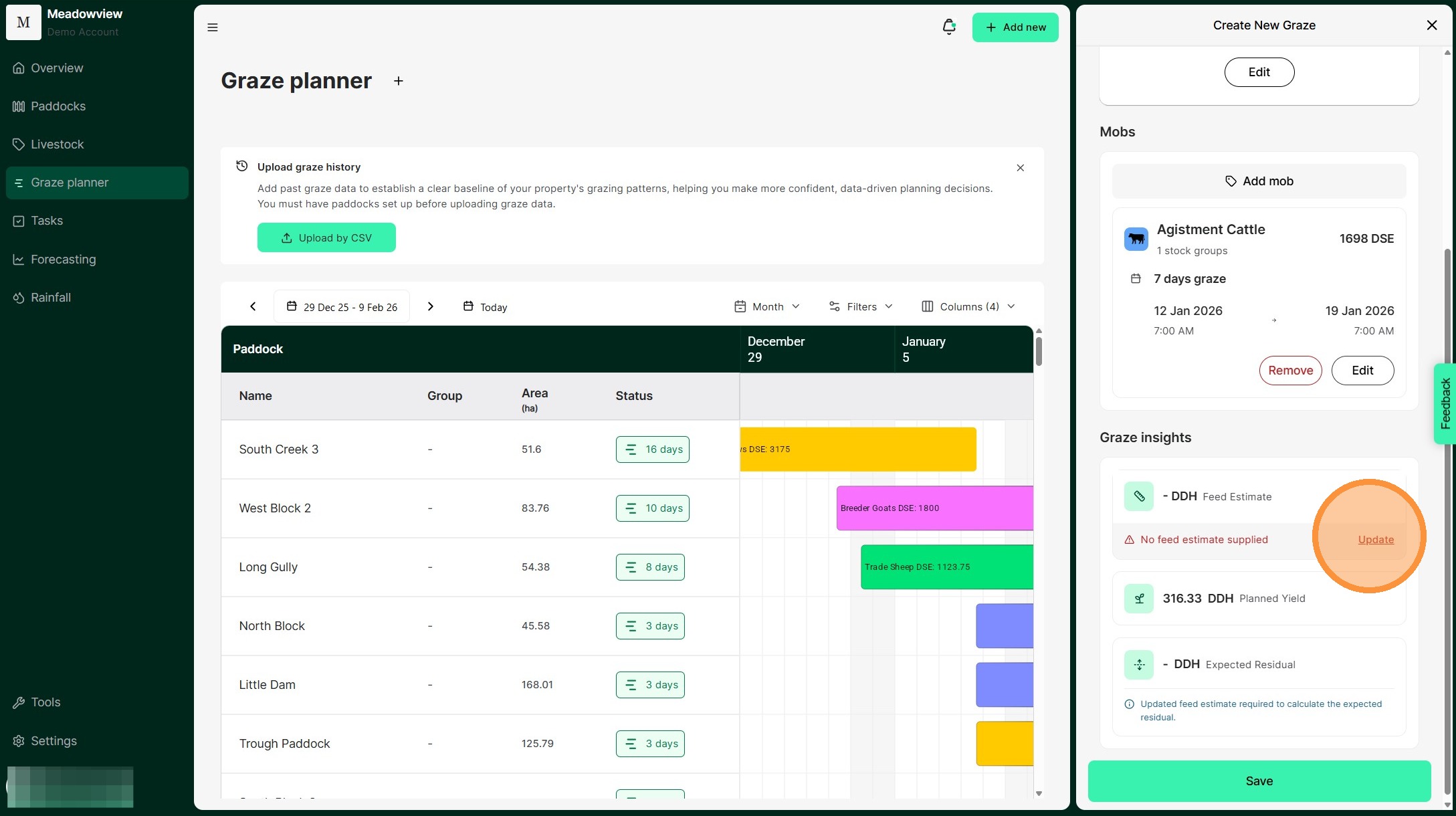
9. Optional:You can add a feed estimate to the paddock to help you refine the graze duration. If there is no recent feed estimate for the paddock available and you would like to add one, select update.
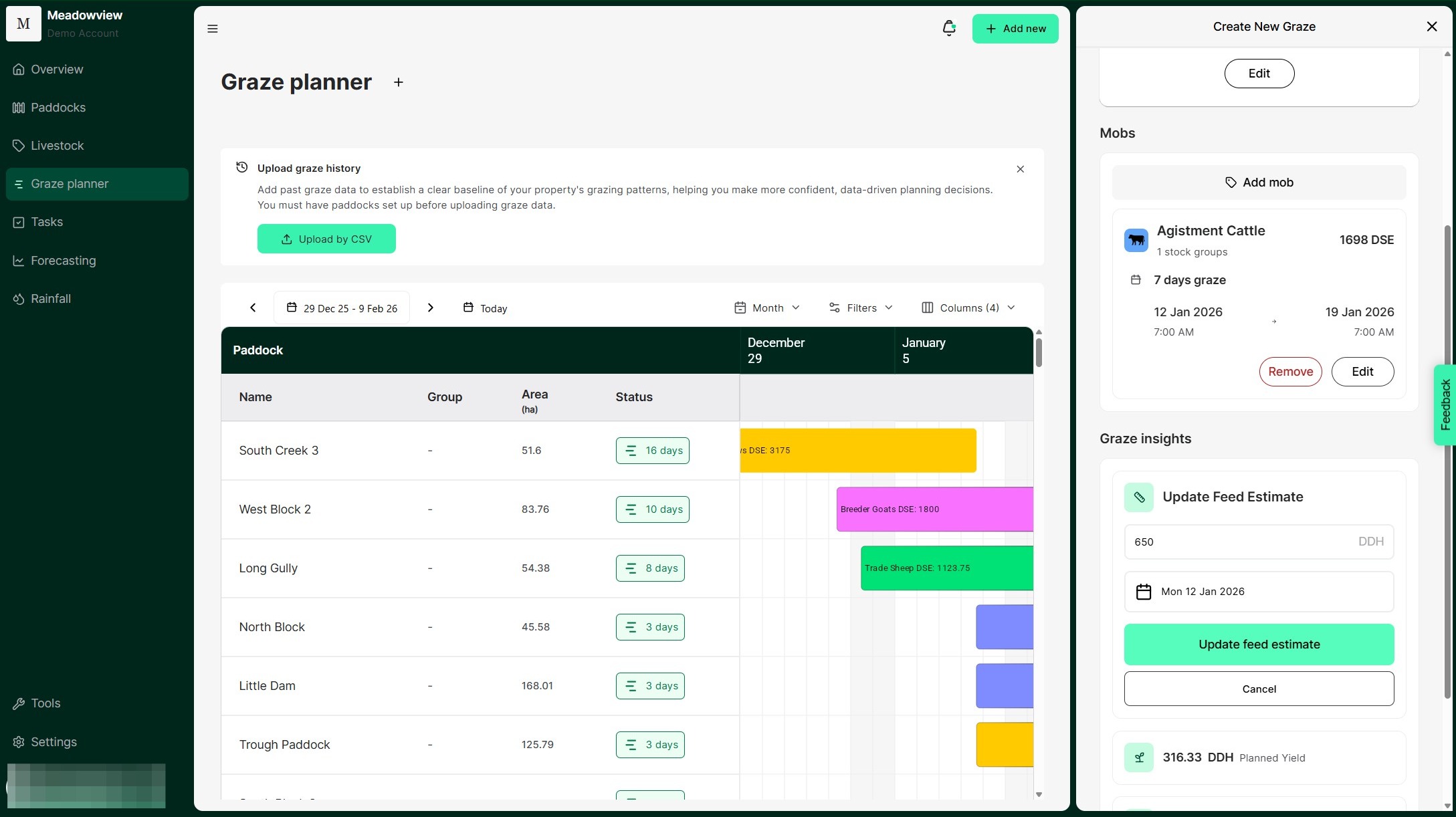
10. Enter your feed estimation for the paddock.
TIP: You can use our feed estimation calculator to update your paddock feed inventory. Follow the guides supplied.
11. Select "Update feed estimate"
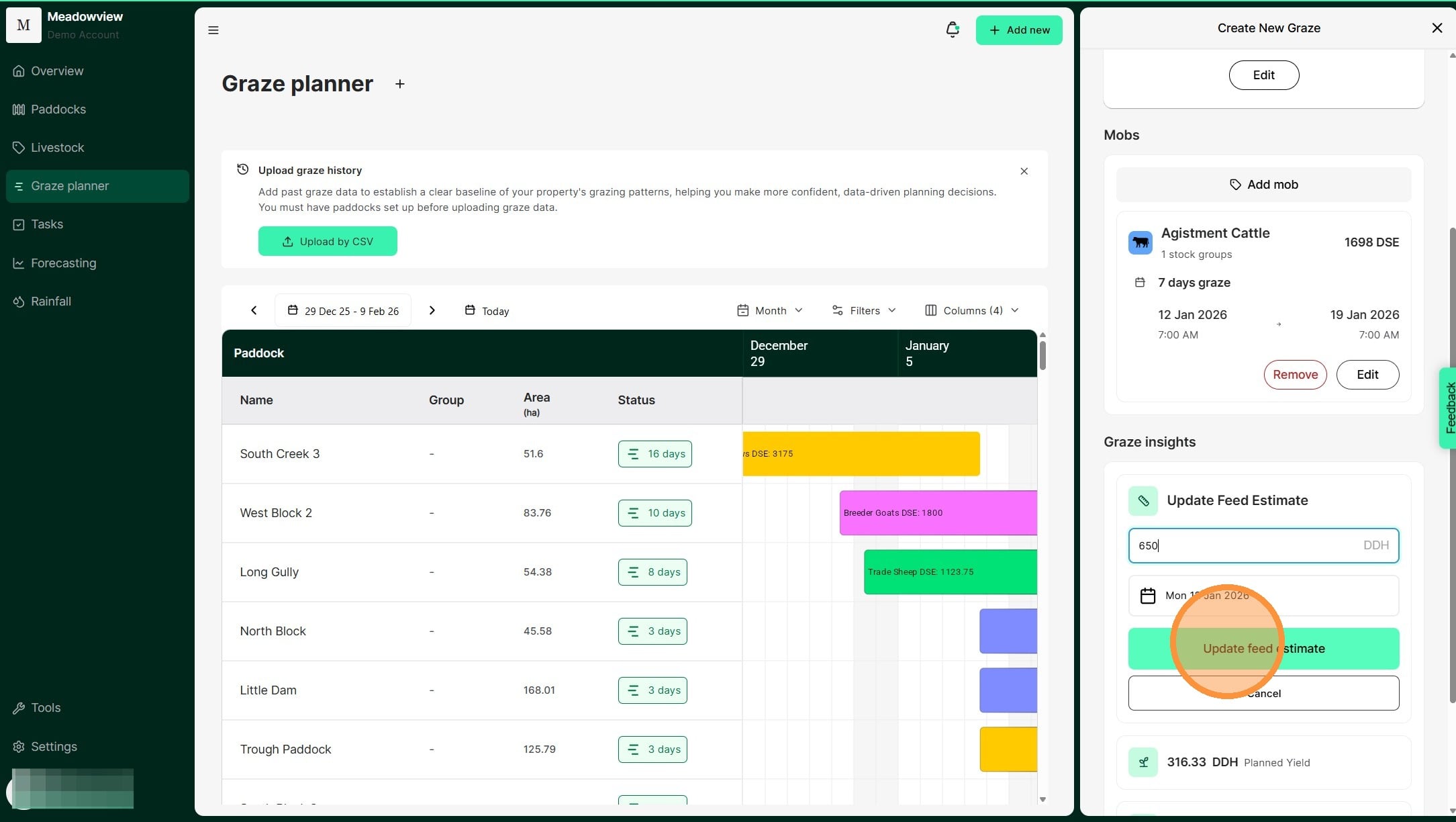
Tip: Atlas Grazing will calculate the planned yield and expected residual so you can confidently plan how long stock can graze a paddock.
12. Review the upcoming mob move before selecting "Save"
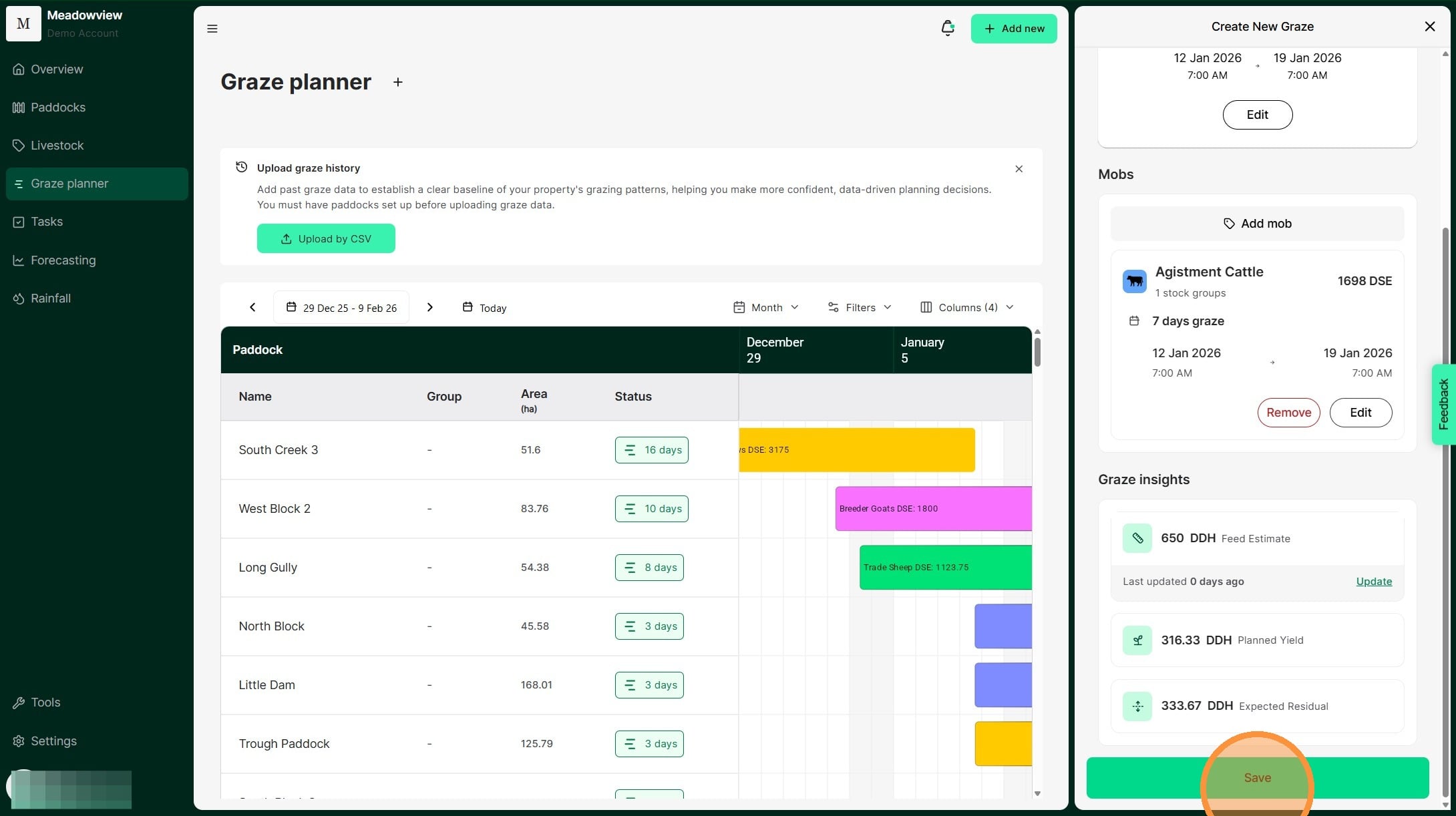
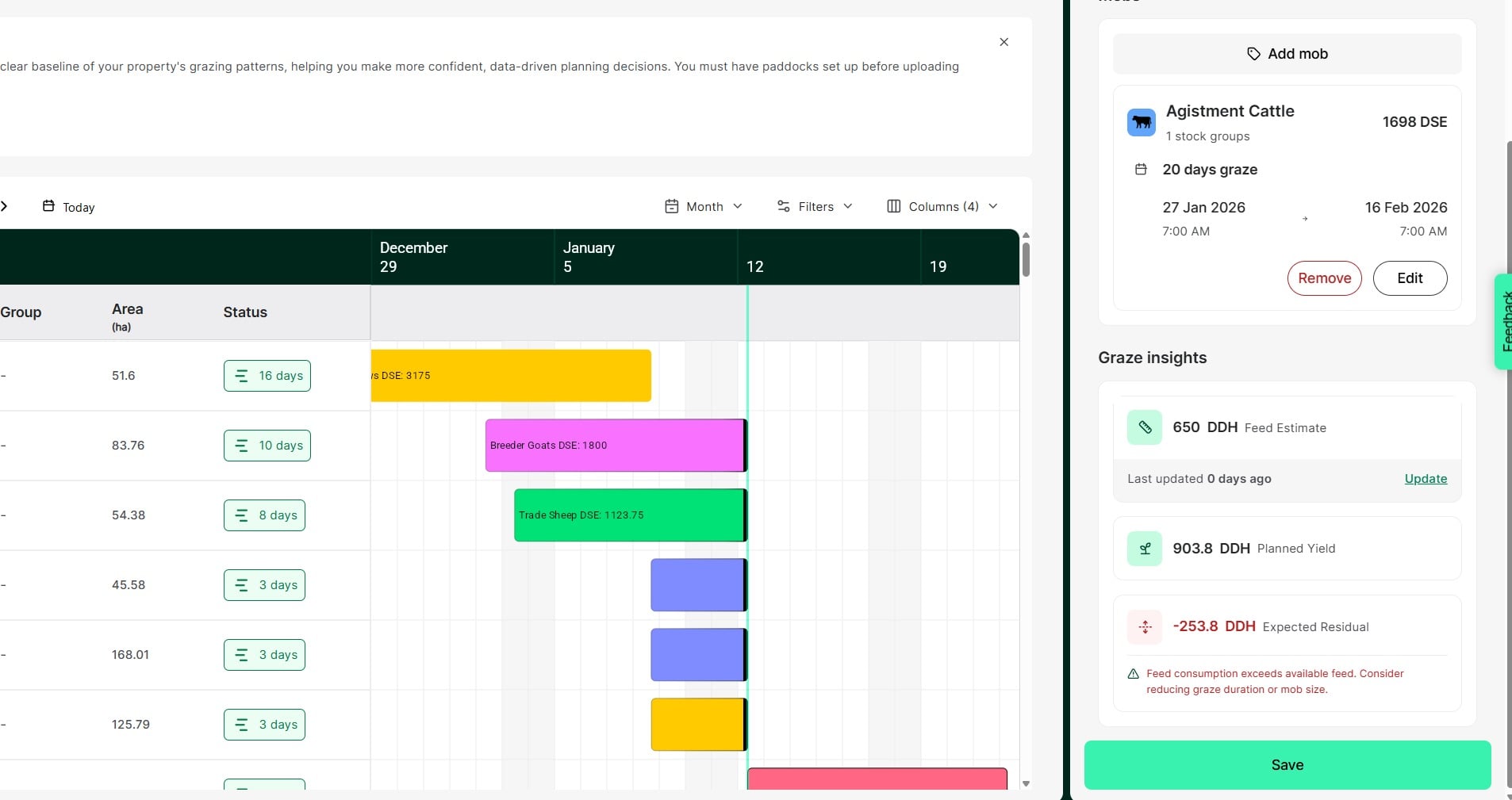
13. Atlas Grazing will show the calculated residual yield in red (as below), if the upcoming mob move demand is greater than the available feed, or orange if the expected residual is getting too low. This ensures that you avoid an undersupply of feed in your planned grazes.
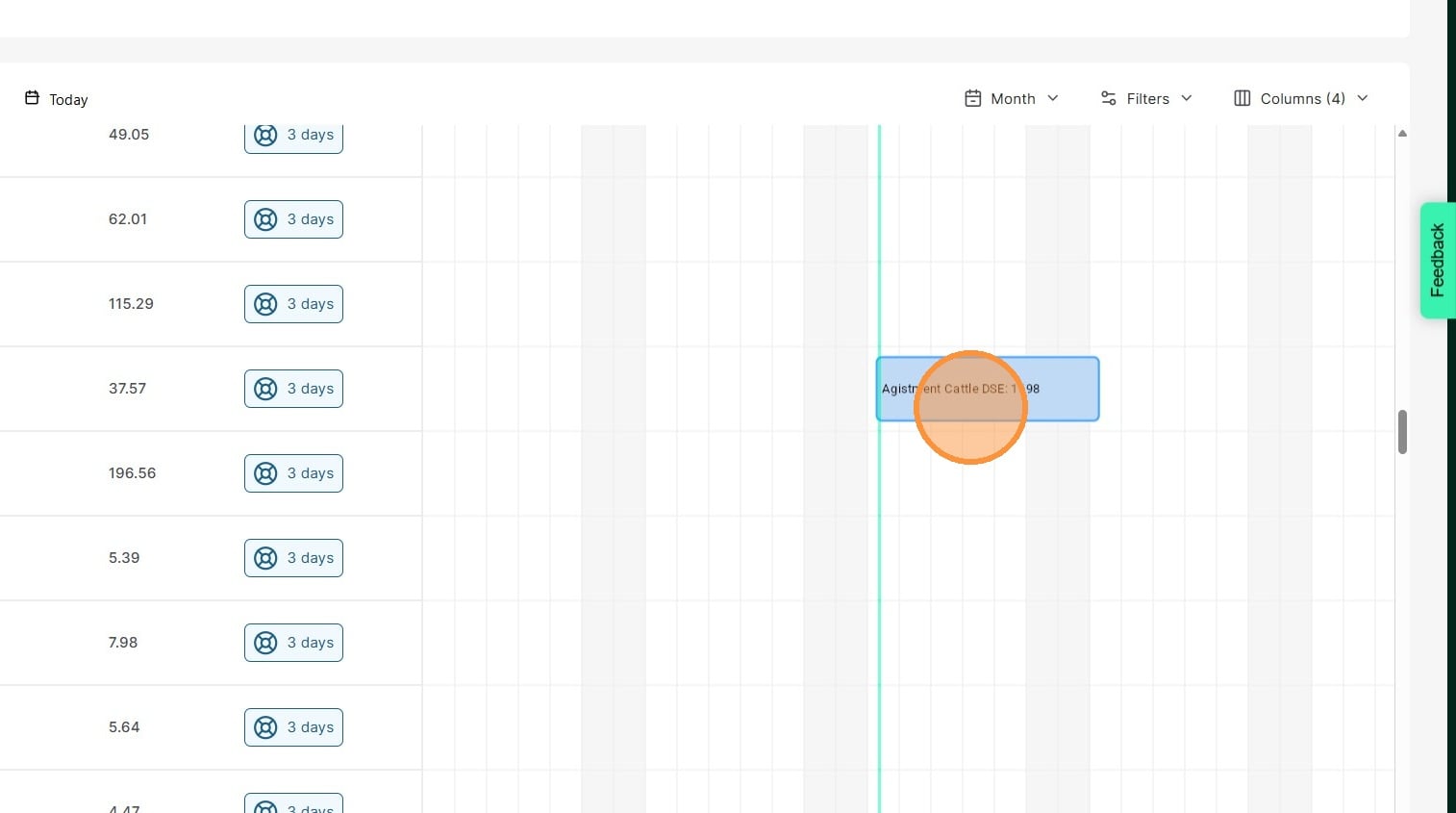
14. Scroll down the graze planner until you reach the paddock in which you have a future graze. The upcoming move with appear with the mob and total animal unit rating. Click on the upcoming move to view the details the planned graze.
15. From this view, you can record the move to start the graze and view the graze details.
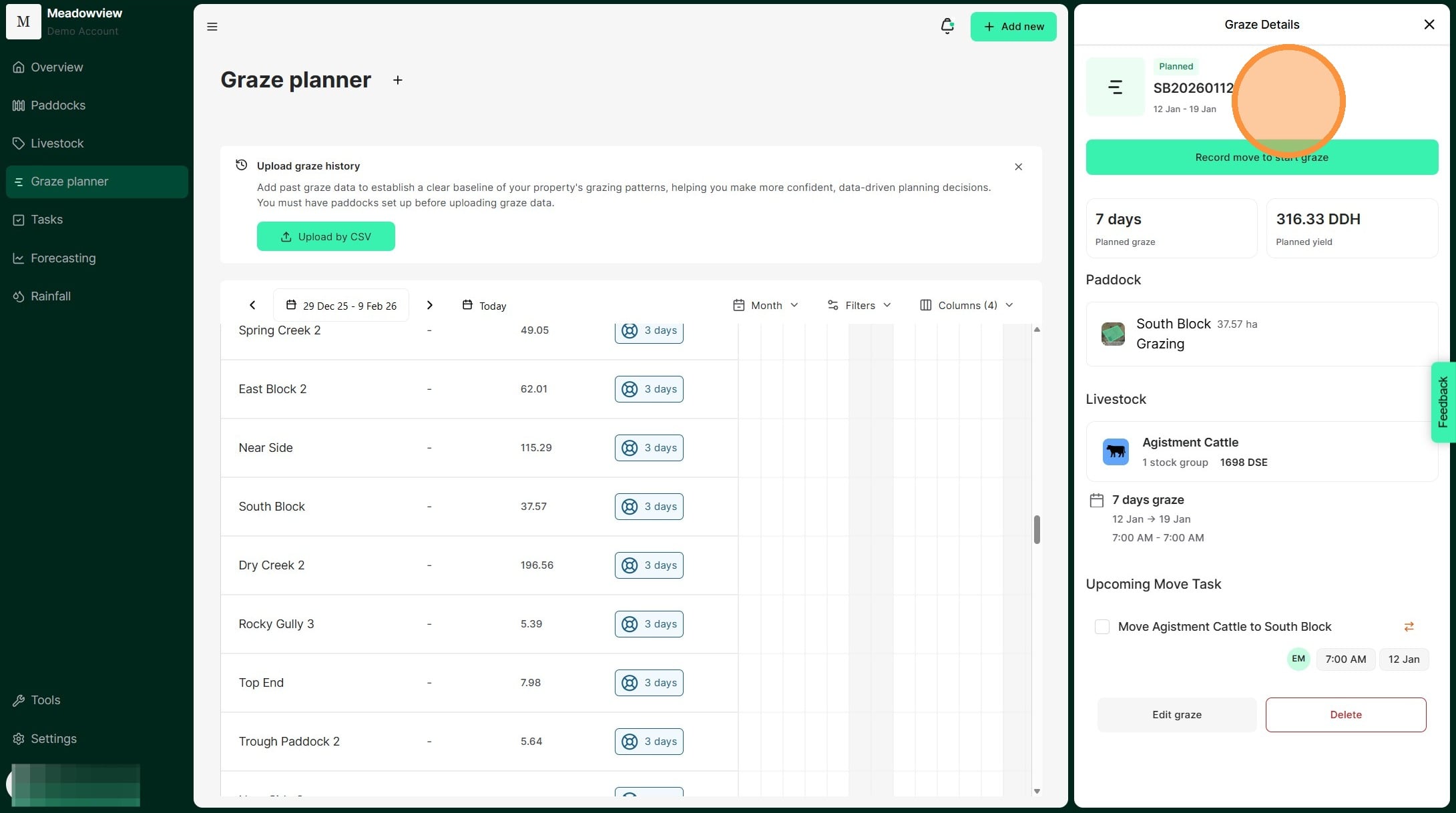
16. Navigate to the bottom on the Graze Details page to edit the graze.